Forms
Last updated: August 7, 2026
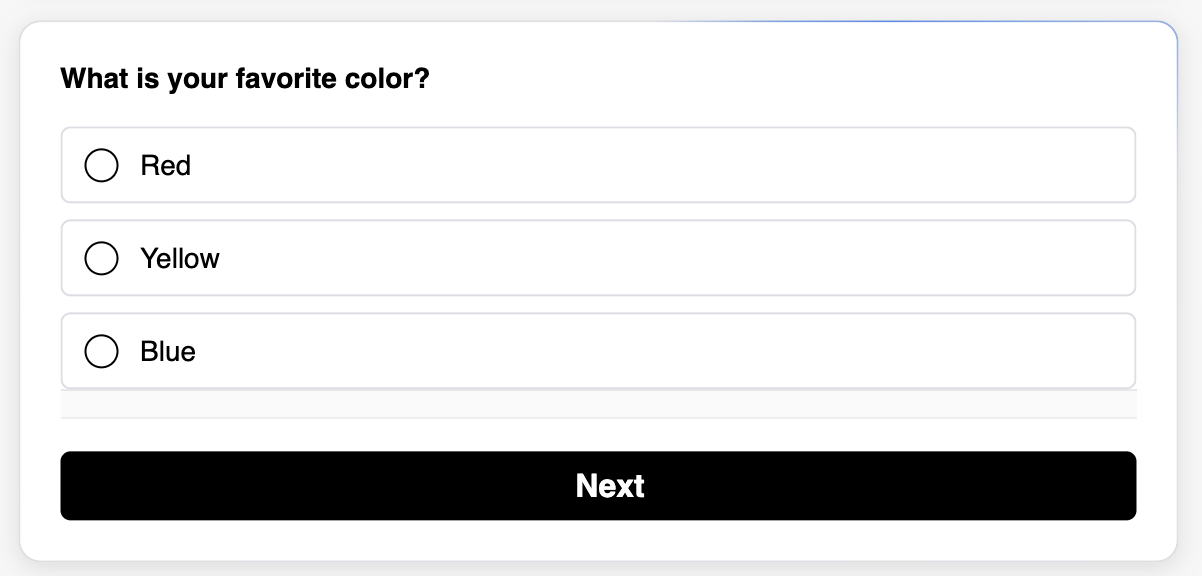
The forms block lets you capture customer data directly within email, eliminating the need for third-party web-based form solutions.
Captured data is automatically added to each customer’s Klaviyo profile as attributes, enabling more granular segmentation and more targeted messaging.
Build Process
The process for building an email with forms is slightly different than other Zaymo blocks, because the form link needs to be added to the fallback template.
In short, the steps are:
Build and publish the form in Zaymo (Forms > Create new)
Import the Klaviyo template into Zaymo
In Zaymo, open the imported template and drag in the Forms block
In the right sidebar, select the form you want to use
Export the email back to Klaviyo (it will appear in your Klaviyo template library)
Note: You do NOT need to add the form link manually in Klaviyo. The form is automatically included when you export the template back to Klaviyo.
More detailed instructions are available here: 📄 Forms & quizzes: best practices
Supported Question Types
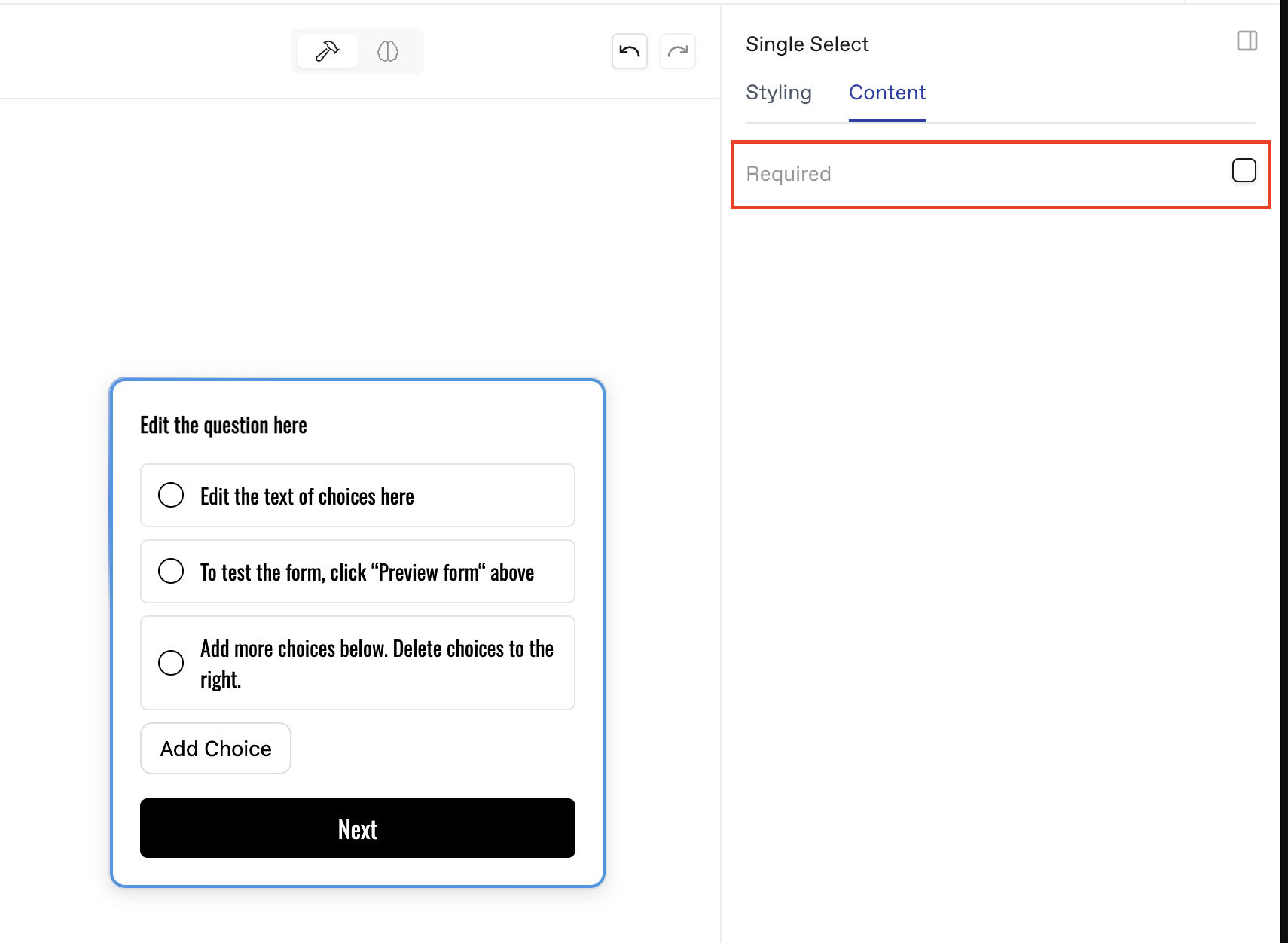
You can make any question a required question by toggling on "required" in the content tab on the right side bar in each question.
The forms block currently supports the following question types:
Single select
Multi-select
5 star rating
Short text
Long text
Phone number
This question type works the same as the SMS capture block, validating the customer's phone number on input
Adding Logic
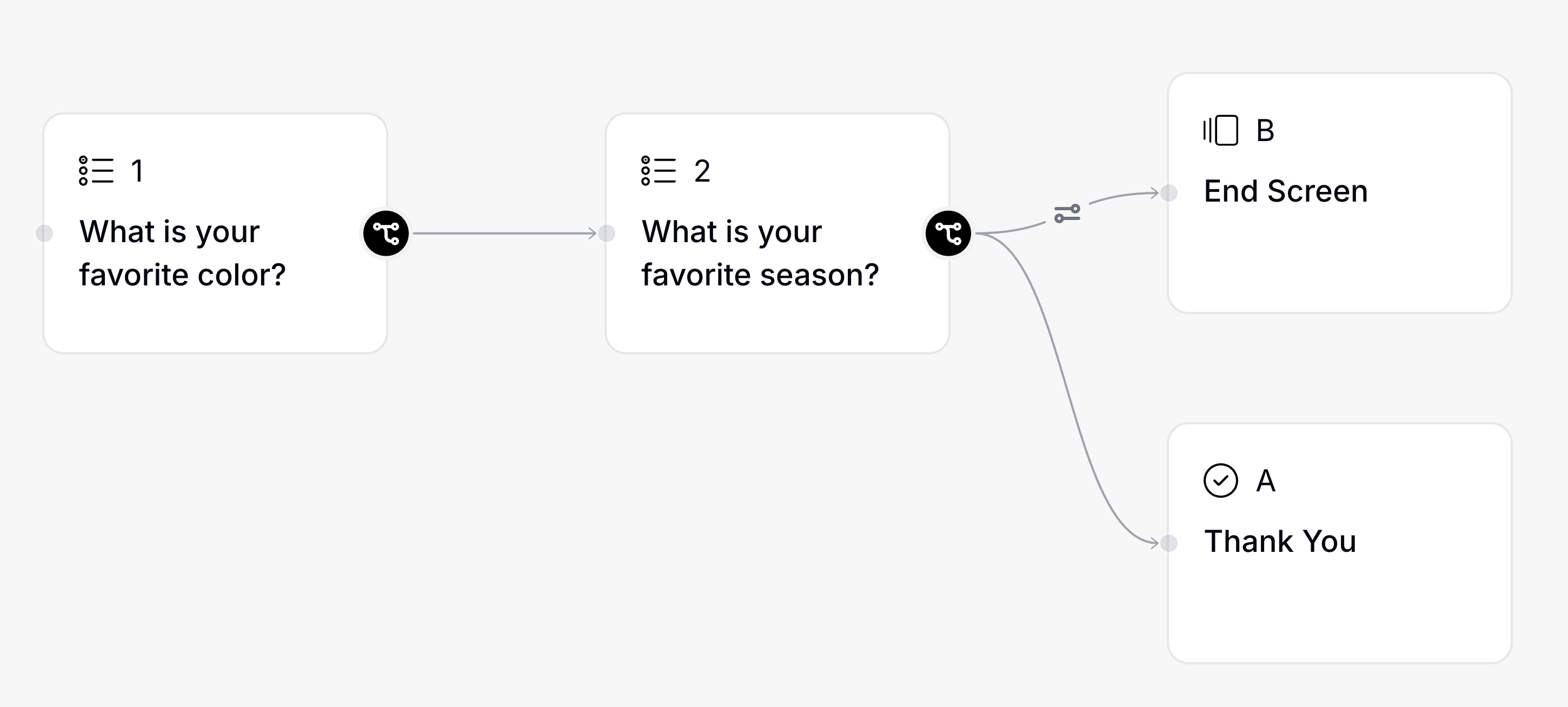
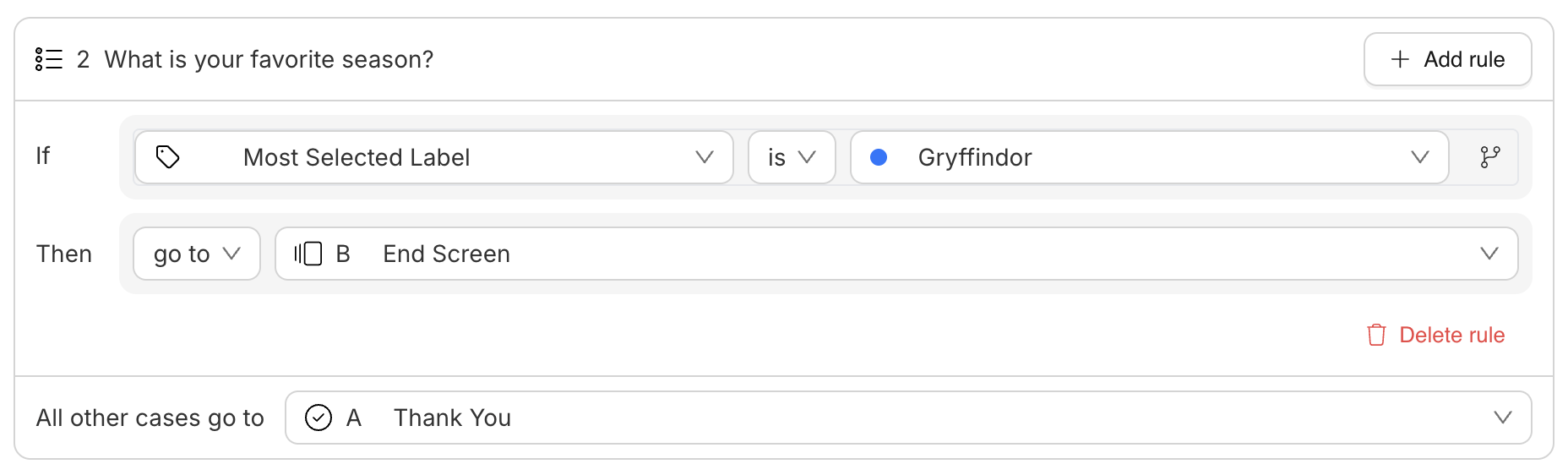
Customers can be directed to specific questions and end screens depending on their answers to each question. This can be done in two ways:
An answer to a specific question directs to a given question / end screen
Using answer tags
Answer tags
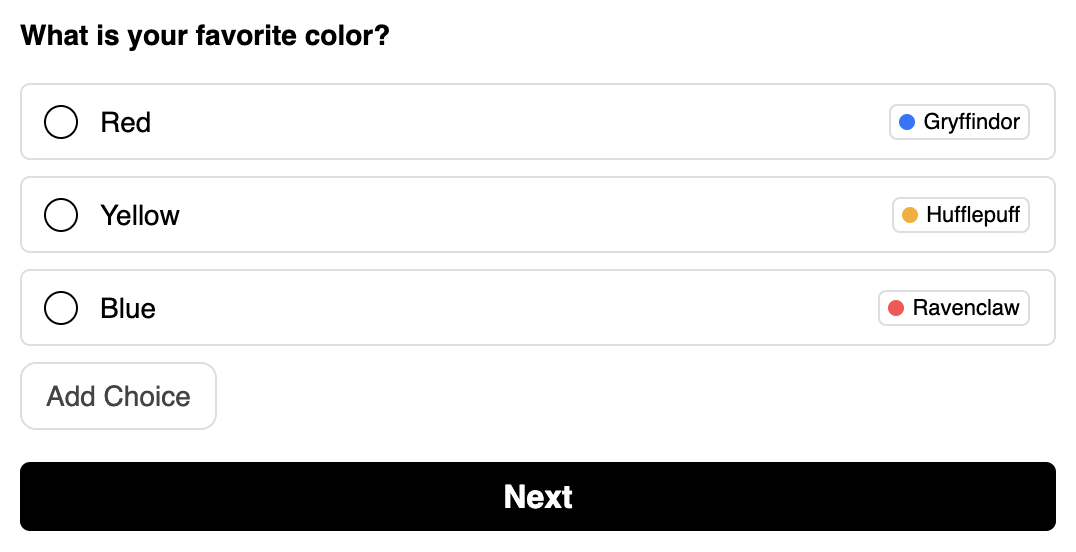
Answer tags let you control where customers go in your form (specific follow-up questions or end screens) based on how they’ve answered multiple prior questions.
Each answer option can have one or more tags applied to it. Those tags carry meaning across the form. For example: if a customer selects 5 answers tagged “Gryffindor” and 3 tagged “Hufflepuff,” the form can direct them to the Gryffindor end screen.
Forms: Styling Limitations and Workarounds
Styling Limitations
Button and text color customization: Button and text colors in forms are currently tied to the border color setting. To change button colors, adjust the border color in the form builder.
Text input appearance: Customer‑entered text in short text and long text questions appears in gray and cannot be customized.
Creating an “Other” Option Workaround
Forms don’t have a built‑in “other” text field option for single‑select or multi‑select questions. To create this functionality:
Add “Other” as an answer choice in your single‑select or multi‑select question
Use logic to redirect customers who select “Other” to a separate short text or long text question
In the follow‑up question, customers can type their custom response
This workaround allows you to capture open‑ended responses while maintaining the structure of your form logic.
End Screens
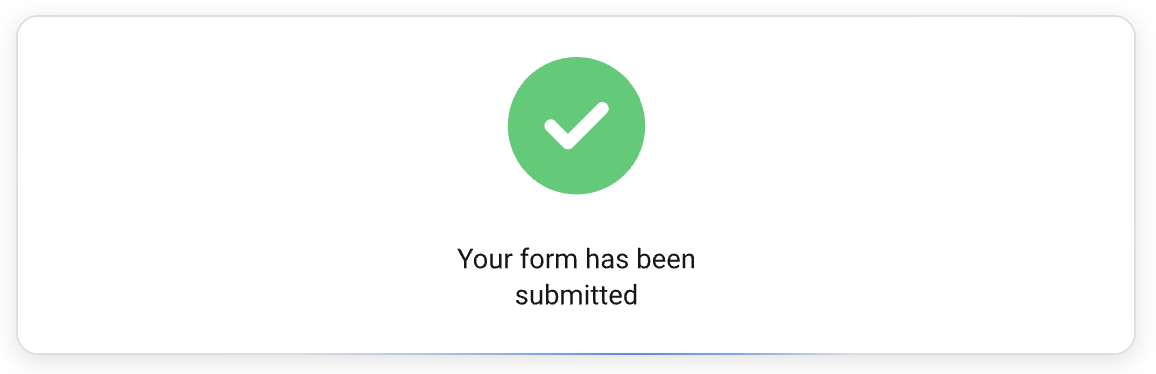
End screens allow you to display custom images, text, and URL redirects/CTAs to your customers, rather than the default "thank you" ending.
If your form directs customers to a custom end screen, this also passes custom attributes to the customer's Klaviyo profile. The attribute name(s) and value(s) are configurable in the form builder UI.
Default end screen
Custom end screen
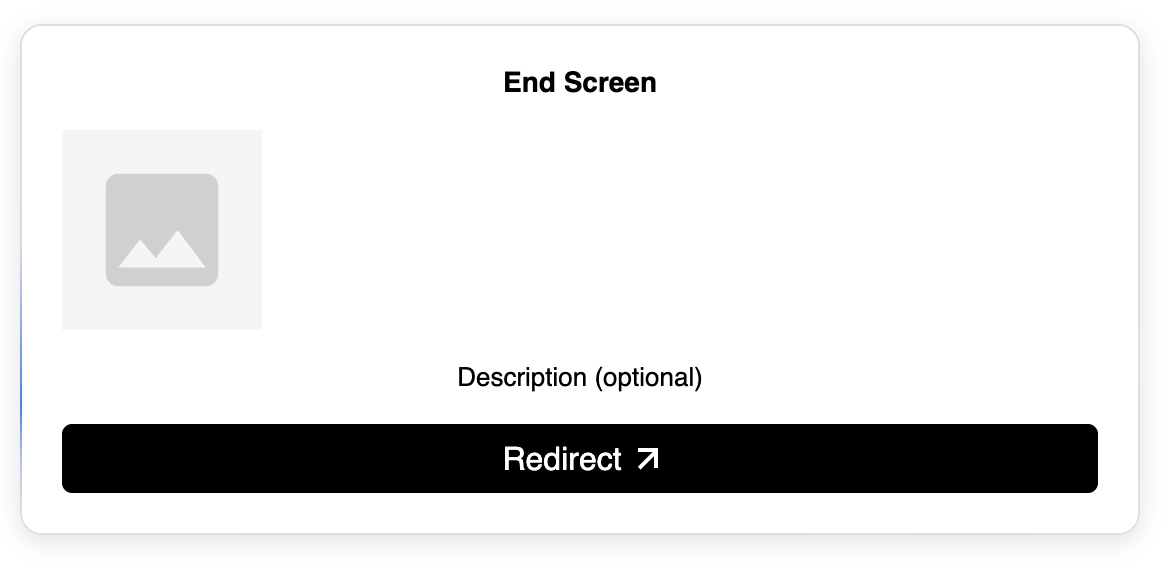
You can customize the redirect link by clicking the button, selecting Content, and updating the link to direct customers to your desired destination.
Block end screen
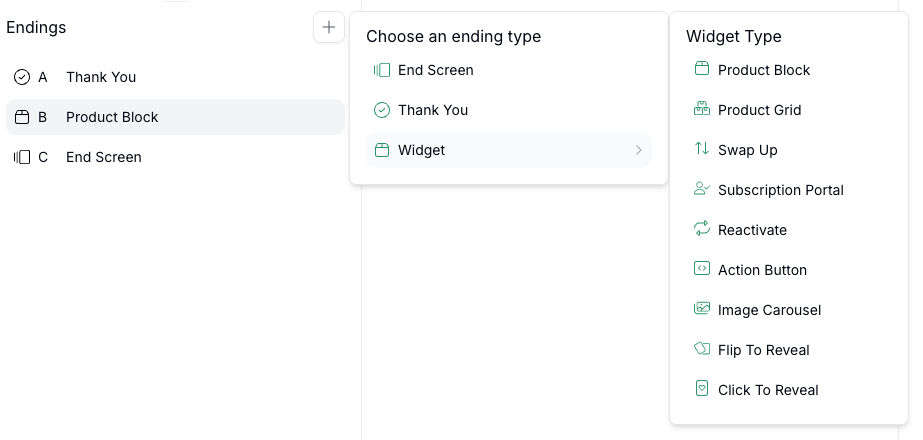
Notes about block end screens:
Every block is included in email size, even when a customer is guided to 1 block
Delete blocks that are not mapped because they are still included in email size, even if they are not visible to users