Ask AI
Last updated: November 5, 2026
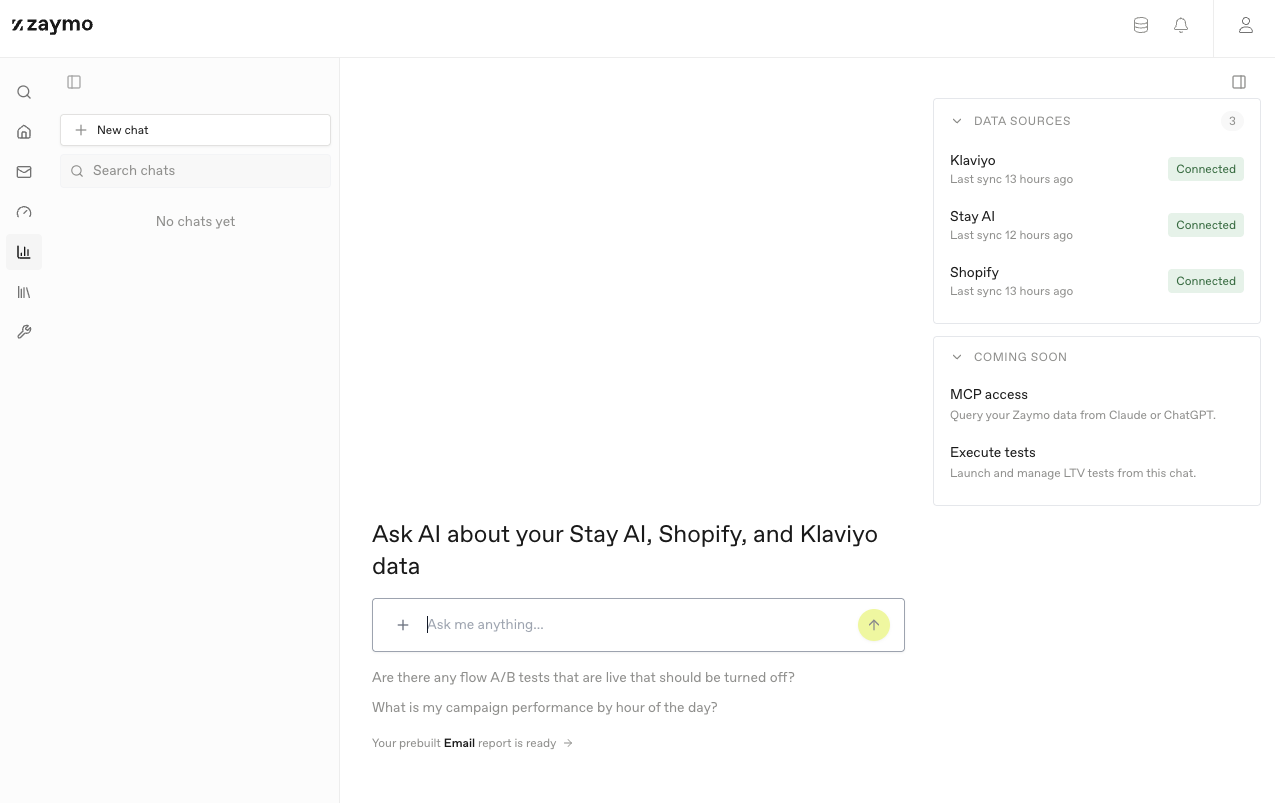
Ask AI lets you ask questions about your store's data in plain English and get an answer back, no spreadsheets or reports required. You'll find it in the sidebar under Analytics, where it's listed as Agent, and also as an Ask AI button on some other pages, like your account analytics page.
There's nothing to turn on or configure. Ask AI works off whatever data is already connected to your account (see "What it can see" below).
How to ask a question
Type your question into the box and hit send, the same way you'd message anyone. A few examples of what people ask:
"What was my email revenue last month?"
"Which products get abandoned in carts the most?"
"How many subscribers churned last week?"
If Ask AI needs more detail before it can answer, it will ask you a follow-up question rather than guess. After it answers, it also suggests a few follow-up questions of its own, so you can keep digging without having to think of the next question yourself.
You can also ask it how to use Zaymo itself, like "how do I set up a swap up block", since it can search Zaymo's own help center for you.
What it can see
Ask AI only looks at data from integrations you've actually connected: things like Shopify, Klaviyo, Recharge, Skio, Stay AI, and your reviews and SMS integrations, plus Zaymo's own email interaction data.
If you ask about something from an integration you haven't connected (for example, email open rates when Klaviyo isn't connected), Ask AI will tell you that data isn't connected yet instead of guessing at an answer.
You can see exactly what data is available to it, and how recently it last synced, in the Data catalog panel inside Ask AI.
What you get back
Depending on the question, Ask AI answers with:
A plain written answer
A chart (bar, line, funnel, and several other types)
A table you can sort
A CSV file you can download
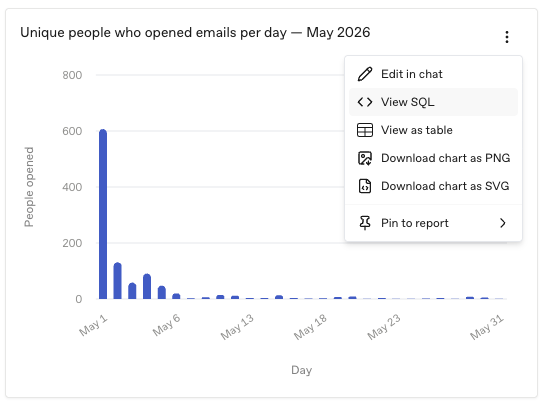
Every chart can be flipped to a table view, and from the chart's menu you can also download it as a PNG or SVG image, handy for dropping straight into a slide or a doc. (Image export isn't available for tables, heatmaps, funnels, or single stat tiles, since those don't have one self contained image to export.)
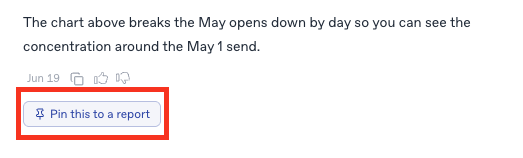
If you want to reuse a chart later instead of asking for it again, you can pin it to a Report. See Reports for how that works.
Attaching files
You can attach files to a question using the + button or by dragging a file into the chat. Ask AI accepts images, PDFs, spreadsheets (.xlsx), and common text/code files (basically anything except for word documents). You can attach up to 10 files per message, up to 20 MB each (5 MB for spreadsheets).
Your chat history
Every conversation is saved in the sidebar, grouped by Today, Yesterday, and so on. From there you can:
Search past chats
Pin a chat you refer back to often
Rename a chat
Archive or delete a chat
Only you can see your own chats. Nobody outside your account can see them either.
Giving feedback on an answer
Every answer has a thumbs up / thumbs down next to it. Thumbs down opens a short form so you can tell us what went wrong, for example if the answer was inaccurate, used the wrong data, or just wasn't helpful. This feedback goes directly to the team building Ask AI.
When Ask AI can't do something yet
If you ask for something Ask AI can't do today, it tells you so plainly, and if it's something Zaymo could build, it passes your request straight to the Zaymo team. You'll see a note in the answer saying it's been passed on. There's nothing extra to fill in, and you don't need to contact support separately.
Ask AI only says your request was passed on when it actually went through. If it couldn't be sent for some reason, it will tell you that instead, and you're welcome to reach out to us directly.
Viewing (and editing) the query behind an answer
If you want to see exactly how Ask AI got a number, open a chart's menu and choose View SQL. This shows the actual database query behind the chart. If you're comfortable with SQL, you can also edit it directly when editing a chart, then preview and save your version. This is entirely optional. Most people never need to look at it.
Limits
One guardrail keeps things running smoothly: each person can send up to 30 messages an hour. You're unlikely to hit it in normal use, and if you do, Ask AI tells you so. Wait a bit and try again.
If something goes wrong
If a question fails, Ask AI usually tries again automatically with a fix. If it still can't answer, you'll see a short note explaining why (for example, that the query was too large to run). Rephrasing the question, or asking about a smaller date range, usually helps.