Display logic
Last updated: April 20, 2026
Display logic allows you to dynamically show or hide content inside of an email based on programmatic configurations. Similar to Klaviyo's logic tags, but more powerful, Zaymo's display logic enables highly personalized email experiences.
How display logic works
When recipients open your email, Zaymo pulls data directly from your integrations in real-time. This enables extremely personalized content tailored to each subscriber's current context.
Example use cases:
Show content only on weekends
Display offers only after 5 PM
Show special promotions when order value is over $100
Personalize content based on subscription status or other integration data
Why should I use Zaymo's display logic instead of Klaviyo's logic tags?
It is significantly easier to use than Klaviyo's tags, as Zaymo's display logic provides an LLM-assisted prompt, whereas Klaviyo's requires familiarity with their Django syntax
Zaymo's display logic executes when the email is opened, not when it is sent
Zaymo retrieves data from other integrations that may not be accessible within Klaviyo
How to add display logic to your emails
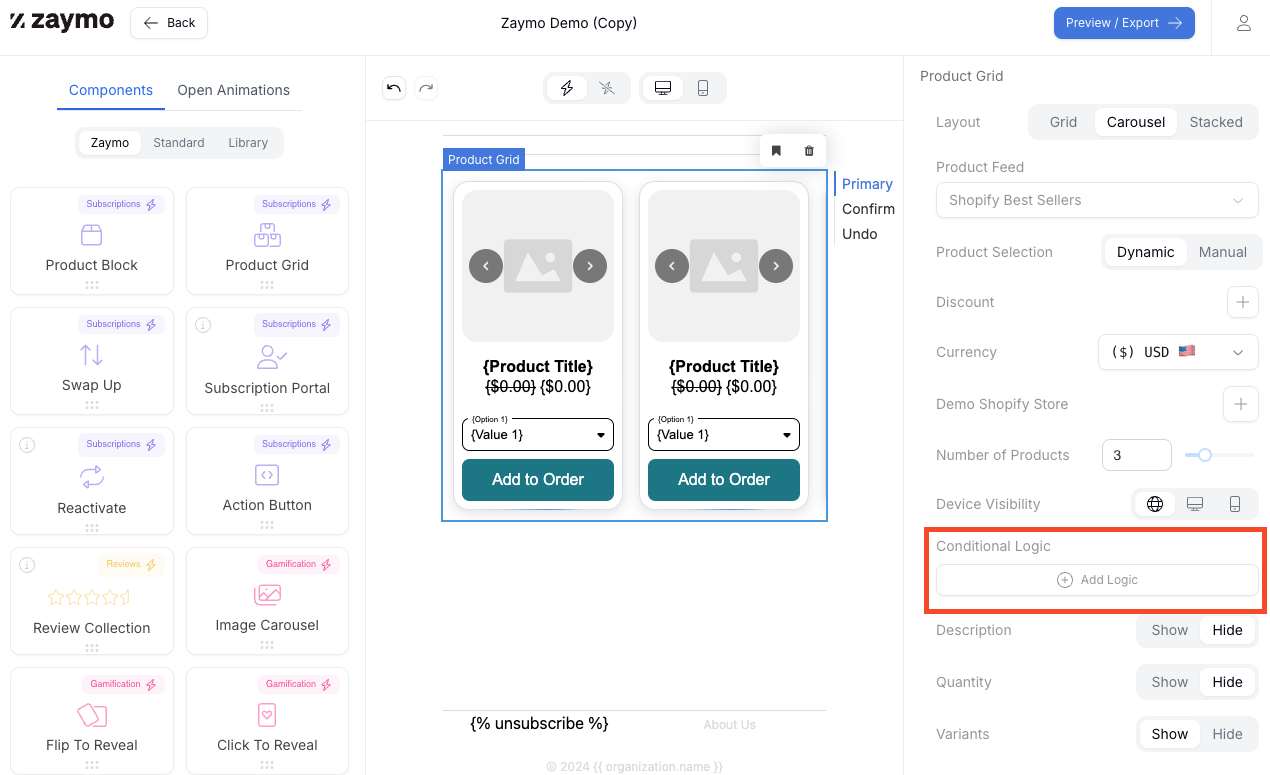
Select the block, image, or section you want to apply logic to > "Conditional logic"
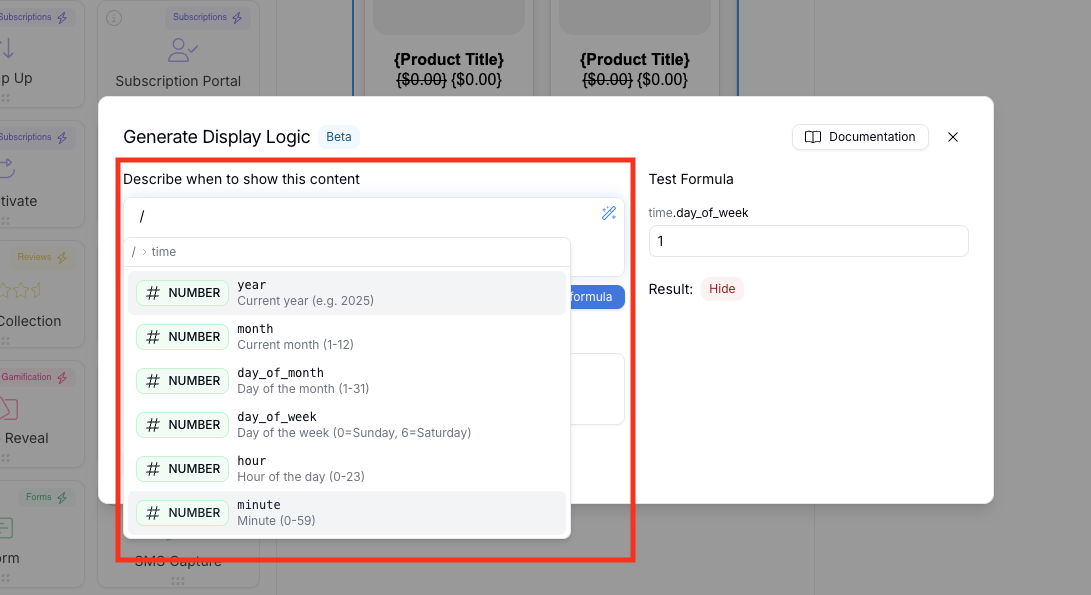
Enter your logic conditions in the modal by typing your condition in plain English (eg., "show only on weekends") or type "/" to see available variables you can use in your formula
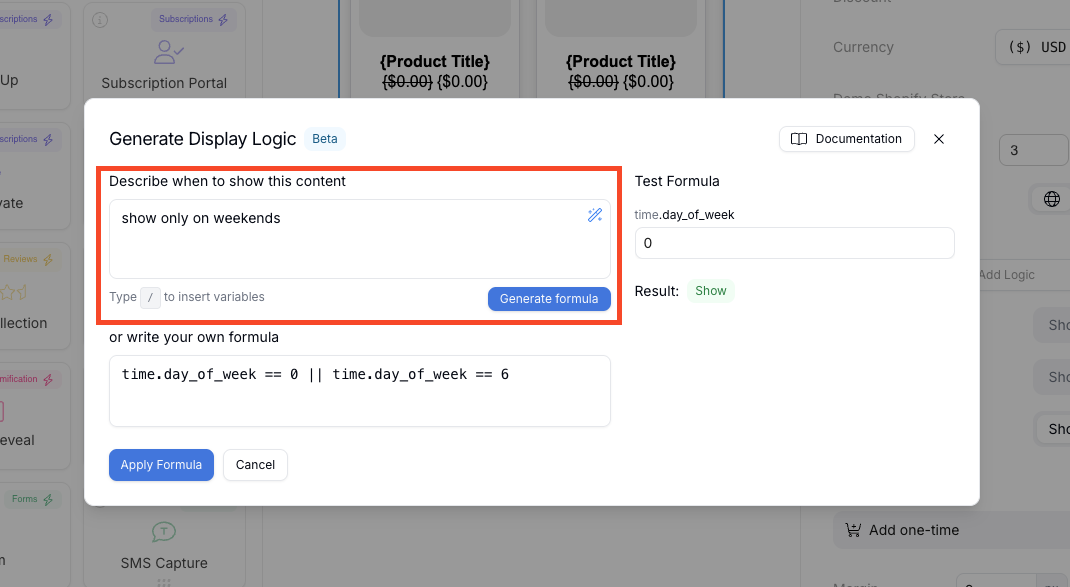
Use the test panel on the right to verify that your content is appearing as expected. Note that preview results depend on your selected data source - if your display logic references data from Klaviyo metrics (like event properties), you'll need to select a metric data source in the preview rather than just a profile to see the logic execute correctly.
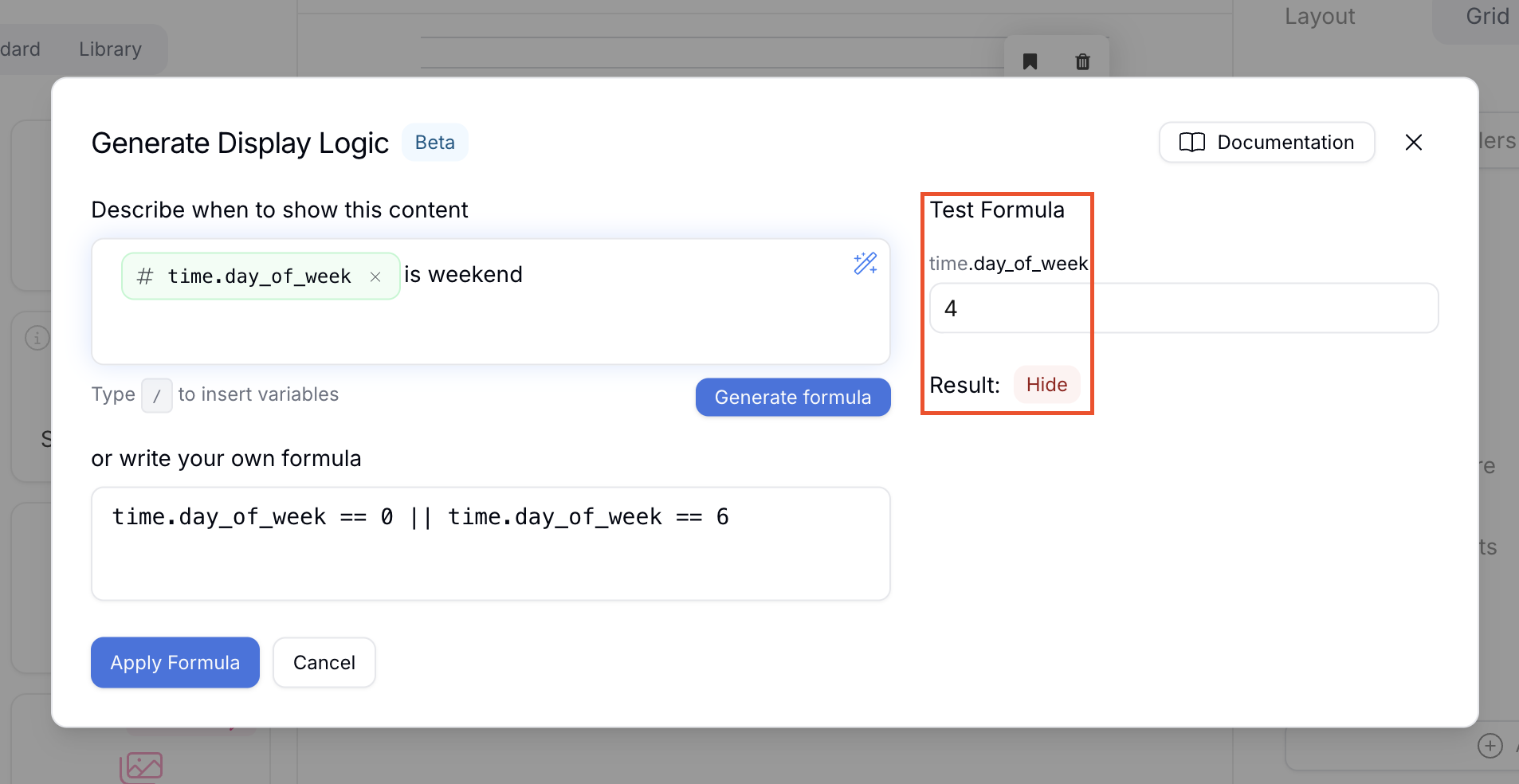
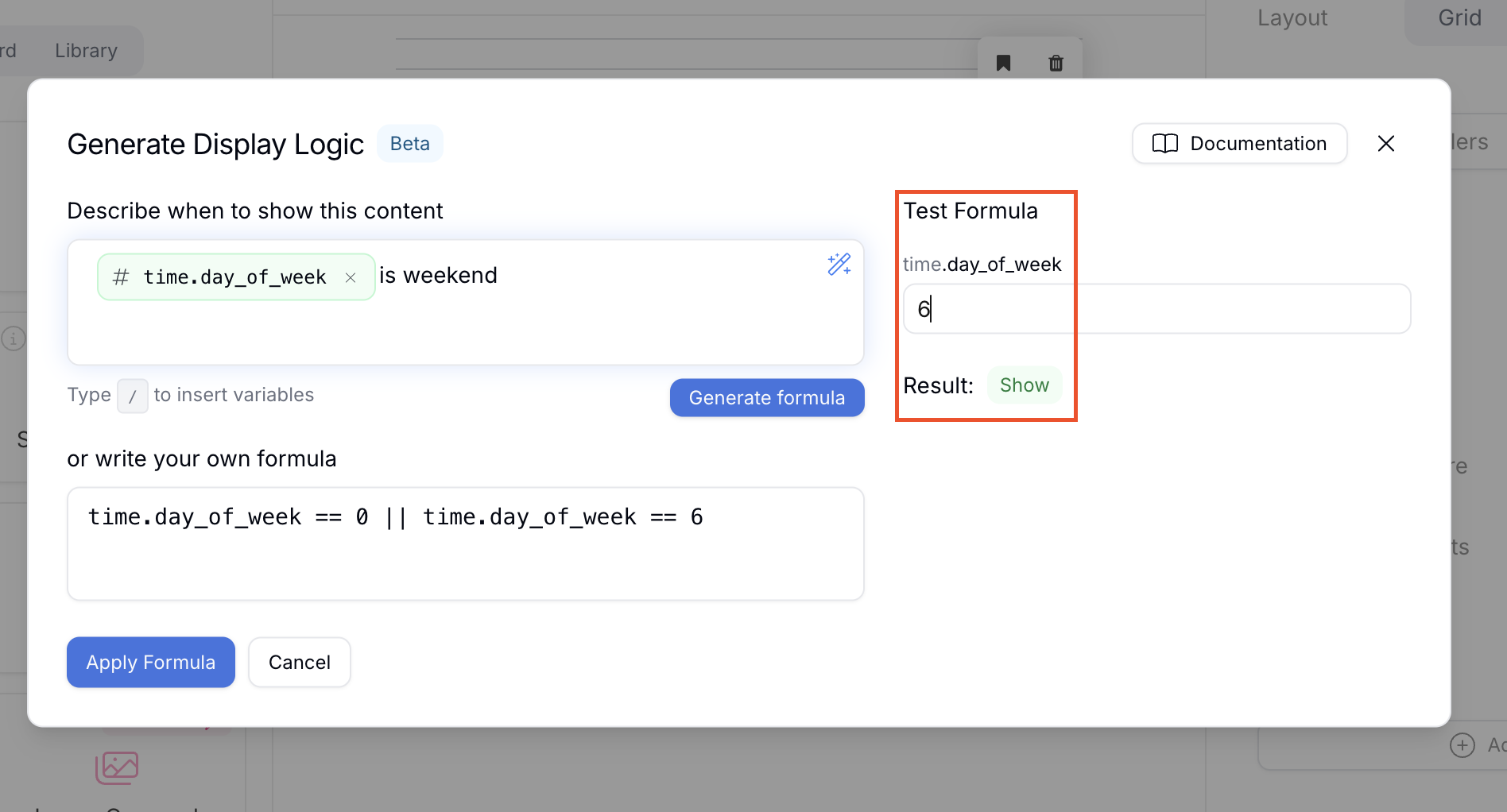
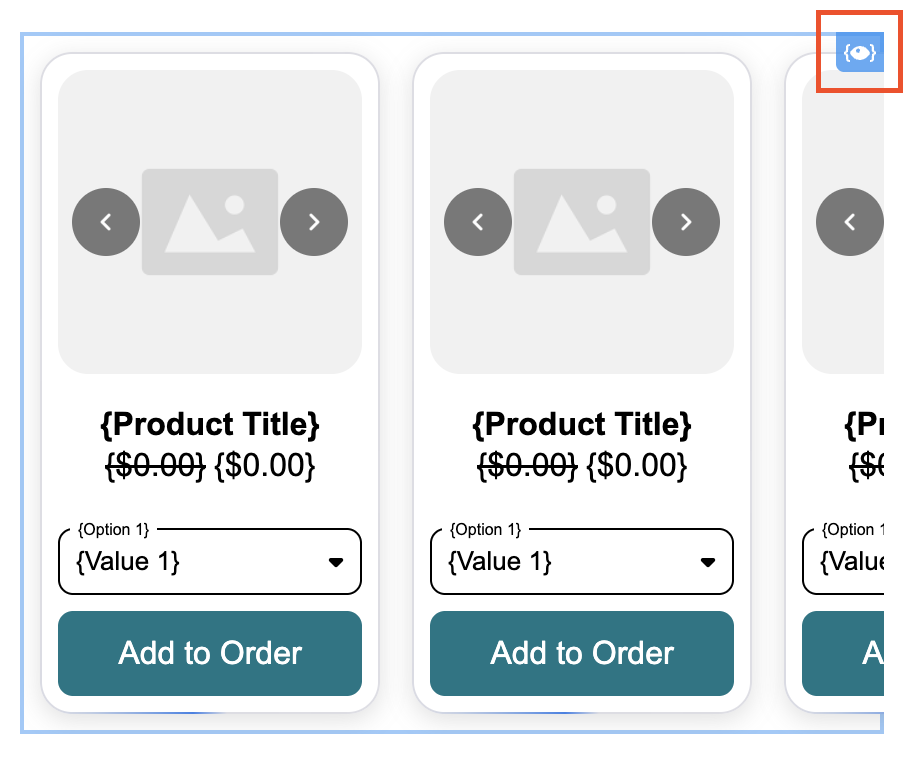
Click "Apply formula". The element will now display a logic icon in the top right corner
Applying Klaviyo custom profile attributes
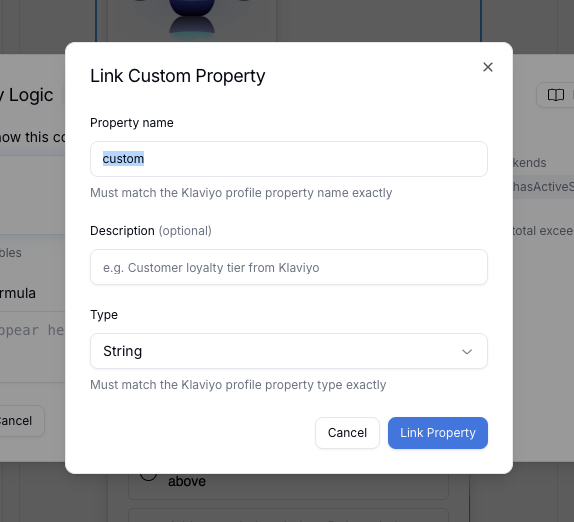
Link your custom Klaviyo profile attributes by typing “/” followed by the attribute name in the modal
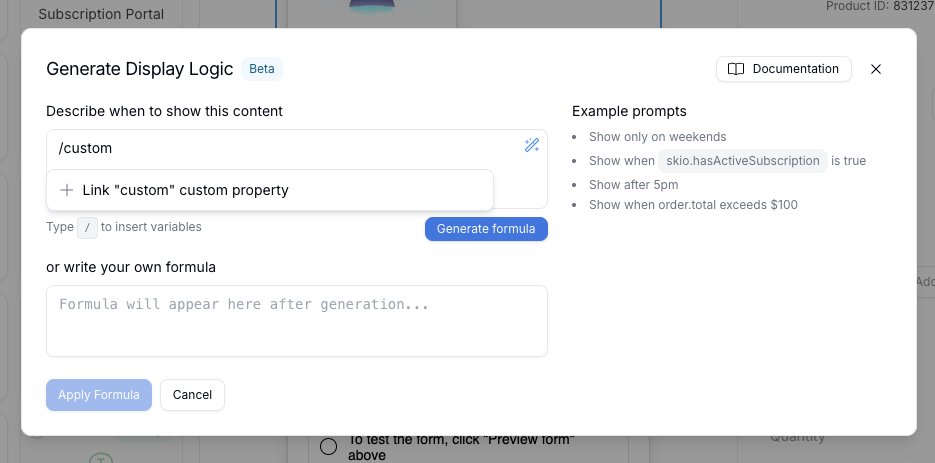
Name the property as desired. To save, click "Link Property