How to preview an interactive email
Last updated: April 20, 2026
Previewing emails
There are multiple ways to preview an interactive email. Use the Zaymo Previewer when you want a fast, accurate view of how the email will render in different inboxes. Use Klaviyo when you want to send yourself a live test email
Preview in the Zaymo Previewer
Use the Zaymo Previewer to see how your email will render across inbox types, and to switch between desktop and mobile
Choose a view
The previewer includes three views

Apple
The Apple view renders your email as if it were opened in the Apple Mail application
Gmail
The Gmail view renders your email as if it were opened in the Gmail application
Other
The Other view renders a non-interactive version of the email
In this view
Interactive blocks do not run directly in the inbox
Clicking blocks redirects to a hosted landing page
The landing page contains the interactive version of the content
Preview in Klaviyo
After exporting your email to Klaviyo, you can send a test message to yourself to confirm it displays correctly in your inbox
Send a test email from Klaviyo
In Klaviyo, open the Content tab
Open your saved templates
Find your recently exported Zaymo template at the top of the list
Open the template
Confirm you can see the email HTML
Click Preview
Enter your email address
Send the test email to yourself
Your inbox will render the email based on the mailbox you open it in, such as Apple Mail, Gmail, or another inbox
Important note about interactivity in Klaviyo
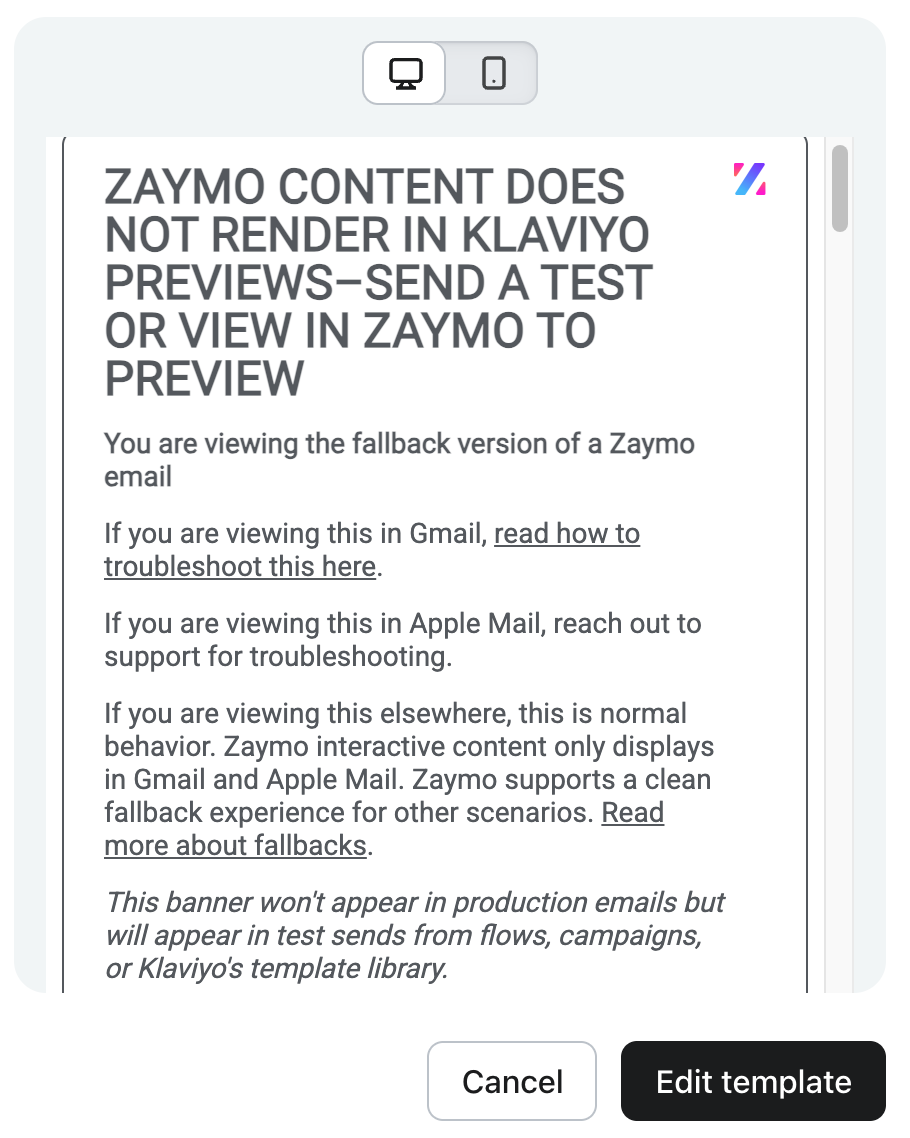
Interactive content will not render directly on Klaviyo’s website. In the Klaviyo previewer, you will always see the non-interactive version meant for Other inboxes. You will see the following banner across all emails exported from Zaymo to Klaviyo in Klaviyo
FAQ
I sent a test email through Zaymo but I haven’t received it in my inbox. Where is it?
Try the following steps
Check your spam folder
If you are a new customer, ask your IT team to check whether your company spam filter quarantined the message and request that Zaymo be added to your company whitelist
Test with a different email address
Wait up to 5 minutes for delivery
If you still have not received the message after 5 minutes, reach out to Zaymo support
My Klaviyo logic tags are not displaying the correct date or it is saying invalid date
If you are using a Klaviyo Profile for preview, there is no associated event to retrieve, so event data (including dates) cannot be accessed and may not display correctly in the preview. To see date properties render properly in preview, use a Klaviyo metric (such as "Upcoming Order on Recharge") instead of a Profile. The Klaviyo Events tab displays event data including the corresponding dates.
Double check your Klaviyo logic tags to ensure they are set up correctly for your subscription provider