Viewing a flow step's settings in Zaymo
Last updated: November 5, 2026
You can click any step in a flow diagram to see its settings, without leaving Zaymo. The panel is view only, so to change anything you jump over to Klaviyo with one click.
How to open it
Open Flows from the left sidebar in Zaymo and click into the flow.
Click any step in the diagram. A settings panel opens on the right.
Click the X at the top of the panel to close it.
This works for the trigger, time delays, send-time steps, splits, branches, SMS and push steps, webhooks, internal alerts, and profile updates. Steps Zaymo doesn't recognize also open a basic details panel.
Clicking an email step still opens the email details panel, where you can edit the email in Zaymo.
What you'll see
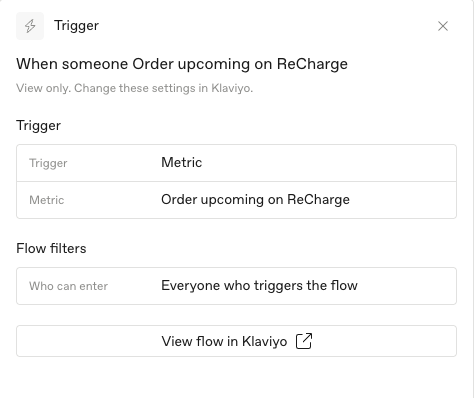
Trigger: what starts the flow (a metric, a list, a segment, or a date property), plus the flow's filters and its re-entry rule. List and segment triggers show the name of the list or segment.
Time delay and send time: how long it waits, which days it's allowed to send, the time of day, and the time zone.
Splits and branches: what the split is based on, and the condition for each branch.
SMS and push: message name and sending options like smart sending, quiet hours, and link shortening.
Webhooks, alerts, and profile updates: where it sends, who gets notified, or which profile fields it changes.
It's view only
The panel says "View only. Change these settings in Klaviyo." Nothing you do in the panel changes your flow. Two buttons at the bottom take you to Klaviyo:
View flow in Klaviyo opens the flow in Klaviyo.
View message in Klaviyo appears on message steps like SMS and opens that message in Klaviyo.