Preview, download, or share a link to an email
Last updated: November 5, 2026
You can look at any email, save a picture of it, or send a teammate a link straight to it, without opening the editor. It all lives in the three-dot menu next to each email in Zaymo.
Preview an email
Go to Flows, Campaigns, or Templates in the left sidebar.
Find the email you want:
Templates: click the three dots at the end of the template's row.
Campaigns: click the three dots at the end of the campaign's row.
Flows: open the flow, then click the three dots on the email's card in the flow diagram.
Click Preview.
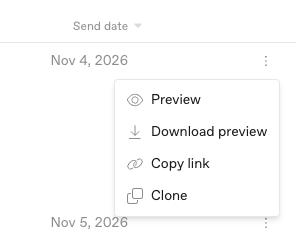
The email opens in a pop-up at full length, so you can scroll through the whole design. Personalized fields, like a first name, are filled in with sample data.
A few things to know:
The preview is a quick look at the design. To check how interactive blocks behave in Apple Mail or Gmail, use the Zaymo Previewer in the editor, or send yourself a test from Klaviyo. See How to preview an interactive email.
If a campaign is an A/B test, the preview shows its first version.
Download a picture of an email
Pick Download preview from the same three-dot menu, or click Download preview at the top of the Preview pop-up.
Zaymo creates a full-length image (a PNG file) of the email and downloads it to your computer, named after the email. It takes a few seconds, and a small message in the corner shows when it's ready.
This is handy for dropping a design into a slide, a Slack message, or a review doc without taking and stitching together screenshots.
Copy a link to a template, flow, or campaign
A link takes your teammate straight to that exact template, flow, or campaign in Zaymo, so you don't have to walk them through where to click.
Where to find Copy link:
Template: the three-dot menu on the template's row on the Templates page, or the link icon at the top of the editor while you're editing it.
Campaign: the three-dot menu on the campaign's row on the Campaigns page, or the Copy link button at the top of the campaign's page (next to Clone campaign).
Flow: the three-dot menu on the flow's row on the Flows page, or the Actions menu at the top of the flow's page.
One email inside a flow: the three-dot menu on that email's card in the flow diagram. The link opens the flow with that email selected.
Click it, and you'll see "Link copied." Paste it wherever you like.
Good to know:
Whoever opens the link needs to be logged in to Zaymo with access to your account. It doesn't make the email public.
If your teammate is logged in to a different Zaymo account when they open it, Zaymo asks them to switch accounts first.
On the Templates page, Copy link shows only for Zaymo templates. Klaviyo templates you haven't made interactive yet don't have a Zaymo page to link to.
A campaign that sends several emails shows as a group row on the Campaigns page. The group row itself doesn't have Preview, Download preview, or Copy link.