Offer a bundle upgrade
Last updated: November 17, 2026
This feature is for Recharge fixed-price bundles. It moves customers to the next size of their bundle, like a 6-pack to a 9-pack. If your sizes are sizes of one bundle, Zaymo finds the next size for you. If each size is its own bundle product, tie them together with an upgrade ladder.
Upgrade options
Option | What the customer sees |
|---|---|
Off | No upgrade. This is the default. |
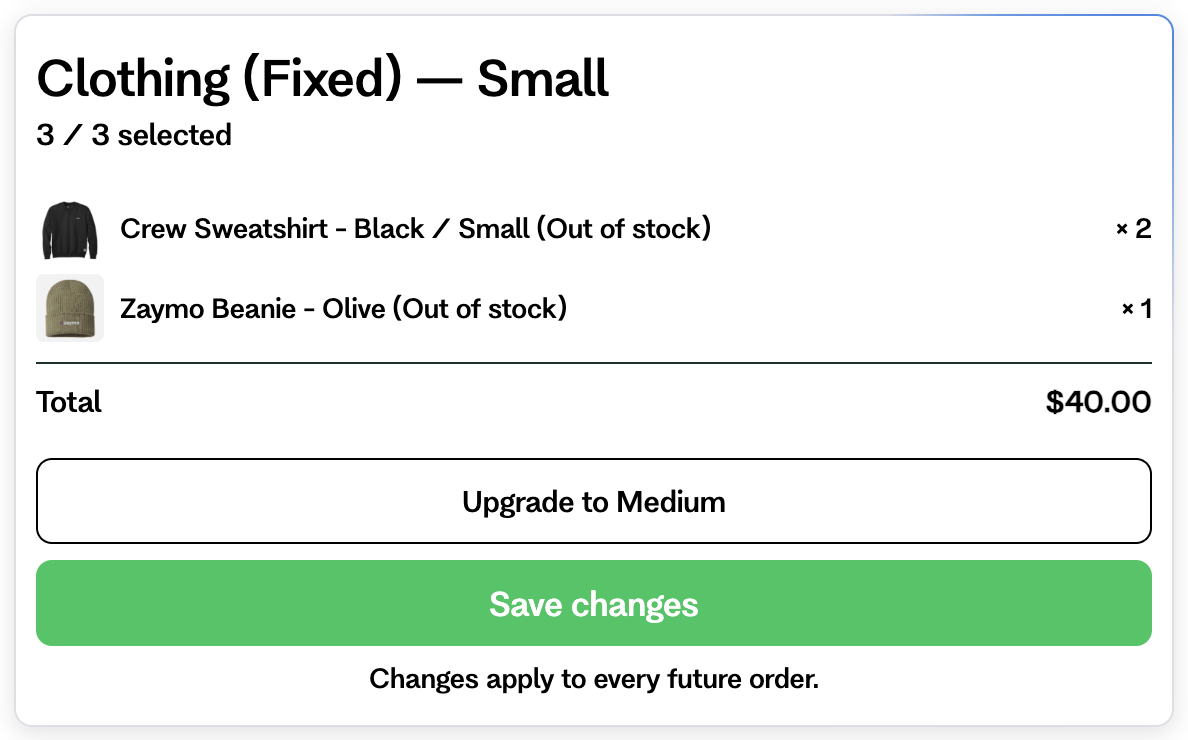
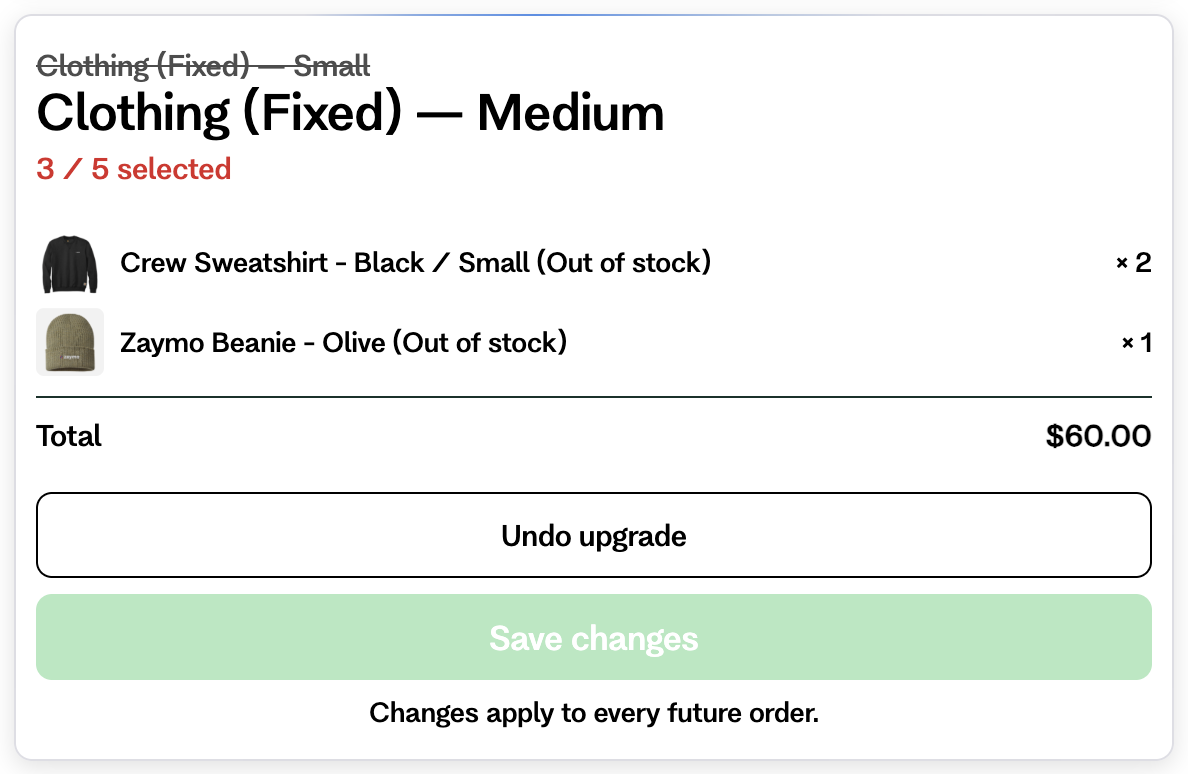
Offer | An Upgrade button in the summary. They can tap Undo upgrade before saving. |
Auto | The bundle opens at the bigger size. They can't go back from the email. |
How it works
The next size is the same bundle one size up, or the next bundle on your upgrade ladder.
Their items carry over. They fill the new spaces before saving.
The price shown is the new subscription price, before tax and shipping.
Nothing changes until they save. If the upgrade fails, the bundle goes back to its old size.
It works in Gmail, in Apple Mail and on the full bundle page.
It also works when a customer buys the bundle. With Auto, the purchase opens at the bigger size.
Upgrade ladders
Use a ladder when you sell each box size as its own bundle product, for example a 6-box and a 9-box that are two separate products. A ladder lists those bundles from smallest to largest. A customer on one bundle in the ladder can upgrade to the next bundle in it.
Set Upgrade to Offer or Auto, and leave the block's Bundle setting on all bundles (not pinned to one) and not switching plans.
Under Upgrade ladders, pick Create new ladder set. You can also pick one you saved before, or Duplicate this ladder set. Saved sets are also under Content, then Upgrade ladders.
Name the set, then under Ladder 1 use Add a bundle to add the bundles. They are sorted by size. Use Add ladder for another chain of bundles, and Edit upgrade ladders to change a set later.
Select Save.
Only bundles with a fixed number of items can go in a ladder, they must have the same products, and a bundle can be in only one ladder. Bundles that don't fit are greyed out in the list with the reason. Edits to a set change it in every email that uses it.
A discount for each step
Each bundle in a ladder, except the smallest, has a tag icon on its row. Select it to add a discount for the upgrade into that bundle. The step's discount goes on when a customer upgrades to that bundle, in place of the block's discount. A step you leave blank uses the block's discount. It shows and applies the same way in the email, in Apple Mail and on the full bundle page. Step discounts are one store code each, with no minimum or tiers.
Give a discount only with the upgrade
Set Upgrade to Offer and add a discount to the block. Then turn on Upgrade to unlock discount. The discount then applies only when the customer upgrades, and the button names the offer. With this off, the discount applies to every save.
Things to know
Prepaid bundles can't be upgraded.
A block that sells sizes from tiles doesn't offer an upgrade to new buyers. They pick their size from the tiles.
Customers on the largest size don't see an upgrade.
After an upgrade, an Auto block waits about a week before pushing the same customer up again. In Gmail and on the full bundle page, they see the upgrade button instead. In Apple Mail, they see their current size.
Sizes you don't use a ladder for must be in the same bundle and use the same collections.
The portal and swap pickers don't offer bundle sizes.