Swap up
Last updated: July 10, 2026
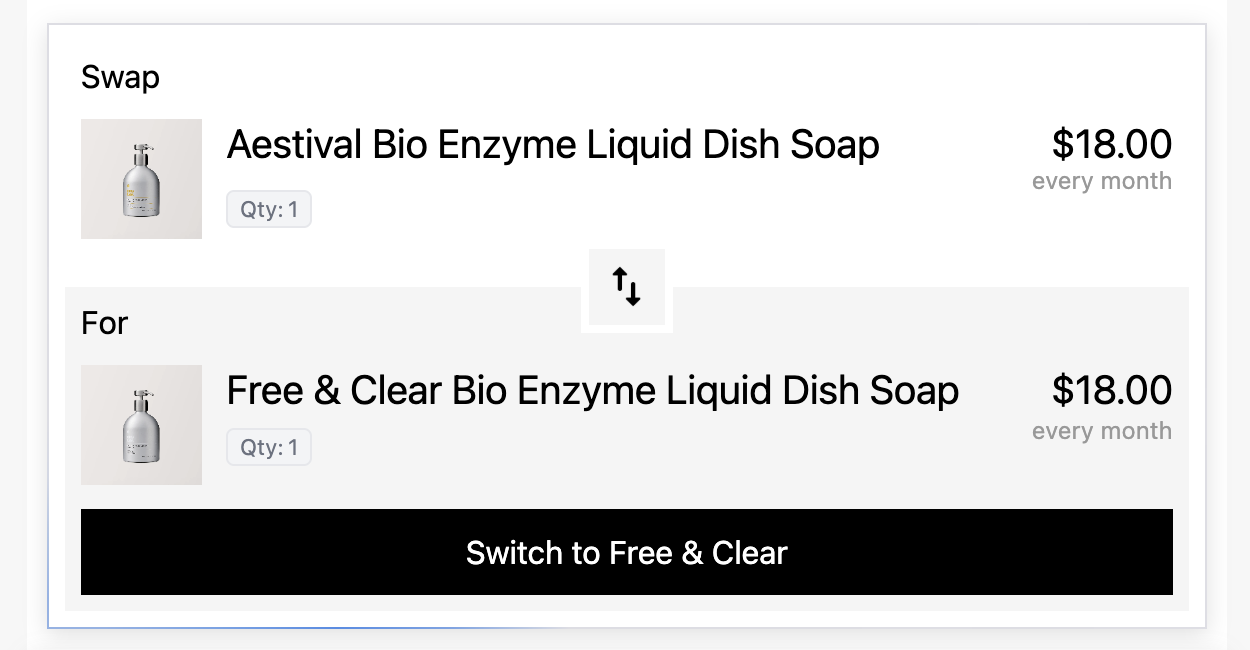
The swap up block allows you to offer a particular swap offer for an upcoming subscription order. Most find value in one of three ways:
Upgrade to a longer subscription term with more product (i.e. upgrade to get a greater amount of product quarterly instead of a shipment every month)
Upgrade from one product to a bundle
Offer to change a product or a variant that is out of stock (see image above)
Offer limited-time flavor or product swaps (note: you’ll need to swap subscribers back to their original products after the offer ends using your subscription platform’s journey feature or custom code)
Need ideas?
Parts of the swap up block
Swap section | Includes all information for the matched product/selling plan in the swap |
For section | Includes all the information for the offered product/selling plan in the swap |
Swap text | Editable text that defaults to Swap and For in the two sections of the swap block |
Variant tag | A tag that defines the variant name in the two sections of the swap block. This is dynamically displayed |
Quantity tag | A tag that defines the quantity of the products in the two sections of the swap block. This is dynamically displayed |
Frequency tag | A tag that defines the frequency in the selling plan in the two sections of the swap block. This is dynamically displayed |
Price | The price of the product in the two sections of the swap block. This is dynamically displayed |
Custom title | Editable title text for each of the two sections of the swap block. The title will show no matter which swap mapping is shown to the email recipient. The default text is "Order Title." You can edit this. You can toggle this on/off |
Description | Editable text to describe the offer. The text defaults to "Lorem ipsum..." placeholder text |
CTA button | This CTA will trigger the swap offer for the upcoming order. The text is editable |
Show/hide Behavior
The swap up block automatically hides if the email recipient does not match any of the swap offers.
Setting up swap offers
For swap offers to work, you have to take into account every variant/selling plan combination. Because of this, some swap ups can get very complicated. Zaymo has the following three steps to make complicated scenarios very simple:
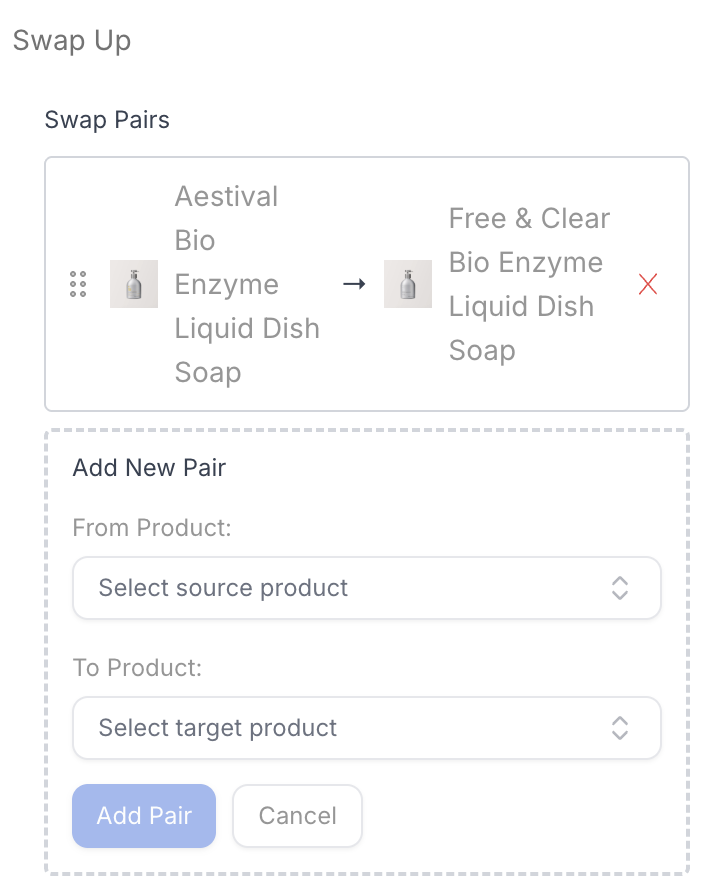
Set up swap pairs between products
Edit the mapping logic toggles to potentially auto-map variants, selling plans, and quantity
Edit the swap mappings
The goal is to match every email recipient's variant/selling plan combination with the right offer for them.
Swap pairs
Note: If you want to swap between variants of the same product, choose that product for both the From and the To product. You will be able to edit the variants in the Swap mapping step
Define the swap offer by building from-to pairs between products. The From product will have to be in the email recipient's upcoming subscription for the swap up block to show.
You can add as many swap pairs as you would like. The block will dynamically change depending on the email recipient's subscription.
Mapping logic toggles
For swap offers to work, you have to take into account every variant/selling plan combination. Because of this, some swap ups can get very complicated. The mapping logic helps you auto-map the these combinations so you can save time.
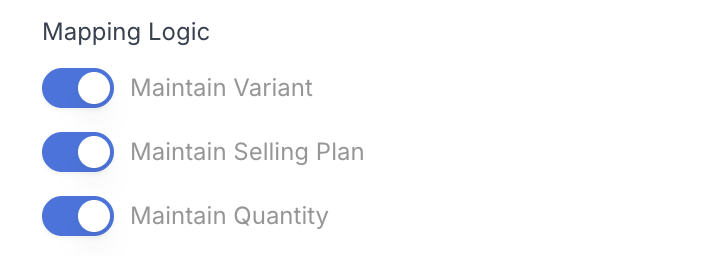
The toggles are by default on. They do the following:
Toggle | Behavior for the swap mapping |
Maintain variant | When selected, Zaymo will attempt to auto-match the variant between products. Ex: If the From product has a size variant with S / M / L coffee pouches, Zaymo will try to match the To mappings to the right variant: Smalls with match with Smalls, Mediums with Mediums, etc. |
Maintain selling plan | When selected, Zaymo will attempt to auto-match the selling plan between products. Ex: If the From product has 2 week, 4 week, and 6 week selling plans, Zaymo will try to match the To mappings to the same selling plan: 2 week with 2 week, 4 week with 4 week, etc. |
Maintain quantity | When selected, Zaymo will maintain the quantity of products in the swap. If an email recipient has a quantity of 2 on the matching product, Zaymo will put a quantity of 2 in the upgrade offer. If a recipient matches with a quantity of 1, Zaymo will offer 1x quantity in the upgrade offer. If the toogle is deselected, you will have the option to auto-upgrade the quantity in the To mappings by a multiplier of the recipient's original quantity.  |
Swap mapping
If Zaymo successfully matches every variant/selling plan combination based on your mapping logic, Zaymo will display a green message saying "All [N] mappings are valid and ready to use."
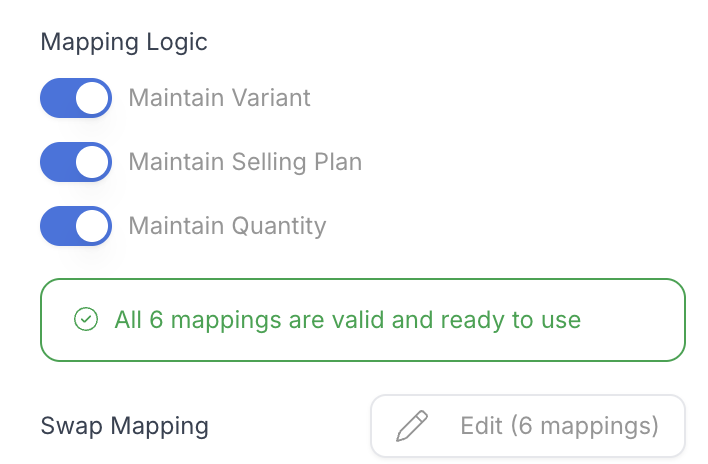
If Zaymo cannot match every variant/selling plan combination based on your mapping logic, Zaymo will display a red message saying "Failed to auto match [N] variant mappings. Configure manually below."
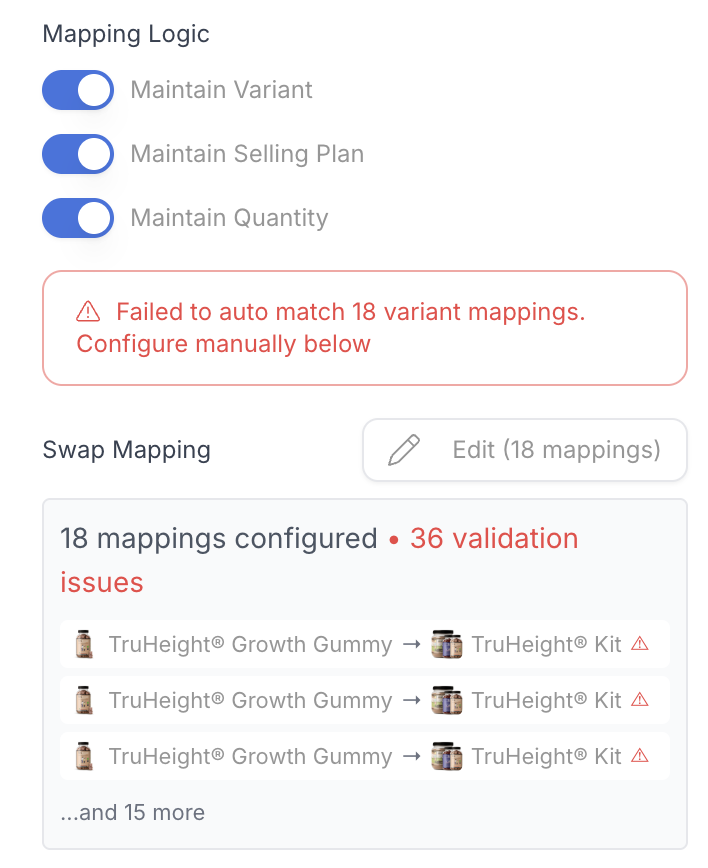
You will want to open the swap mapping configuration modal by selecting Edit. Here, you can view each variant/selling plan pair. In the example below, the single From product has 18 variant/selling plan combinations between its 2 variant types and selling plan.
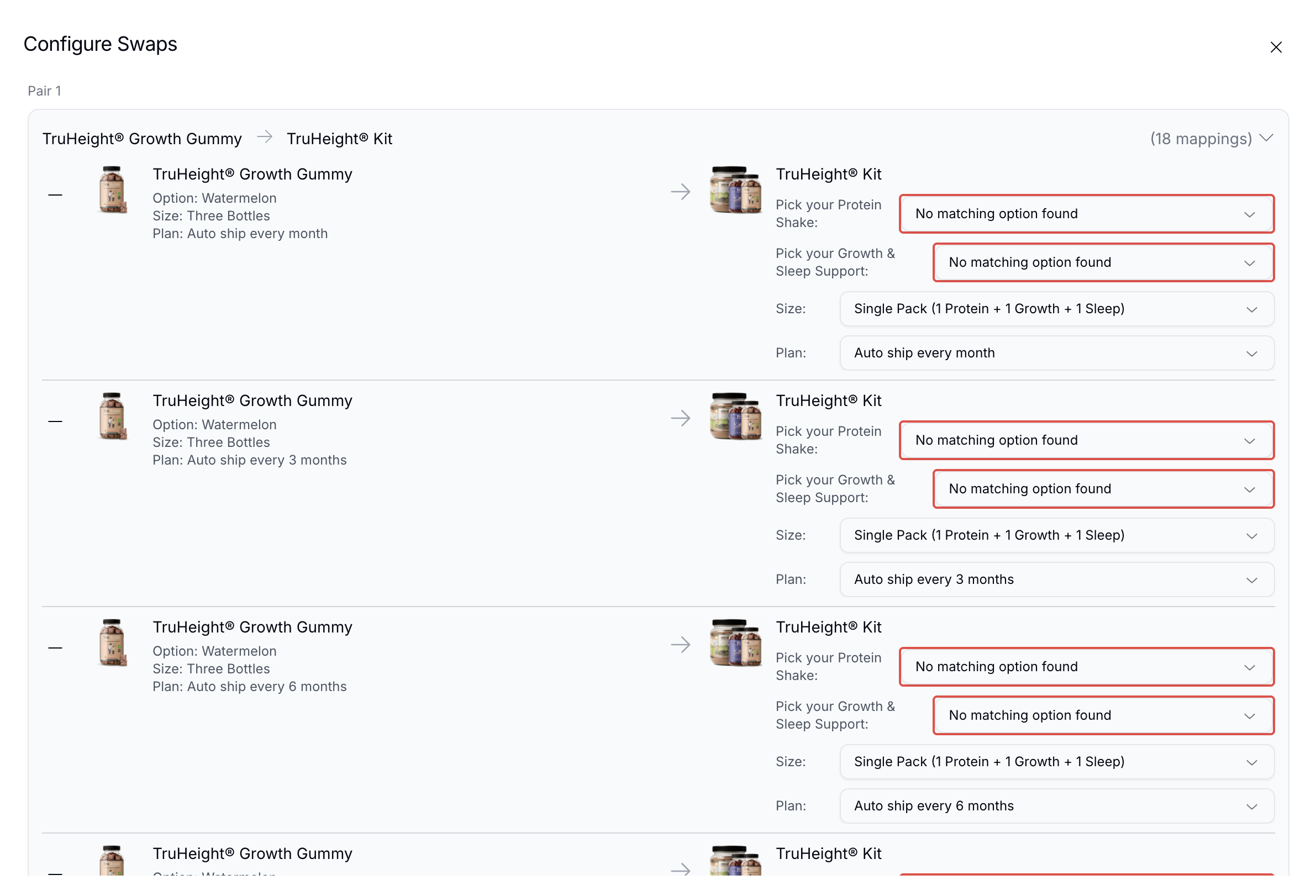
Zaymo will call out which variants or selling plans it could not auto-match, and you have the opportunity to manually edit each swap mapping.
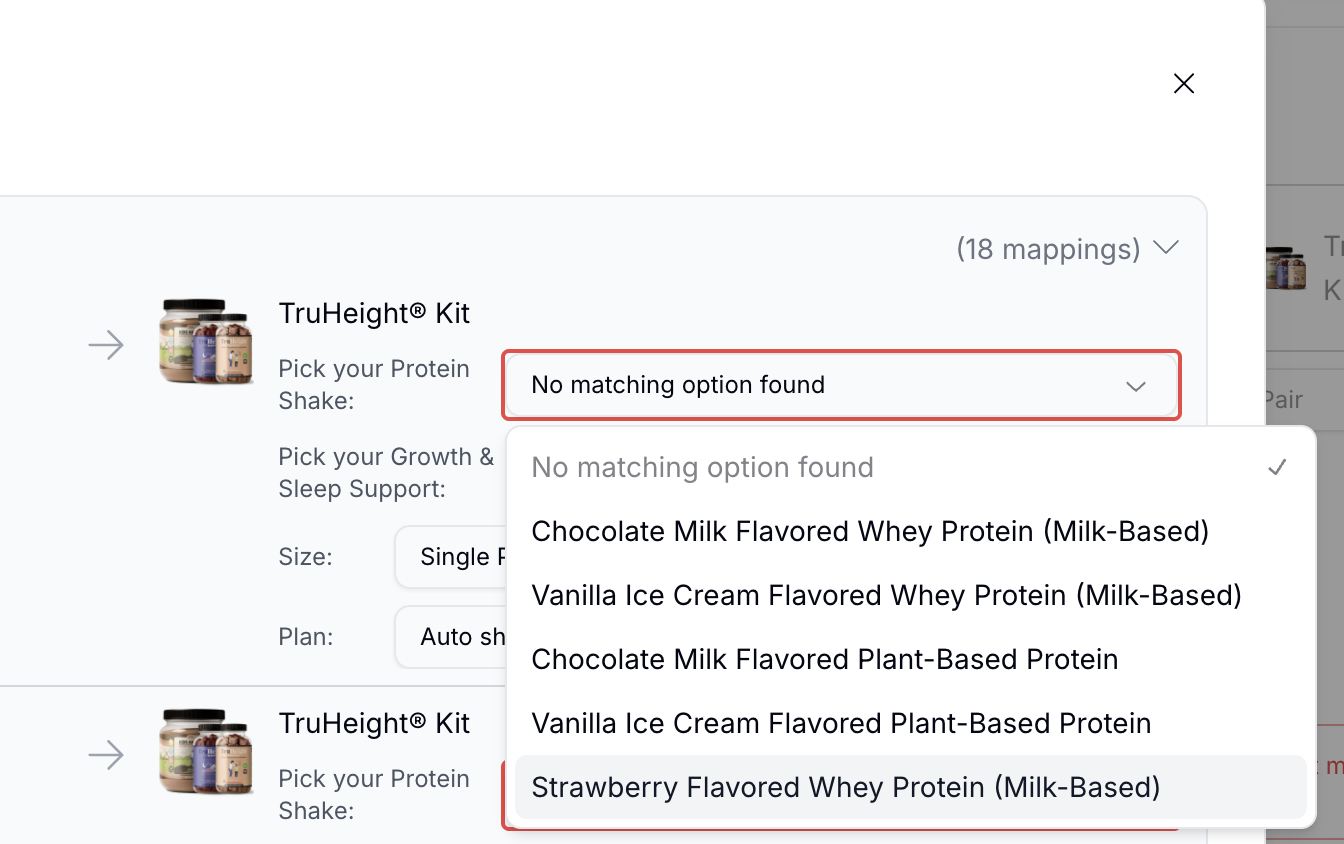
The configure swaps modal
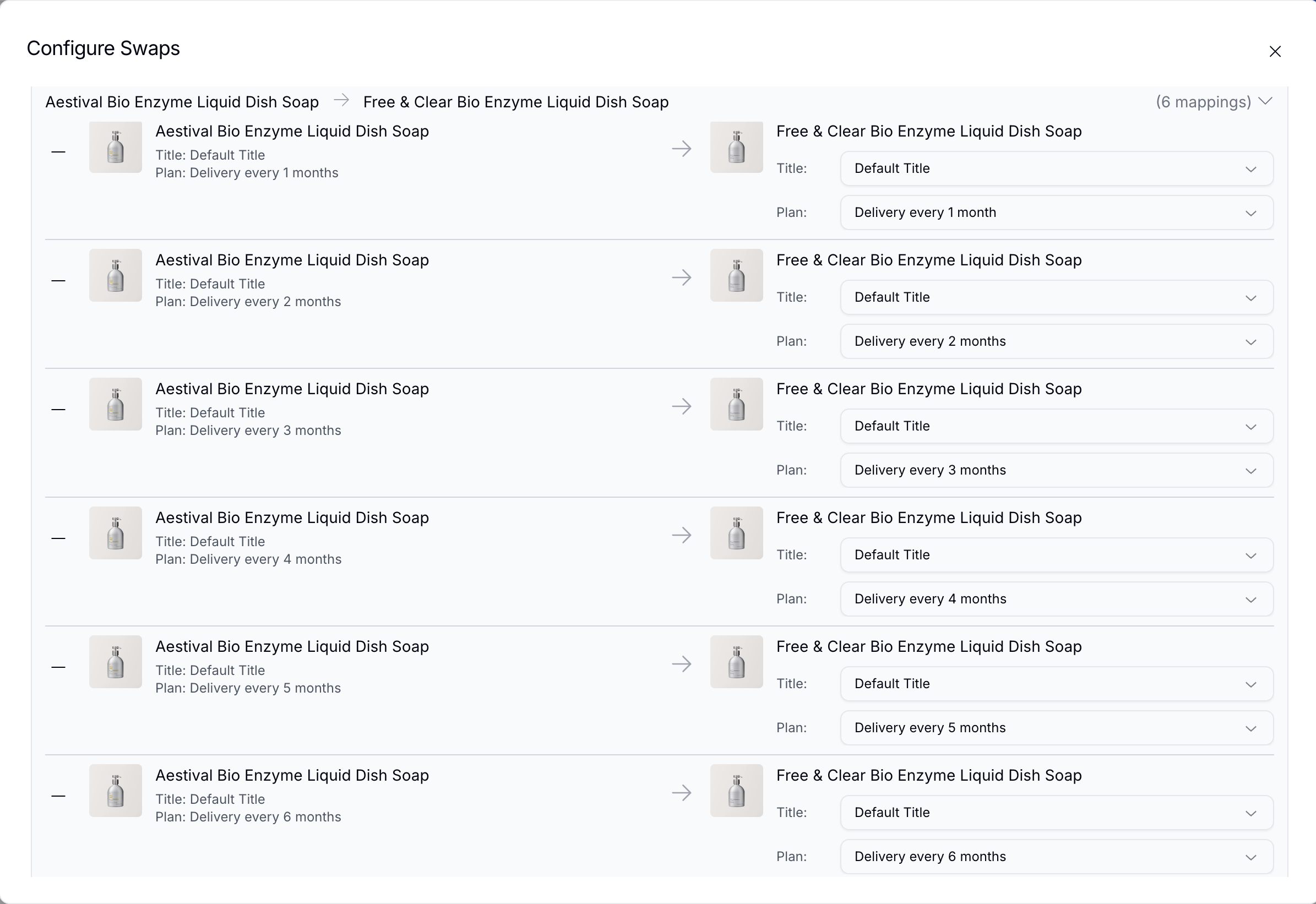
In the configure swaps modal, you can view and edit each of the mappings generated from the swap pairs you chose.
By default, Zaymo includes all of the variant/selling plan combinations in each From product in your swap pairs. However, if you want to hide the swap block from some email recipients with certain variant/selling plan combinations, you can do so by selecting the minus sign next to the swap mapping. It will turn grey and cross out the product titles.

If you want to add the mapping back, just select the plus sign next to the mapping, and it will return.
Settings unique to the swap up block
The swap mapping settings are obviously unique to the swap up block. Some additional settings are below.
Custom title | This show/hide toggle allows you to turn off or on the order title for both the From and To sections of the swap up |
Currency | Choose the currency displayed. This really only updates the currency symbol by prices. If the currency is incorrect, Zaymo will still show the correct value in your currency, but the currency symbol will be incorrect |
Discount | Apply a discount code to the block. How does Zaymo calculate discounts? |
Pages in the swap up block
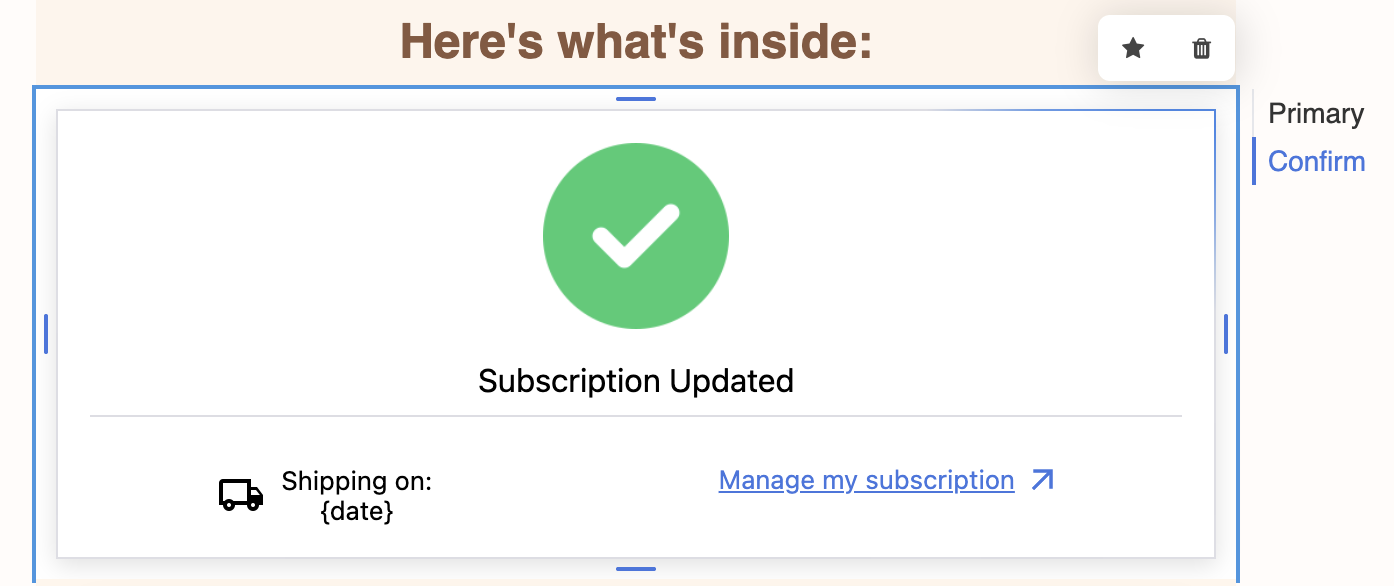
After the primary page, the swap up block has only a Confirm page. This page has:
A success image
Success text (defaults to "Subscription Updated")
Shipping text (defaults to "Shipping on: {date}")
Manage my subscription link
All text and images are editable.
Tracking swap events
Zaymo swap actions are tracked in multiple places.
Klaviyo: Zaymo sends a 'Zaymo Swap Item' event whenever someone swaps a product. This is the best place to track swap actions.
Zaymo Dashboard: Flavor swap reports exist in the Zaymo dashboard and can be exported.
Recharge: Recharge will edit the order when a swap occurs, but it may not be recorded as a Zaymo action.
Shopify: No swap events are recorded in Shopify.