Products block
Last updated: September 14, 2026
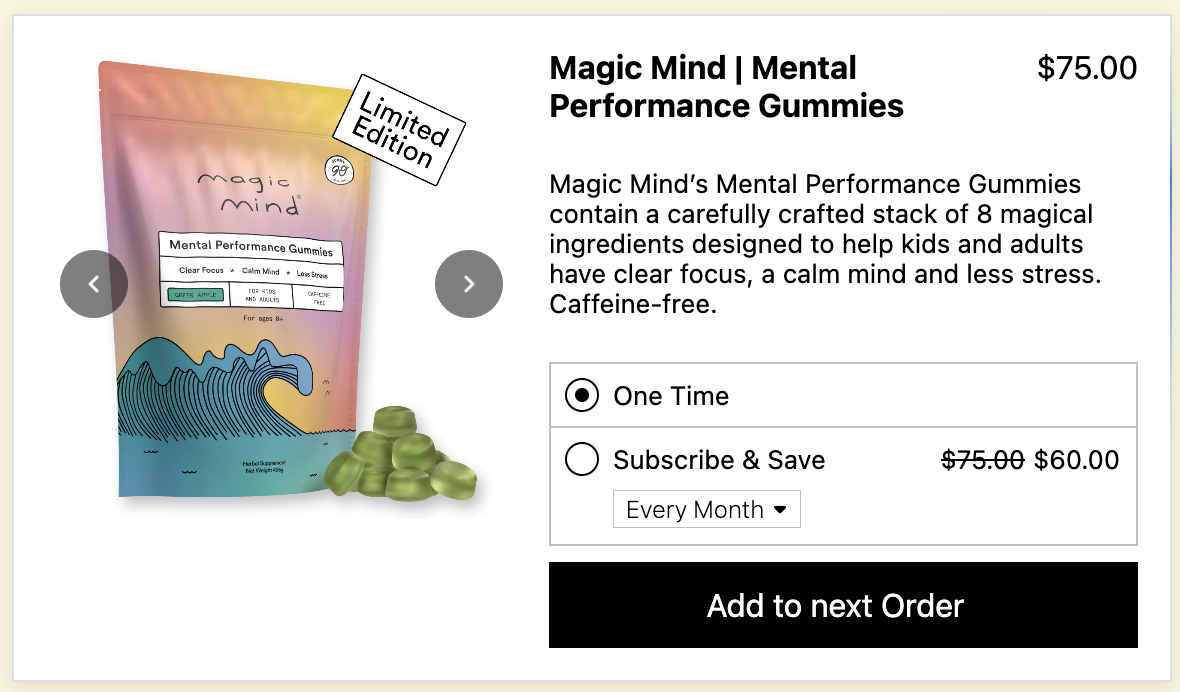
The products block is designed to replace the need to push customers to a PDP (product page). The basic product block lets the user explore a product and edit their cart from the email. Then, the CTA redirects the user to the checkout page.
When paired with a recipient's card on file (typically via a subscription app), the product block allows for purchasing directly in the email with no redirect.
Parts of the products block
Display a single product or up to 15 in a single block.
The product block is made up of several components:
Image carousel | Behaves just like the image carousel block. To hide the navigation arrows on product images: click on the image in the product block, go to the 'Content' panel on the right side, scroll to the bottom, and toggle off 'Show Navigation Buttons'. This will display only the main product image without scrolling arrows. |
Title | Default pulls from the product you chose. You can edit this |
Description | Default pulls from the product you chose. You can edit this |
Price | Pulls from the product + selling plan you chose. If the product has multiple selling plans, the customer can change selling plans in the email, and the price will update |
Purchase options | Choose what action the CTA triggers. Read about purchase options |
CTA | This CTA will either trigger the action in the email or redirect to the checkout depending on the customer's card on file status. How to edit the text: Double click the text inside the CTA box. The text cursor might be a little hard to see at first, but you are able to edit the text. |
Layouts
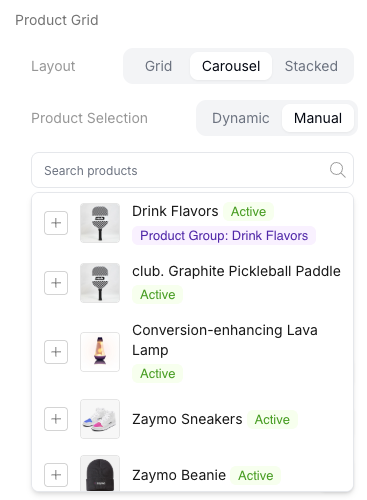
Zaymo currently supports three different layouts for the product grid: Grid, Carousel, and Stacked.

Grid
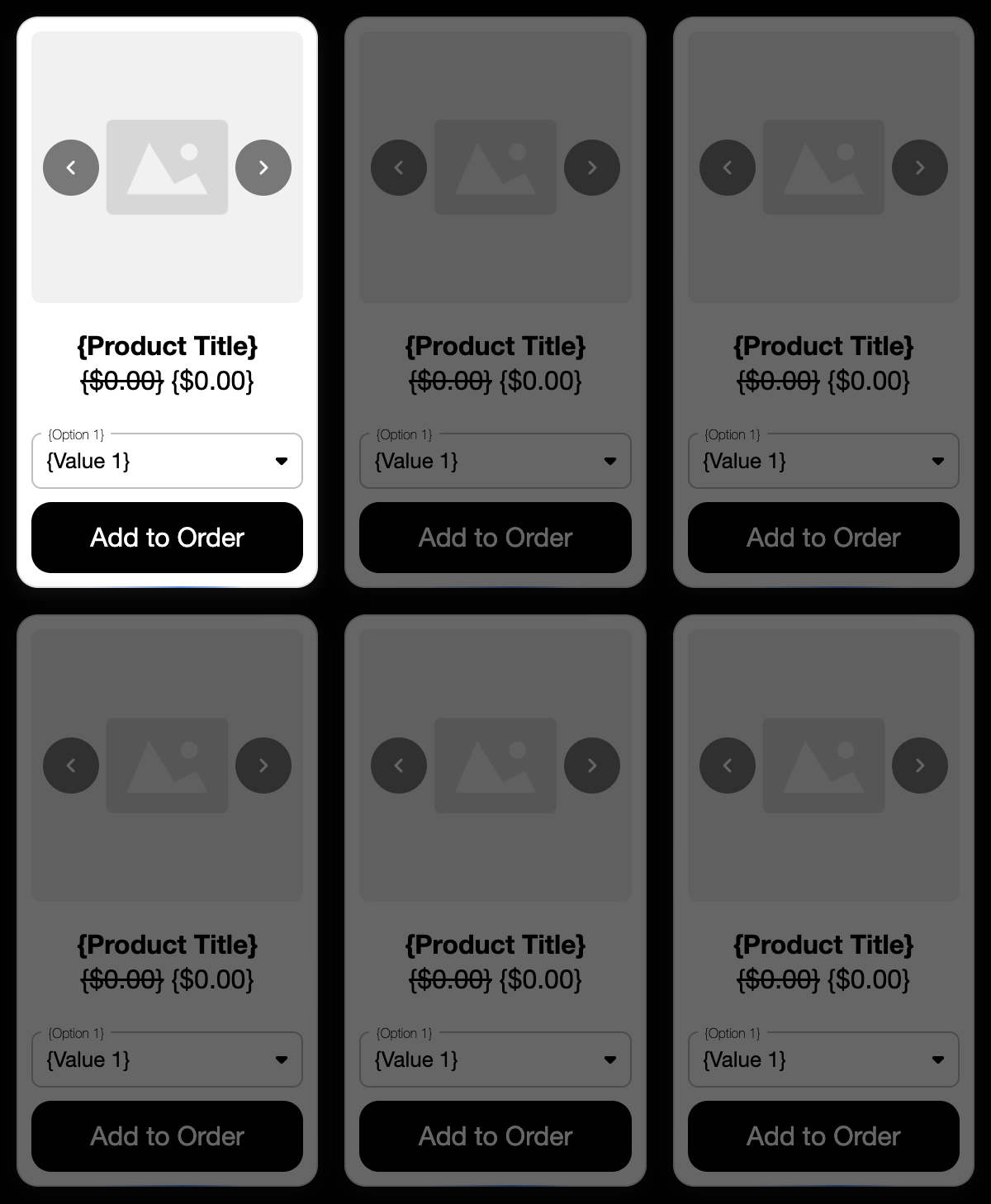
When using the grid layout, the products are displayed in vertical cards. Products that exceed the space in a row wrap to the next row. The max width of the grid layout is 600 pixels.
The Product width setting sets a minimum width for the grid layout. So, the blocks will auto-fit the width of the email. If all blocks cannot fit on the same row with the minimum Product width setting, the blocks will wrap to another row. The number of rows may change between mobile and desktop views.
Carousel
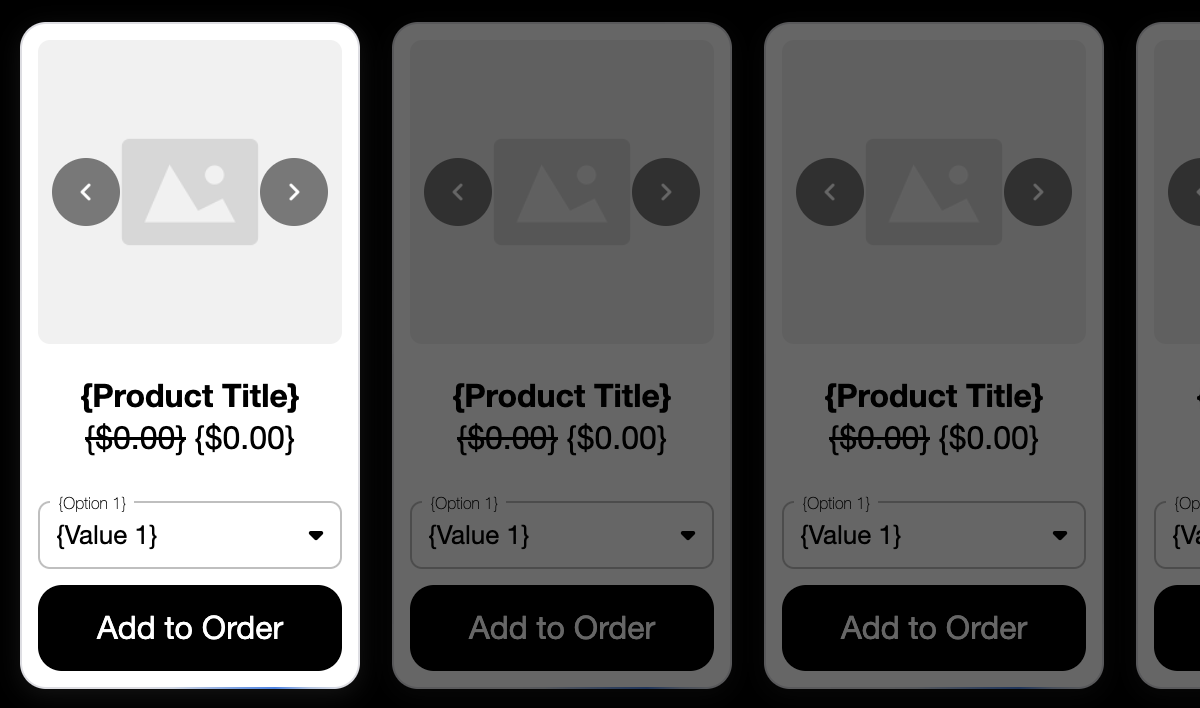
The carousel layout is the default layout for the product block. The products are displayed in vertical cards. When the products exceed the space in the first row, they leave the screen rather than wrap below.
The recipient can scroll horizontally to view the hidden products. The products in the carousel layout are aligned left. At the moment, alignment cannot be edited.
The Product width setting sets an exact width for the carousel layout. So, when the products exceed the space in the first row, they leave the screen rather than wrap below. The carousel layout is fixed to a single row, and the max width of the carousel layout is 600 pixels.
Note: If product blocks appear off-center or misaligned after exporting to Klaviyo (even though they appear centered in Zaymo), try switching from carousel to grid layout. This can resolve centering and alignment issues that occur specifically in Klaviyo.
Stacked
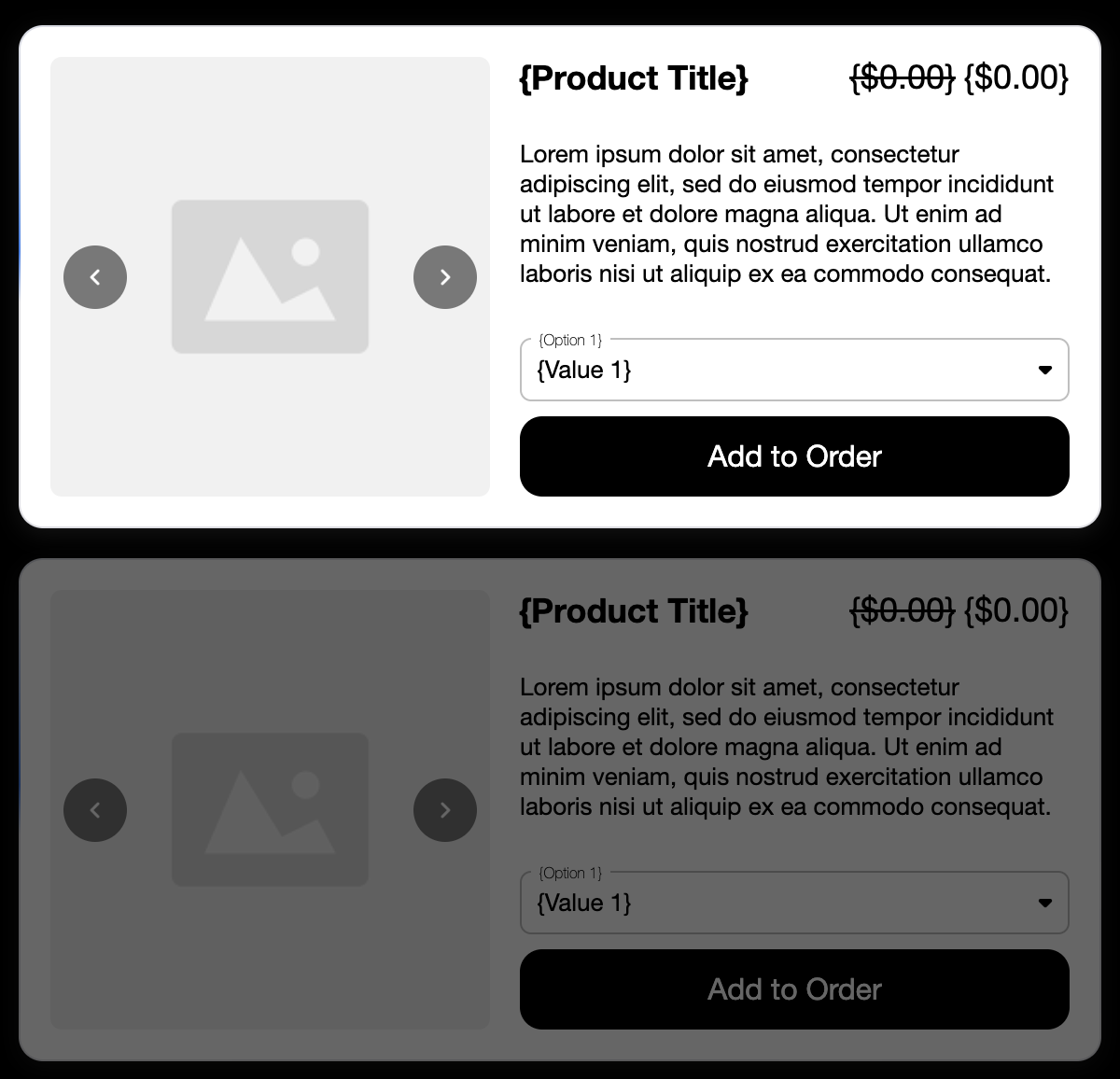
When using the stacked layout, the products are displayed in horizontal cards that take up more space, highlighting the images & secondary text with the product description.
The Product width setting sets has no effect on the stacked layout. Each card will autofill the width of the email to a maximum of 600 pixels.
Mobile optimization
To optimize product blocks for mobile devices:
Adjust font size and button size to improve proportions on smaller screens
Hide non-essential fields (e.g., Description, secondary pricing) to reduce vertical clutter
For Grid layouts: reduce the Product width setting and adjust Gap settings to control how cards wrap and space on mobile devices
Show/hide Behavior
The product block automatically hides products that a customer already has in their subscription.
Behavior with subscriptions integration
With the subscriptions integration, the product block becomes much more powerful. Recipients can purchase items with one click.
Product block for non-subscribers or subscribers with outdated payment method
When a product block is displayed to non-subscribers--even when the email was configured for subscribers--the CTA links straight to the checkout rather than starting a transaction in the email. While not as powerful as a one-click purchase, it does perform significantly better than linking to a PDP. However, for returning subscribers, Zaymo may have their payment information saved via your subscription provider, which can streamline the subscription creation process at checkout.
In this scenario, the CTA falls back to the CTA fallback text which is configurable in the right panel when you select the product block.

In the previewer, you can test both views by changing the toggle Has Active Subscription between Yes and No.
Choosing products
The products in a product grid can come from either a dynamic source or from static, manual selection.
Dynamic source
Dynamic is the default product selection source. When the Dynamic product selection setting is toggled on, the Product Feed dropdown is shown. From the Product Feed, you can choose from a handful of sources:
Shopify sources
Zaymo Recommended Products | Real-time ML-based recommendations. Runs a fresh computation on each request |
Shopify Best Sellers | Pulls products from your best sellers list in Shopify. The products are sorted by best sellers. If best sellers change, any emails relying on that collection will change--even after you export an email from Zaymo |
Products rom a Collection | Pulls products from a specified Shopify collection. The products are sorted by best sellers. When selected, a second dropdown called Collection appears that allows you to select a collection from Shopify. If a collection's contents change, any emails relying on that collection will also change--even after you export an email from Zaymo |
Shopify Recommendations | Uses Shopify's Product Recommendations API. The Product Recommendations API recommends related items rather than complementary items |
Shopify Previously Ordered Products | Shows customers products they have previously purchased, excluding anything currently in their subscription |
Rebuy
The Rebuy source requires a Rebuy integration. The Rebuy source sends the first product in the customer's upcoming order and recommends complementary products based on sales data for the Shopify store.
If there is no upcoming order, the source falls back to to Shopify best sellers.
Klaviyo Events
Checkout Started Event | Specifically built for the Shopify Checkout Started event or Added to Cart event. However, this will work with any event that includes the |
Viewed Product Event | Specifically built for the Shopify Viewed Product event. However, this will work with any event that includes the |
Manual selection
Manual selection is fairly straightforward. On the right side bar, there is a search products bar, search for your desired product.
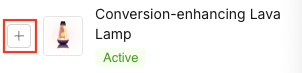
Select product you would like to add by clicking the plus button.
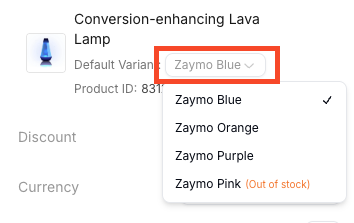
If the product has multiple variants or selling plans, choose the default variant by clicking on the dropdown menu. If the variant you select is out of stock, the first in stock variant will become the new default.
Unless you specify otherwise in the product block settings, the recipient of the email will be able to change both the variant and the selling plan before clicking the CTA.
Settings unique to the product block
Product | Choose product or change product show in product block |
Discount | Apply a discount code to the block. Read more |
Product Rating | Show/hide a 5-star rating on the product. This rating is set manually and does not sync with the true ratings of the product |
Description | Show/hide the secondary text (text defaults to the product description but can be edited) |
Currency | Choose the currency displayed. If the currency is incorrect, Zaymo will still show the correct value in your currency, but the currency symbol will be incorrect |
Quantity | Show/hide the quantity counter to the recipients |
Variants | Show/hide the variant dropdown to the recipients |
Purchase Options | Edit which action the CTA takes (ex: add as one-time to next order or add as a subscription to the next order). Read more |
Purchase Option Price | Show/hide the price in the Subscribe & Save purchase option(s) |
Selling Plans | Show/hide the selling plan dropdown for Subscribe & Save purchase option(s) |
Product width | Change the minimum width (pixels) of each block in the product grid. This affects the Grid and Carousel layouts differently. This has no effect on the Stacked layout |
Gap | Change the gap (in pixels) between products in the product grid. |
Updating product blocks
The first time you connect a product block's template to a Klaviyo flow message, click Publish. After that, Zaymo watches for changes and republishes automatically a few seconds after you stop editing — you generally won't need to come back and push updates by hand.
Exception: transactional messages. If the message is marked transactional in Klaviyo (used for sends like order confirmations that bypass a customer's marketing opt-out), auto-sync won't push updates on its own — publishing would remove that status, so Zaymo pauses and asks you to confirm by clicking Publish yourself. Once confirmed, Zaymo re-applies for transactional status automatically; approval usually lands within the hour, but can take up to a business day. During that window, the message is treated as marketing, so anyone opted out of marketing won't receive it.
Note: Zaymo emails contain both an interactive version and a fallback version. The Klaviyo preview shows the fallback version, while most email clients (like Gmail) display the interactive version. To properly test both versions, send test emails to different email clients rather than relying solely on the Klaviyo preview. Learn more about interactive vs. fallback versions.
Known limitations
Product limit
Each product grid allows for between one and ten product blocks. To display more than ten products, drag multiple product grids into the email.
Email size
The product grid is a fairly heavy block for email size, and each product block inside the grid makes a significant difference to email size. If Zaymo blocks your export due to email size, consider limiting the number of products in the product grid.