Attentive (email campaigns & journeys)
Last updated: November 5, 2026
Zaymo blocks can be used in Attentive! Looking to collect SMS numbers with Attentive instead? See Attentive (SMS capture).
The integration card in Zaymo has a button to connect to Attentive.
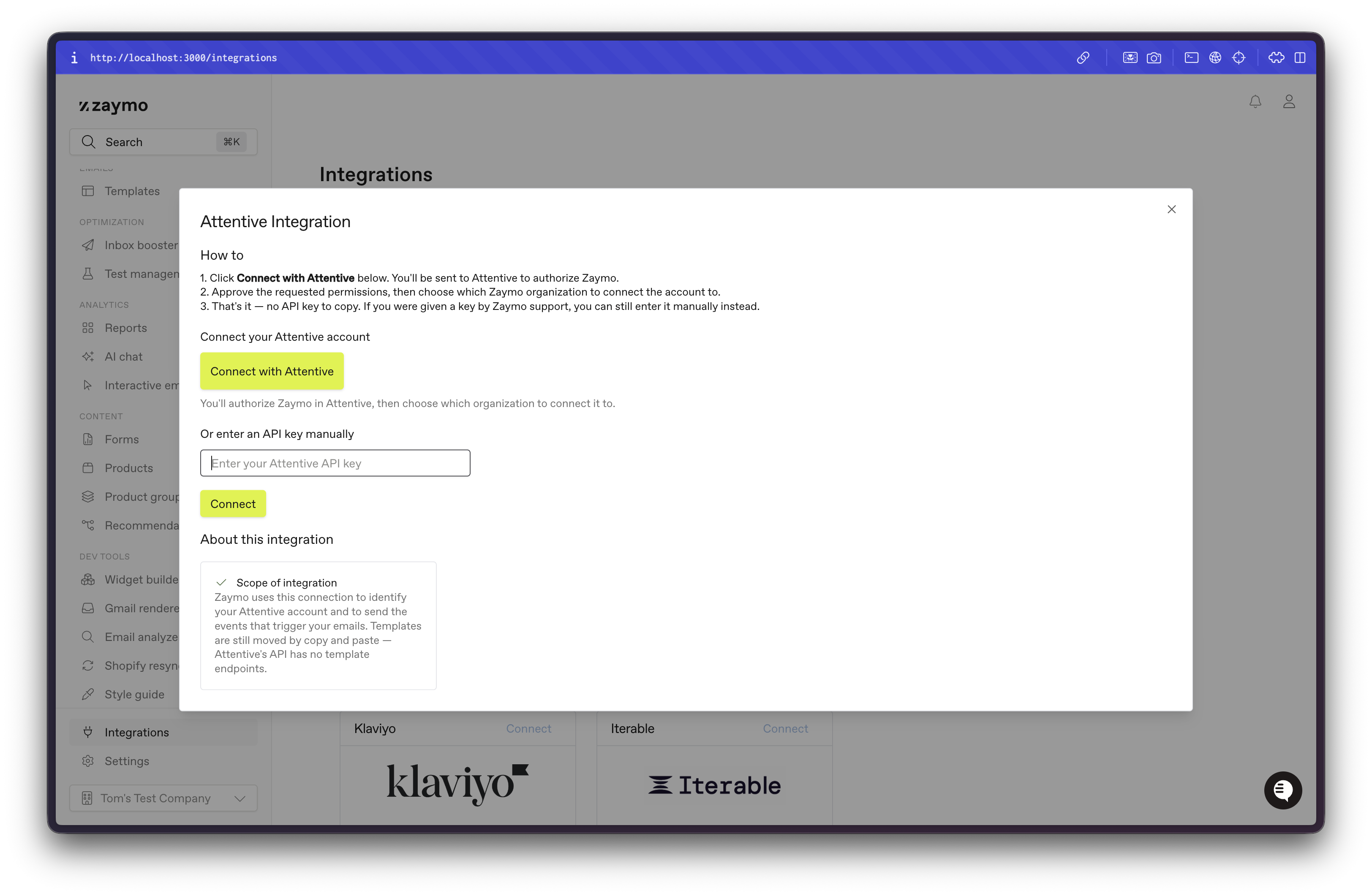
Finish the OAuth flow and you should end up back in the Zaymo app. Check your Attentive account for the Zaymo connector app (navigate to Setup > Marketplace and look for a Zaymo card in the Installed by you tab)
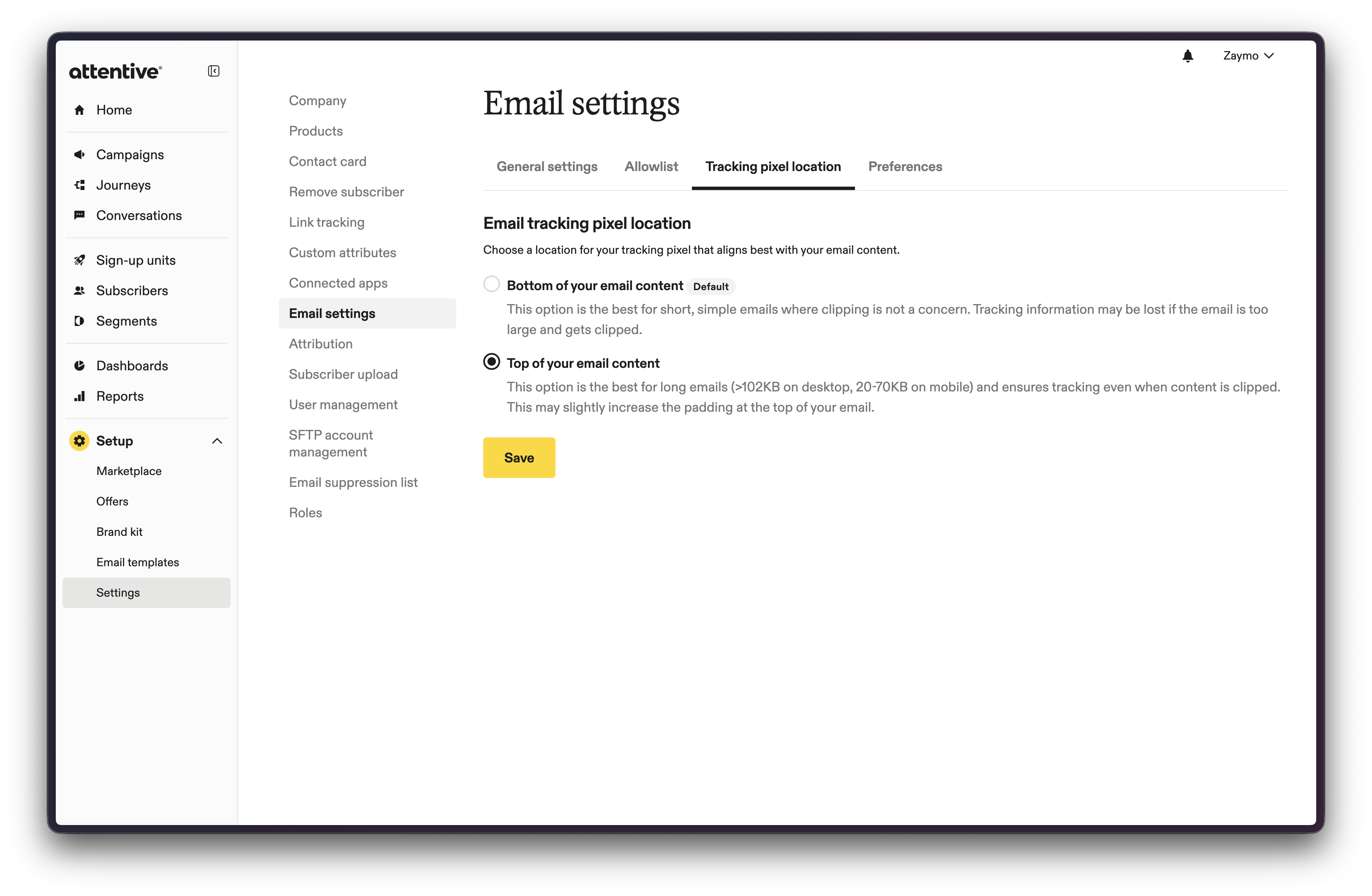
We recommend also updating your tracking pixel location to Top of the email.
The Standard Workflow
You have a journey you'd like to augment with interactive Zaymo content.
Click edit draft or create draft.

Find the message that you want to add Zaymo to, click to open the message settings, scroll down to the content area, and click Edit Content.
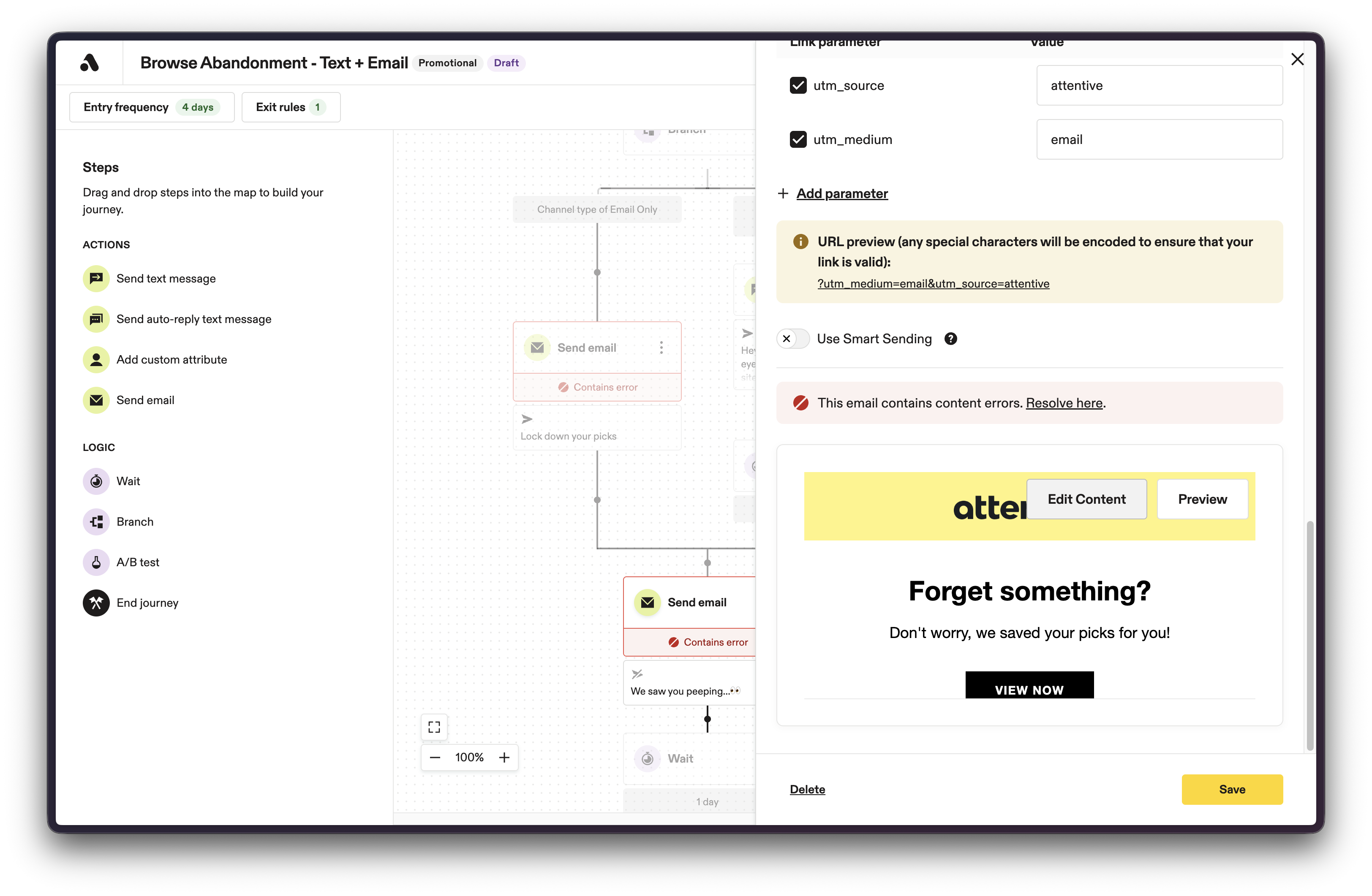
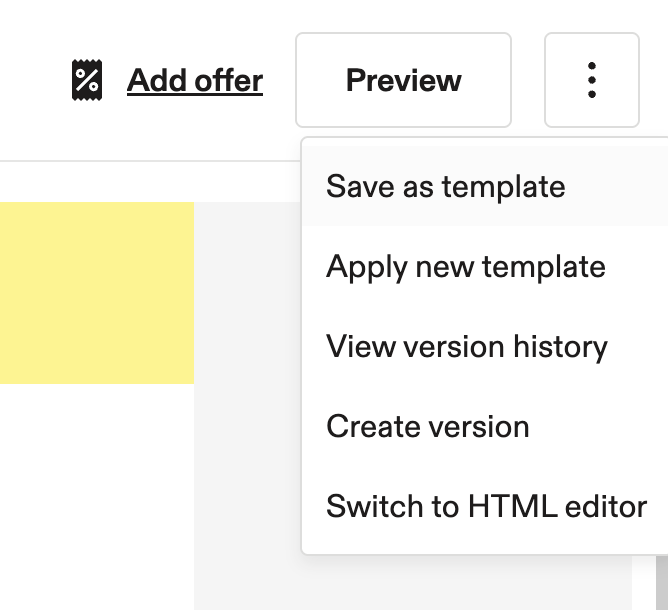
2.1. If the message is using the HTML editor copy everything in the editor and skip to step 3. If the message is using the drag and drop editor click the 3 dots icon and Save as template. You'll be able to export the template as HTML from the templates page.
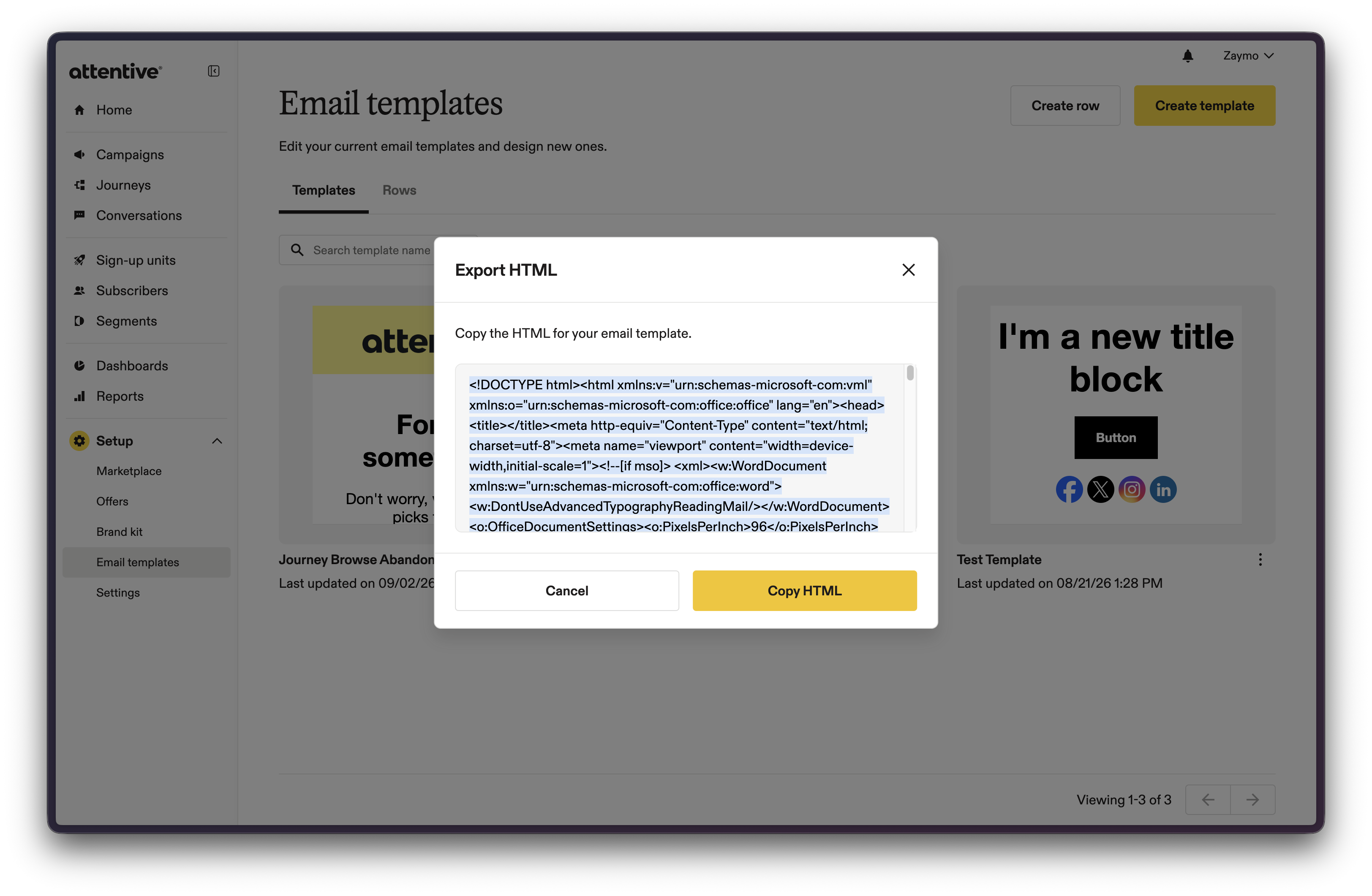
2.2. Navigate to Setup > Email templates, click the three dots on the new template to open the context menu, and click Export to HTML. Copy the HTML
Visit your organization in the Zaymo app (app.zaymo.com/templates), navigate to Templates and click the Import emails from ESP button. This will open a form where you can name a new template and paste in the template's raw html.
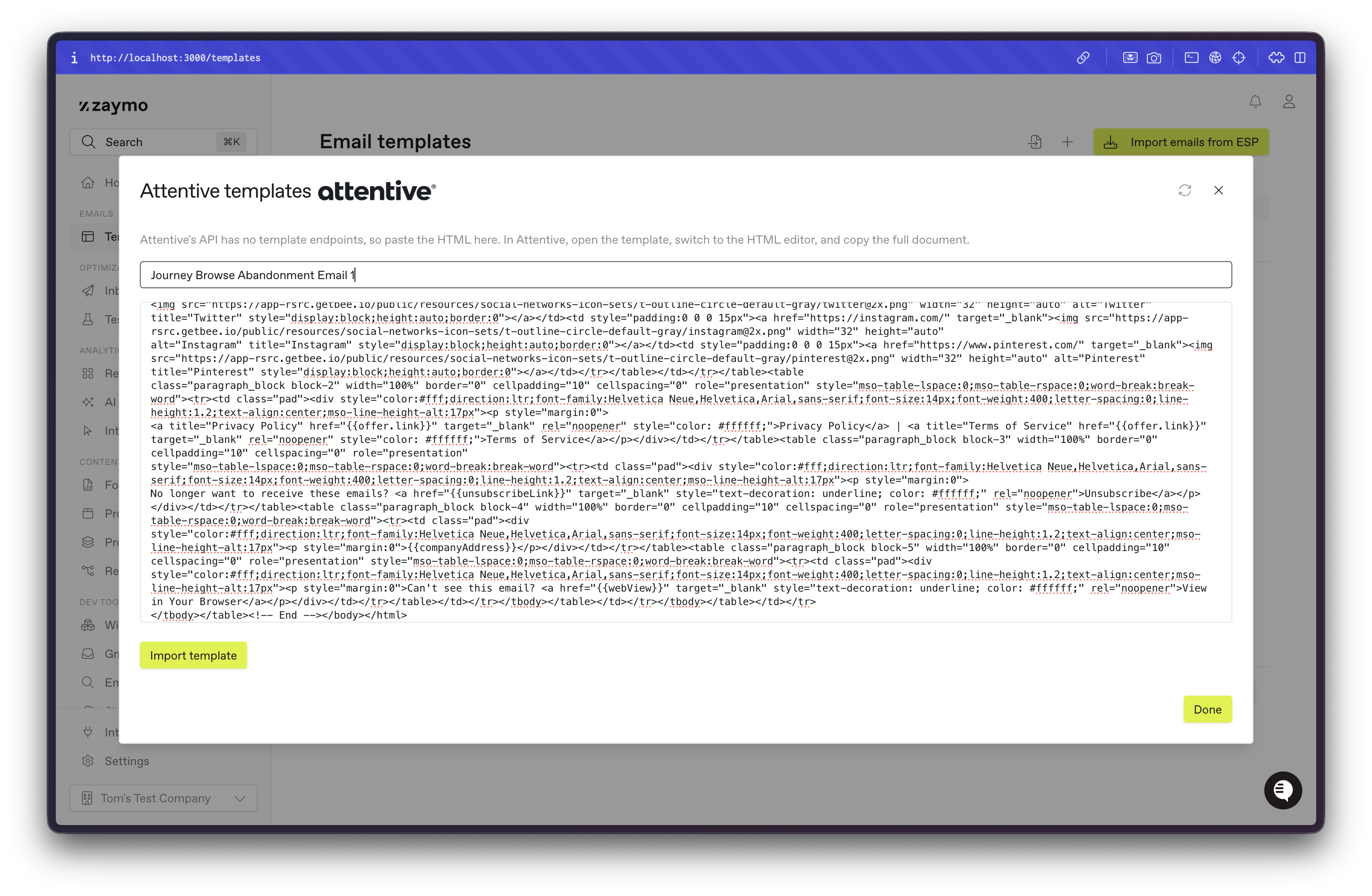
Click Import template or done and add Zaymo blocks to your template
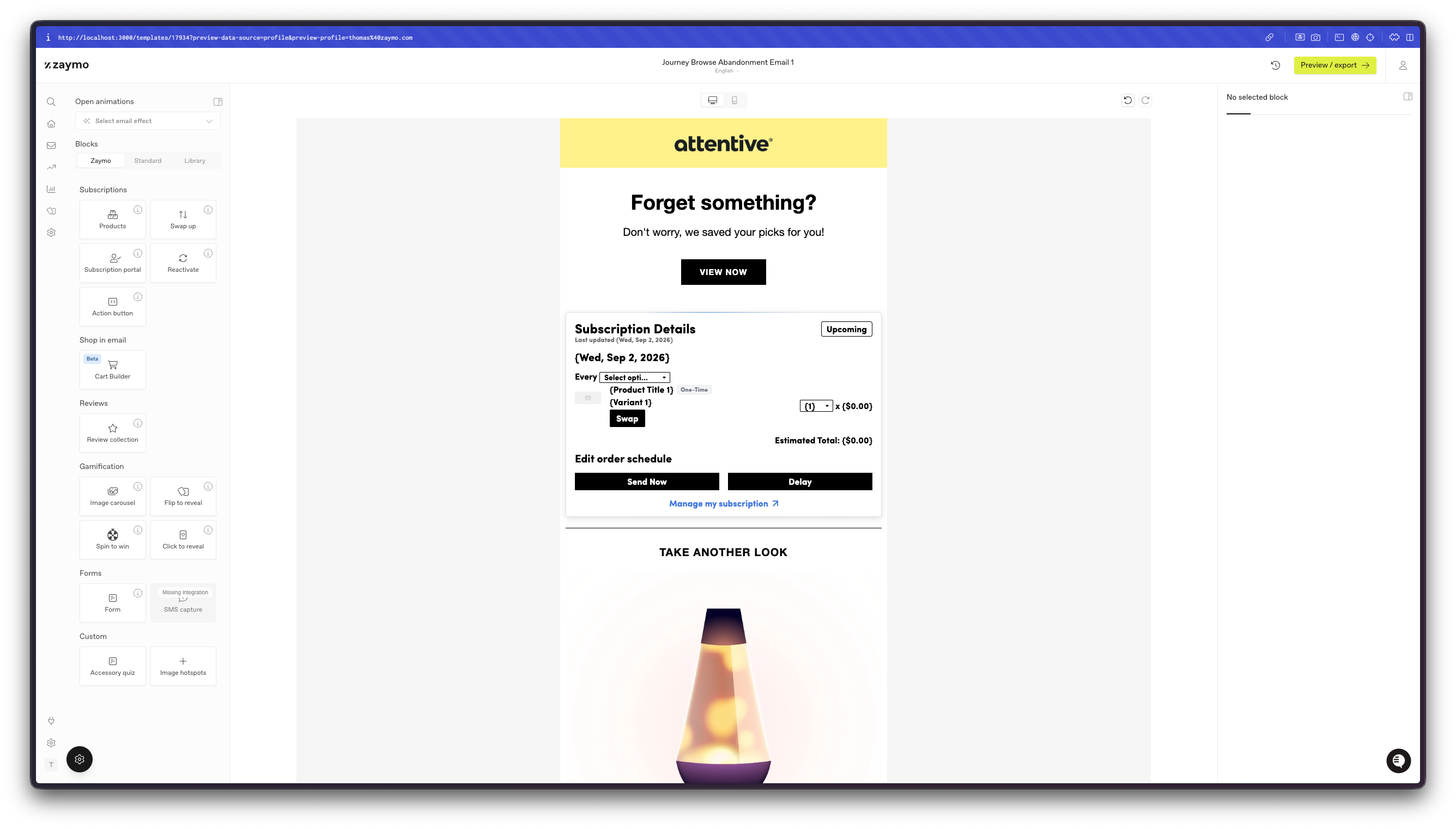
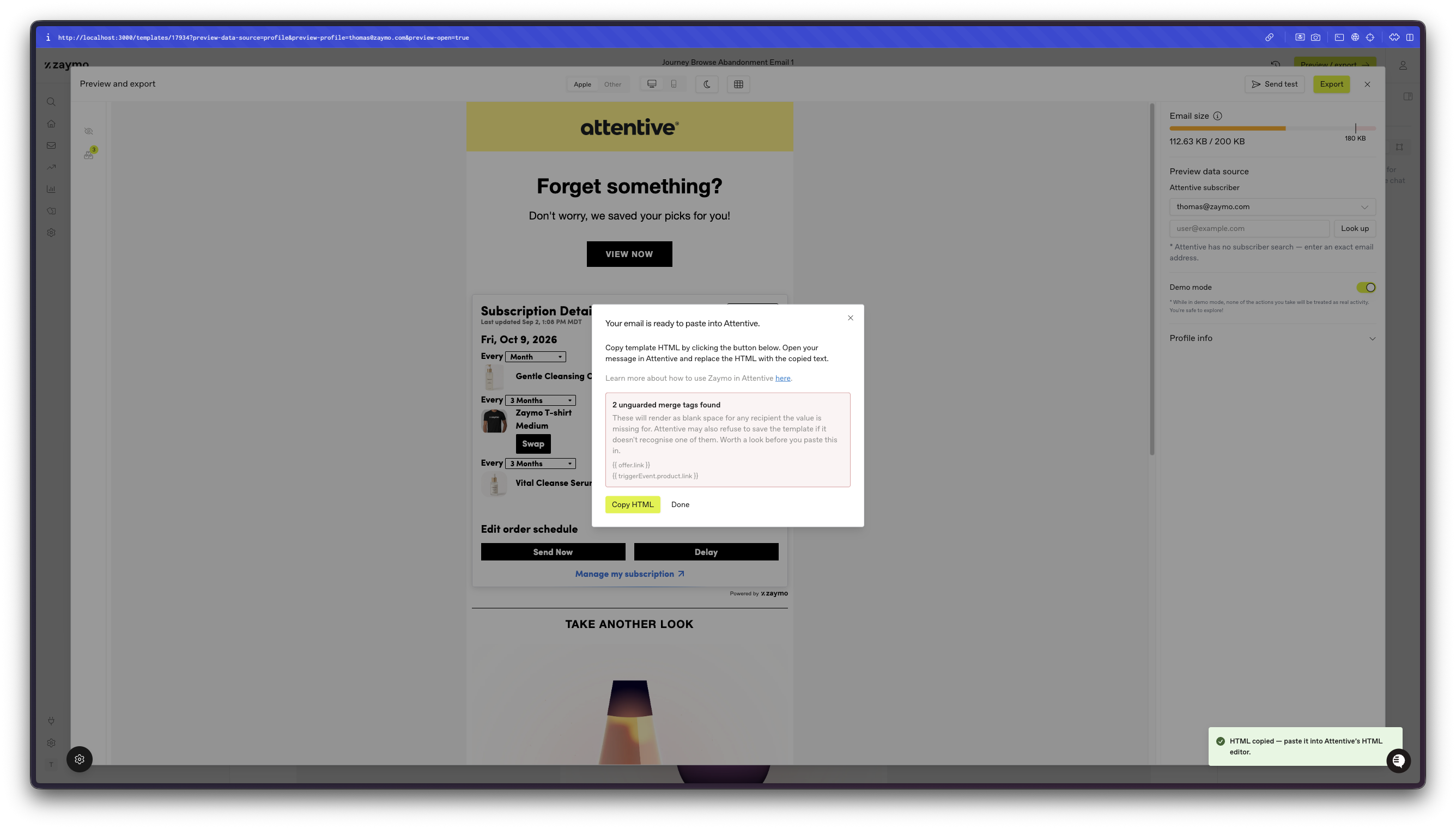
Click the Export | Preview button in the top right to open the preview modal. You can enter the full address of an Attentive subscriber in your account to preview the email as that subscriber. When you are satisfied, click the Export button in the top right of the preview window. Copy the augmented template HTML by clicking the Copy HTML button in the export pop up.
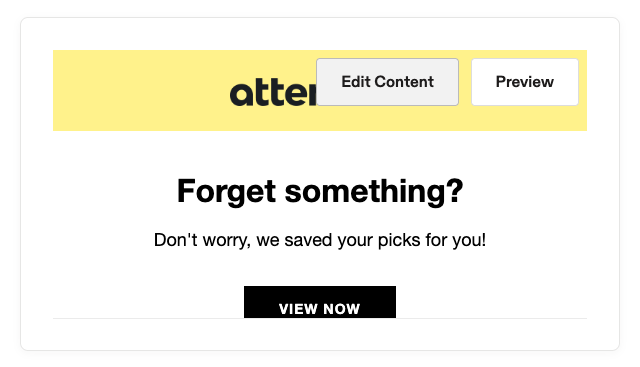
Find the draft journey again in Attentive and click Edit Content on the target message.
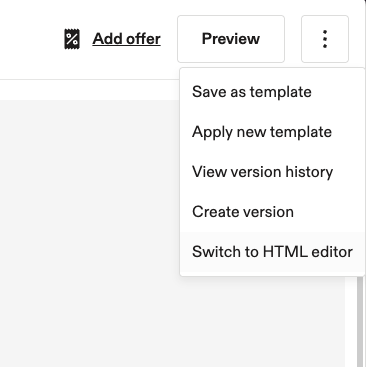
If you are using the drag and drop editor switch to HTML mode
Paste the HTML from Zaymo into the editor
Click Save in the editor, then Save on the message, and finally click Turn On to publish the updated journey. The message may show some dynamic tags in the preview. This is expected.
Notes
Zaymo blocks absorb clicks so you may see a lower CTR on emails with Zaymo blocks in A/B tests. The best place to measure the performance of a Zaymo block is in the Zaymo app. Click on a message in the analytics page https://app.zaymo.com/analytics to see that message's Zaymo activity.
You may see a red bar in the preview screen. Until Attentive adds AMP support our blocks will likely get clipped in Gmail. This does NOT mean the email is too big or that the email cannot be delivered. If you are able to send and receive a test email, the message will be sent to your customers in a campaign or journey. Your customers will still be able to click expand in Gmail to see the full email.