Cart builder
Last updated: November 20, 2026
The Cart Builder is an email block that works like a shopping cart. Customers choose how many of each product they want, see a running total, and buy it all with one button.
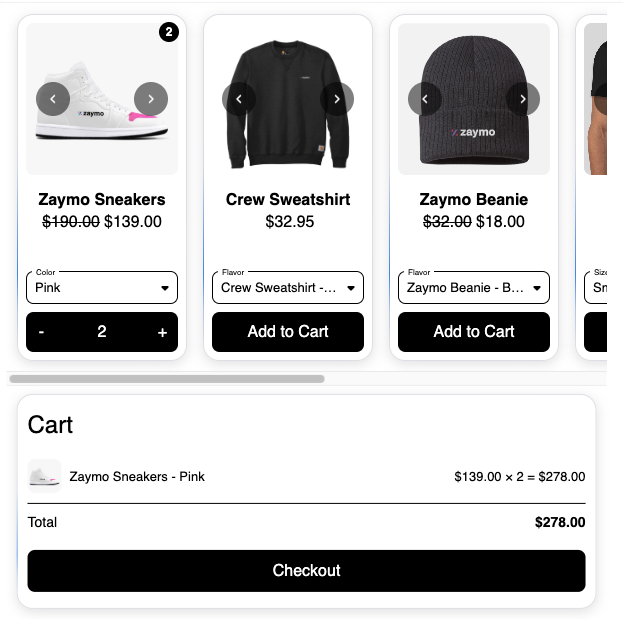
Use it for abandoned carts, restocking, or bringing back a cancelled subscription with changes.
What you need
Shopify connected to Zaymo.
To subscribe or update an order in the email: Recharge, Skio, Loop or Stay AI. With other subscription apps, the cart goes to your store's checkout.
Add the block
In the Blocks panel, open the Zaymo tab and drag Cart Builder into the email.
Choose where the products come from.
Set Cart action to choose what the button does.
Its settings are much like the Products block.
Choose what goes in the cart
Source | What it shows |
|---|---|
Abandoned Cart | Items the customer left in their cart |
Klaviyo event | The products named by the event that triggered the flow: the items in a started checkout or an order, the item added to cart or ordered, or the product viewed |
Shopify Previously Ordered Products | Products the customer has bought before. Needs the Shopify integration. |
Latest Cancelled Subscription | Items from their last cancelled subscription |
Next Subscription | Items in their next order |
Custom product(s) | Products you pick |
Products from a Collection | A Shopify collection |
Shopify Best Sellers, Shopify Recommendations, Zaymo Recommended Products | Recommended products |
You can use several sources and limit how many items each one adds. For example, show cancelled items first, then best sellers.
Checkout Started Event, Added to Cart Event and Viewed Product Event have been replaced by Klaviyo event, which reads whichever event triggered the flow. Carts that already use one of the old sources keep working as before, but the old sources can't be picked for new carts.
Choose what the button does
The Cart action setting decides what happens when the customer taps the button.
Cart action | What happens |
|---|---|
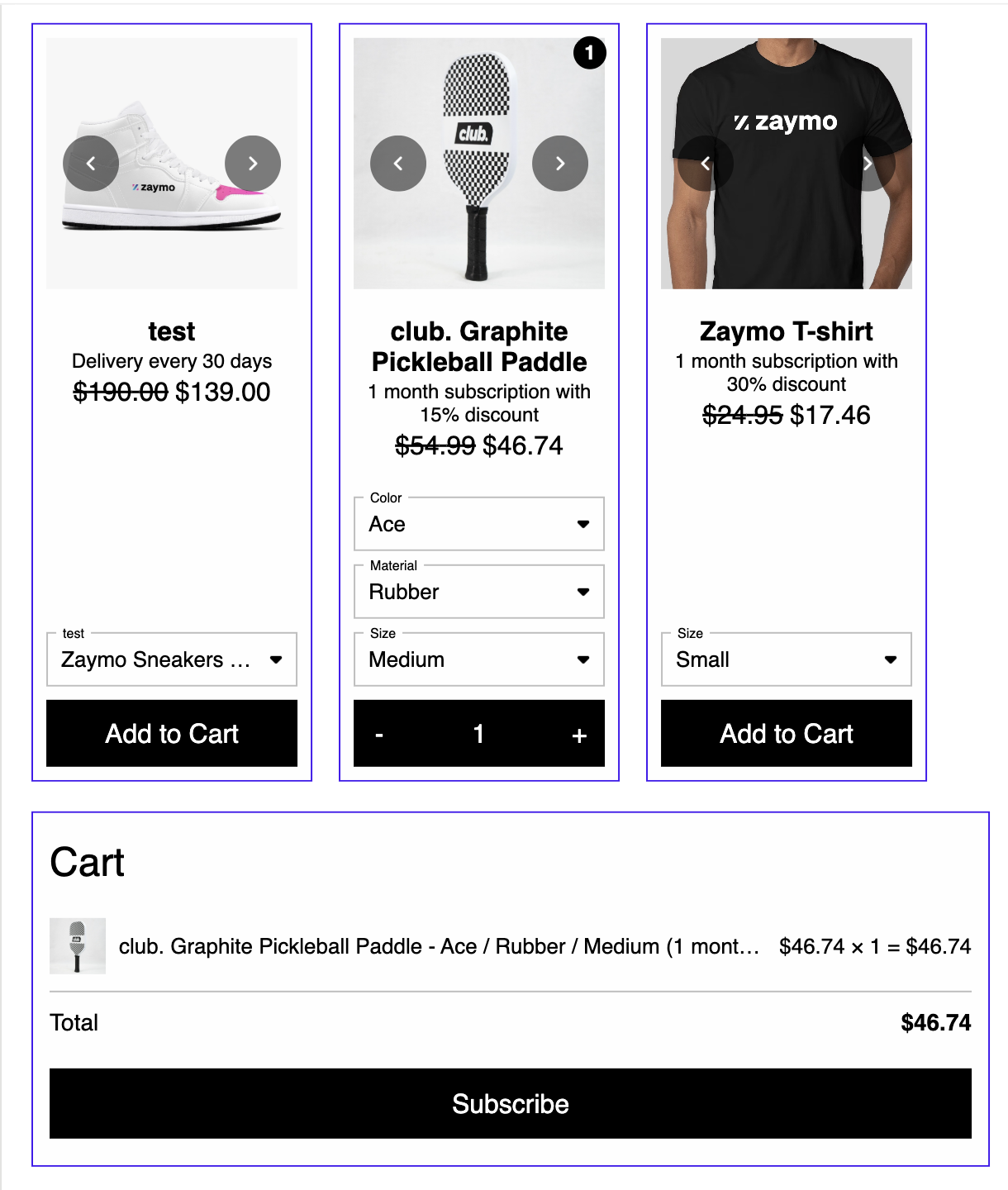
Create a subscription | Starts a subscription with the items in the cart. This is the default with Recharge, Skio, Loop and Stay AI. |
Update subscription | Makes the customer's next order match the cart. Customers with no active subscription get a new one instead. Use it with the Next Subscription source. |
One-time purchase | Places a one-time order on their saved card. Recharge only. |
Checkout | Sends the customer to your store's checkout. |
Customers without a saved card go to checkout.
A cart discount applies to every subscription the cart starts.
If starting a subscription fails part way, nothing is kept.
Choose how items are sold
Under Variants, the Purchase option setting decides whether each item is sold as a subscription, sold once, or left to the customer.
Subscription preferred: products that have a subscription plan are offered as subscriptions. This is the default.
One-time preferred: products are sold once. A product is offered as a subscription only if it can't be bought once.
Subscription only: products that have a subscription plan are offered as subscriptions. Products that can only be bought once are left out.
One-time only: every item is sold once, with no subscription price or schedule. Items sold only as subscriptions are left out. Only with Checkout or Update subscription. On an Update cart, the items are added to the next order once.
Customer's choice: each product shows One Time and Subscribe & Save, so the customer picks. On an Update cart, changing a choice moves that item on the next order.
Which subscription plan is used: the one that matches the customer's current subscription. If none matches, the product's default plan is used.
Let customers pick how often it ships: turn on Let customer choose their selling plan. Items with more than one plan then show a dropdown. It isn't offered with One-time only. In Apple Mail, it can make a cart with more than 3 products slower.
Good to know:
Purchase option isn't shown when Cart action is One-time purchase.
If Zaymo can't start subscriptions from the cart with your subscription app, you can choose only Subscription preferred or One-time only.
The button
The button says Checkout until you change it. For customers with a saved card, Zaymo changes that default text to match the cart action.
Cart action | Button | After it works |
|---|---|---|
Create a subscription | Subscribe | ✓ Subscribed |
Update subscription | Update subscription | ✓ Subscription updated |
One-time purchase | Buy Now | ✓ Order created |
Checkout | Checkout | — |
If you type your own text, everyone sees your text.
Quantities and layout
Setting | What it does | Default |
|---|---|---|
Max Quantity Per Item | The most of one item a customer can add, from 1 to 9. A lower number makes the cart faster in Apple Mail. | 3 |
Quantity Input Location | Puts the − and + buttons on the product or in the cart. | Product Card |
Cart Placement | Puts the cart above or below the products. | Below Products |
Compliance language | Shows a note about recurring charges below the button, with links to your privacy policy, terms and cancellation policy. | Off |
Discounts
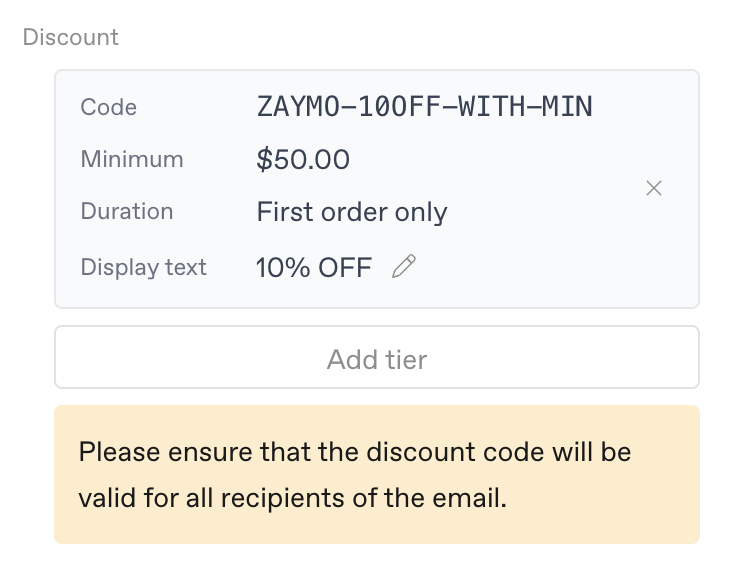
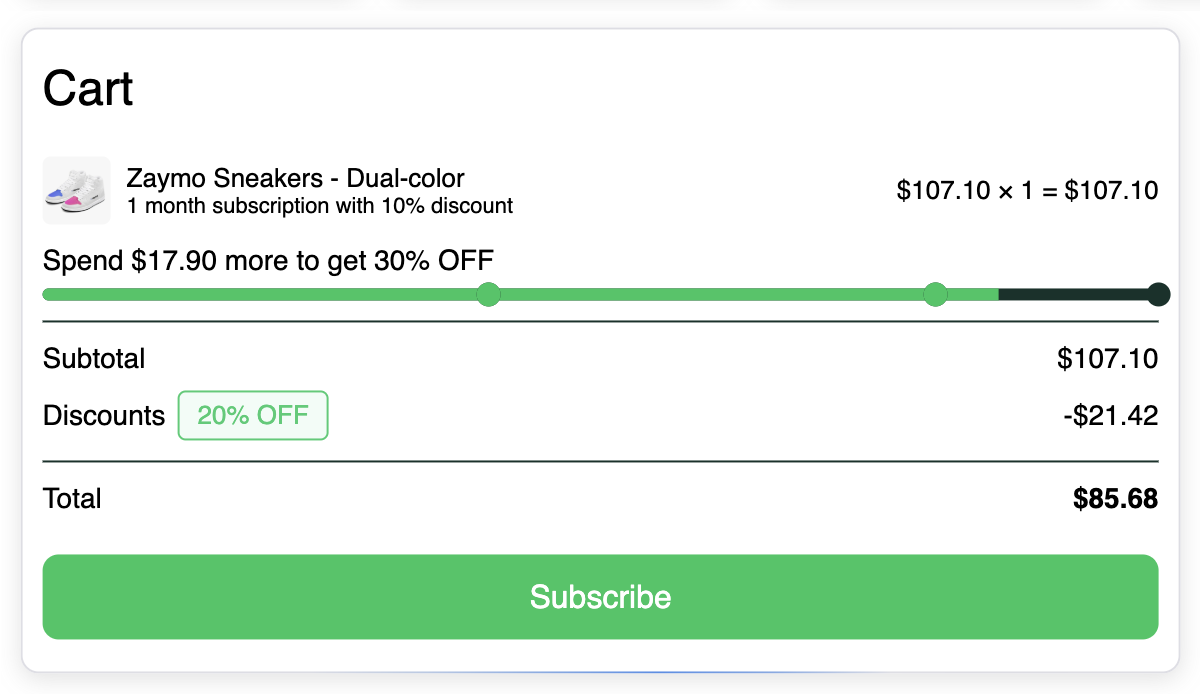
Add a discount to the block. If it has a minimum spend or number of items, a progress bar shows how close the customer is.
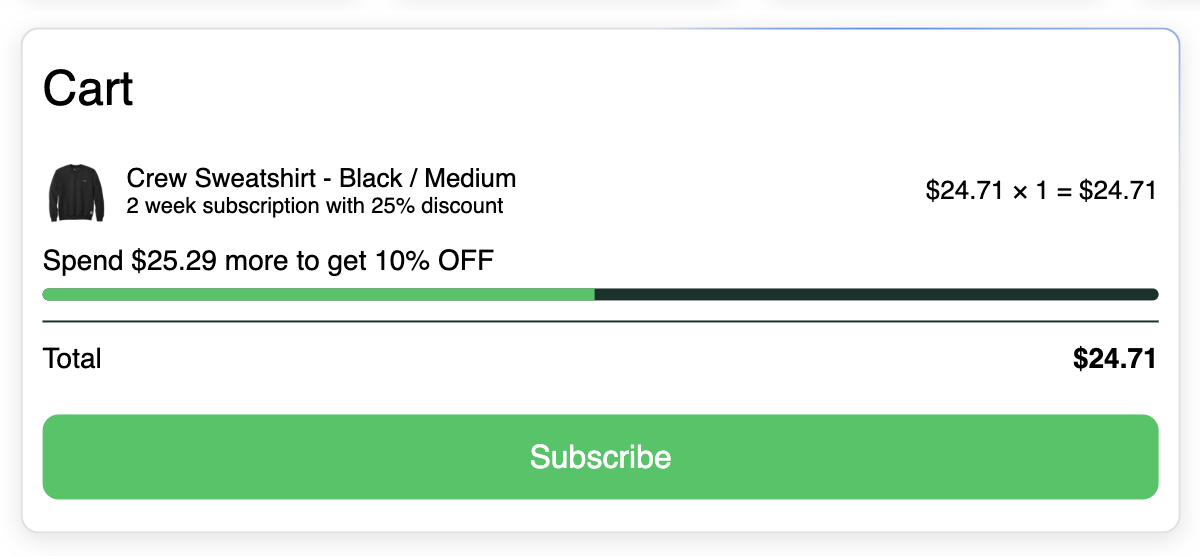
Click Add tier to add more levels of the same discount. Dots on the bar mark each level.
Each tier can have its own Prompt and Unlocked text. Leave them blank for the default.
On Recharge, a minimum only works with Checkout.
Use the customer's own checkout code
In a Checkout Started flow, turn on Use customer's checkout code. A code the customer typed at checkout replaces the block's discount, and the button sends them to checkout.
The email's total doesn't include their code. A line says it applies at checkout.
It works only with Klaviyo and the Klaviyo event source (or the older Checkout Started Event source on carts that already use it).
It isn't available with Update subscription.
It isn't available with free gift rules, unless the cart is one-time only.
Free gift rules
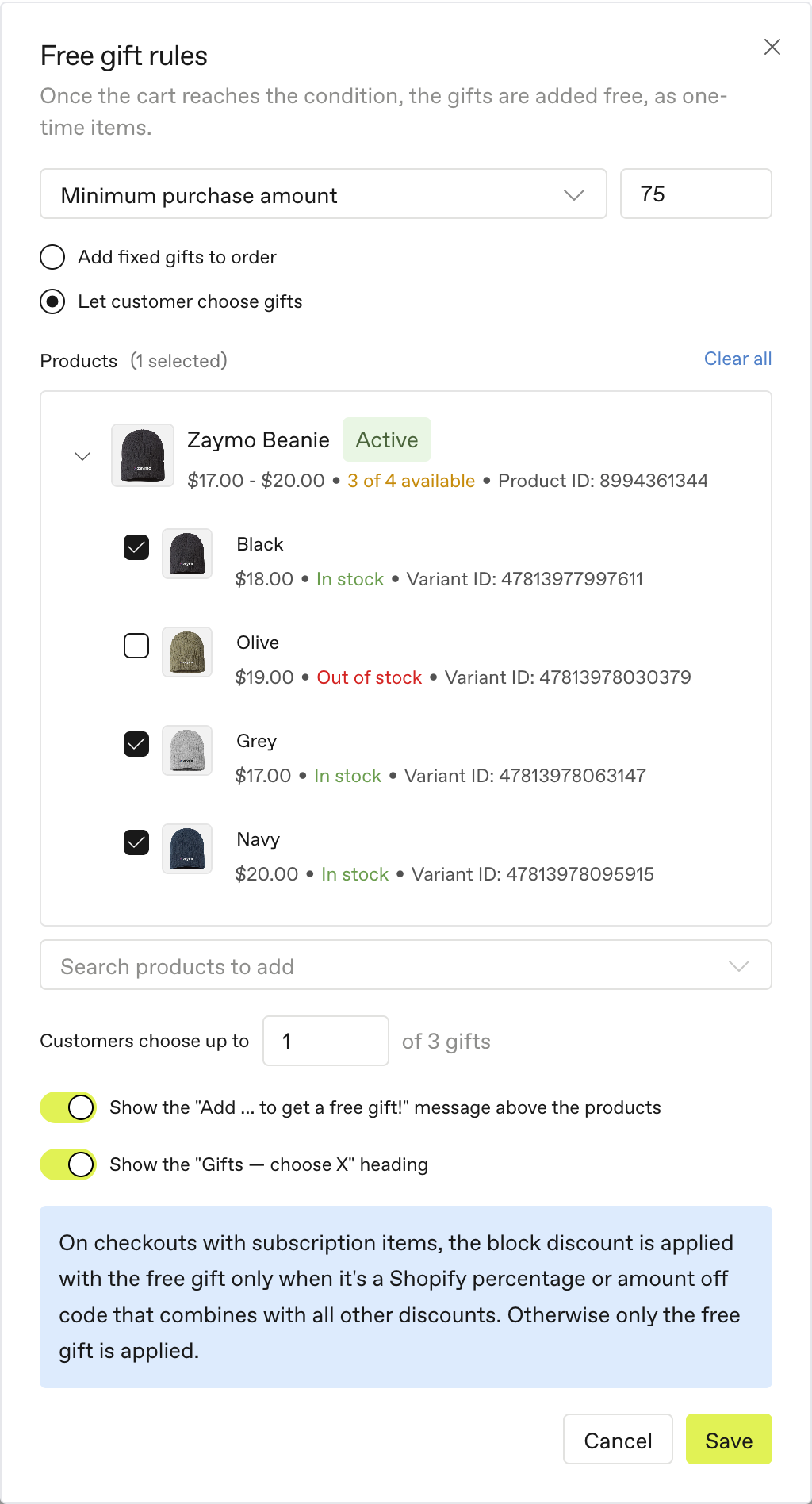
Give free gifts when the cart reaches an amount or a number of items. Gifts are added free, as one-time items.
Option | What happens |
|---|---|
Add fixed gifts to order | The gifts are added on their own once the cart qualifies. |
Let customer choose gifts | The customer picks from a grid, like "choose 1 of 3". |
Set it up
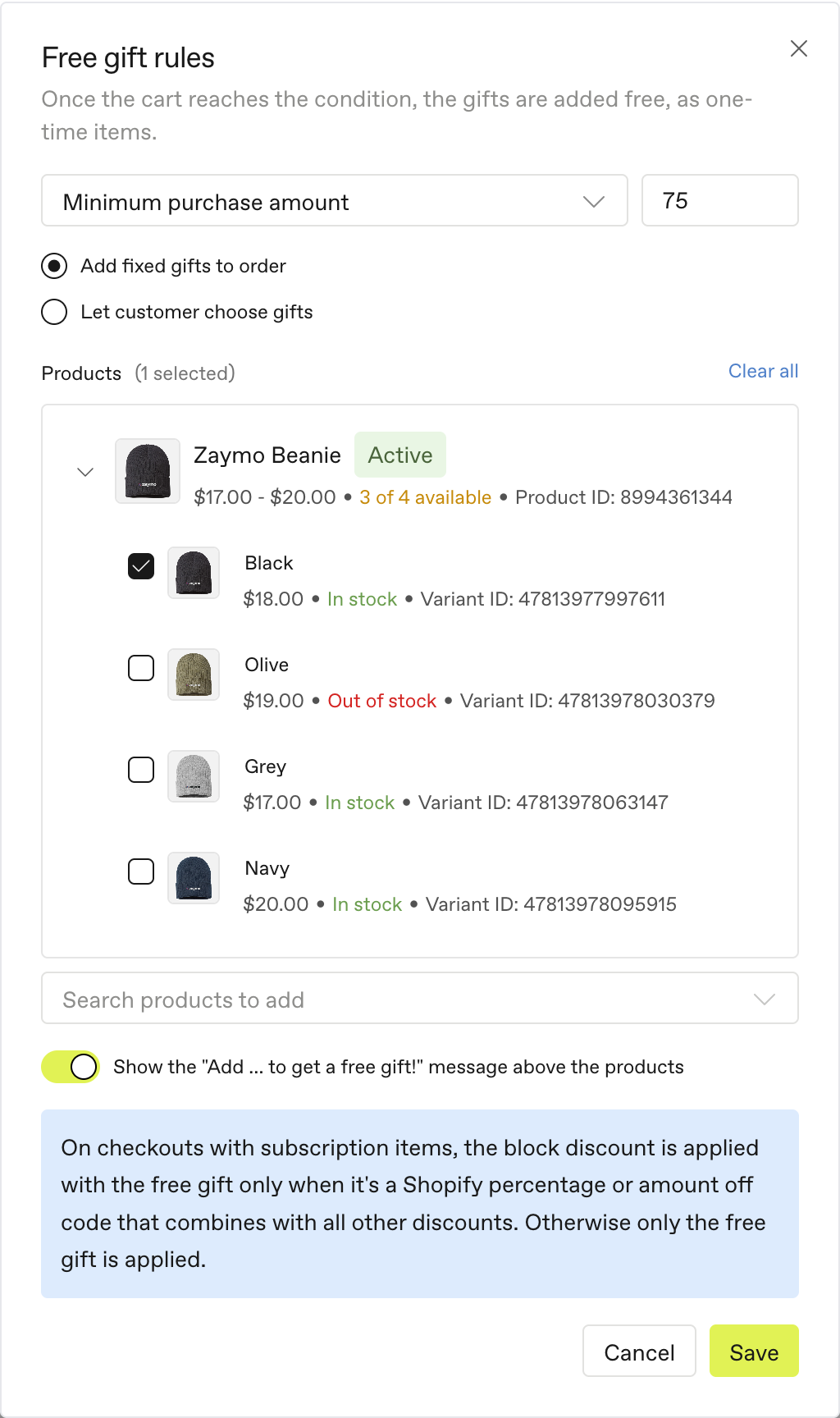
Under Free gift rules, click Add free gift.
Choose a minimum amount or number of items.
Choose Add fixed gifts to order or Let customer choose gifts.
Pick the gift products. Sold-out ones say Out of stock.
To let customers choose, set Customers choose up to. You need at least two gifts.
Optional: click Add tier to give more at higher levels. You can have up to 5 tiers.
Optional: change the messages (see below).
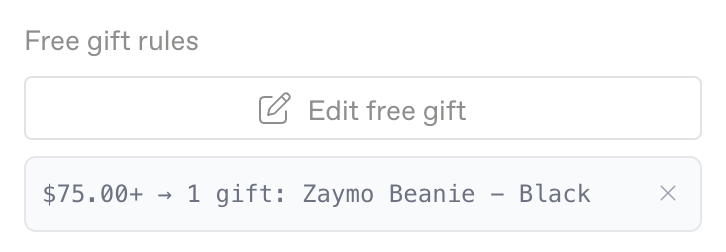
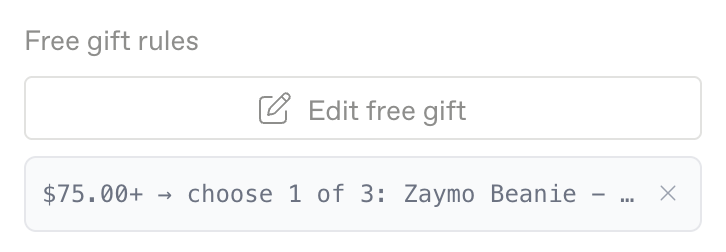
Click Save. To change it later, click Edit free gift rules.
Tiers
With chosen gifts, each tier lets the customer pick more. For example, $40 or more picks 2, and $60 or more picks 3.
With fixed gifts, each tier adds its own gifts. Gifts not reached yet show as locked.
Each tier needs a higher minimum than the one before it.
Messages
Turn on Show progress message or Show gifts heading, then type your own text if you like. Leave a field blank for the default.
Field | What it shows | Words you can use |
|---|---|---|
Prompt | How much more to add, like "Add $12.00 more to get a free gift!" |
|
Unlocked | The message once the cart qualifies, like "Enjoy your free gift!" | None |
Heading | The title above the gifts customers choose from |
|
Type these words exactly, in lower case. If one is wrong, you will see a message when you save.
What customers see
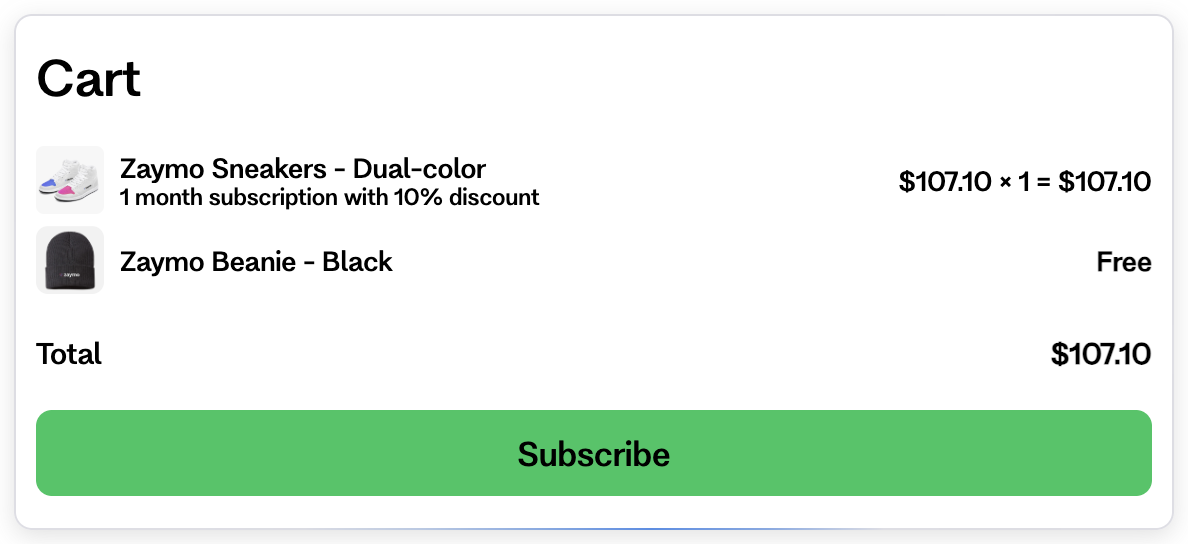
Fixed gifts: A message shows how much more to add. Once the cart qualifies, the gift is in the cart marked Free. The customer can't remove it.
Chosen gifts: The gift grid is greyed out until the cart qualifies. Then the first gifts are picked for them, and they can change the pick.
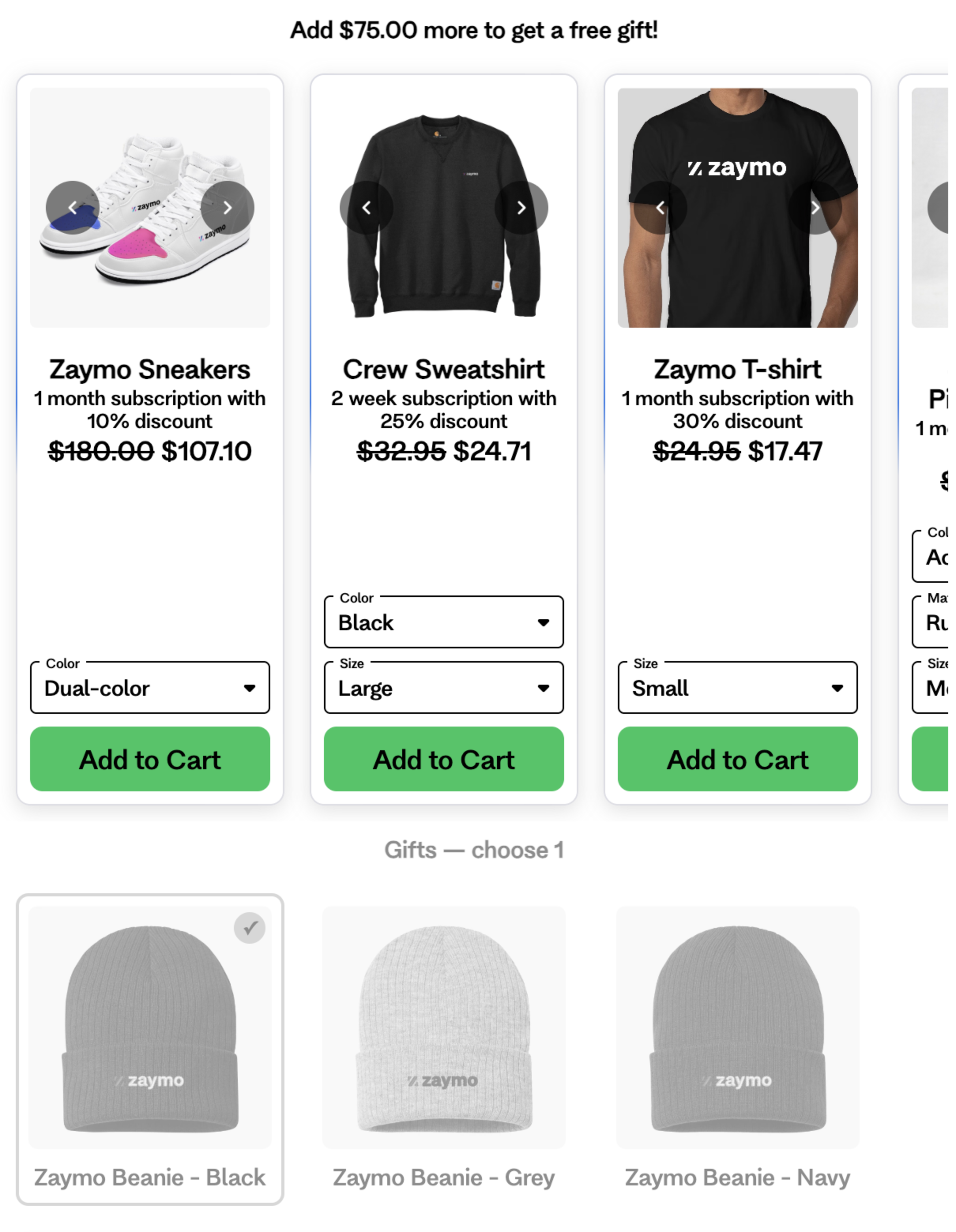
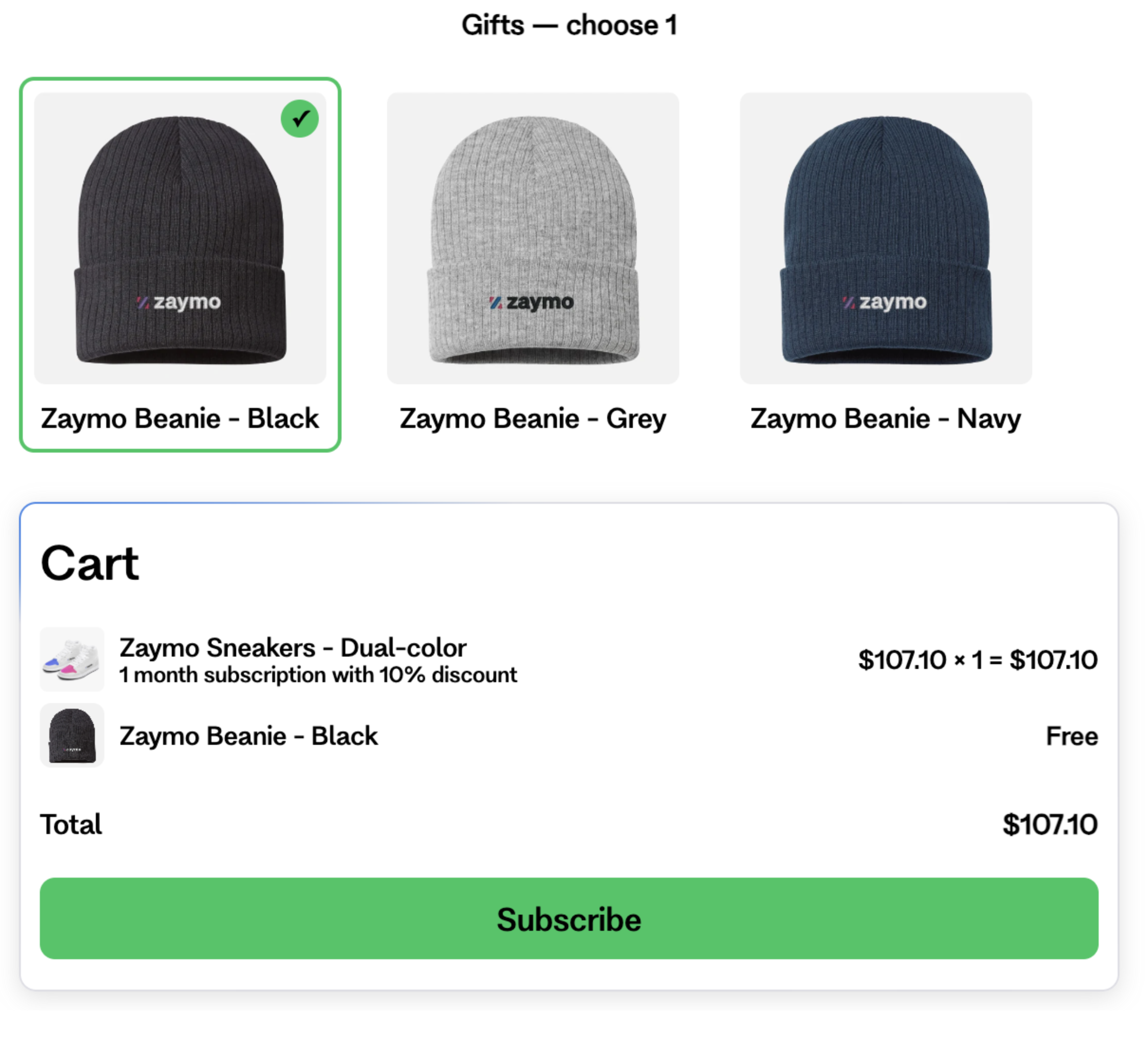
Gifts show in one row that scrolls sideways. In Gmail on a phone, 2 show at a time. Change their size with Gift card width in the Style panel.
The minimum counts subscription prices, before the block's discount.
It works in Gmail, Apple Mail and on the full cart page.
How the gift is added
Where the customer buys | How the gift is added |
|---|---|
In the email | Added to the order free, once. If it can't be added, the order still goes through. |
At checkout | Zaymo makes a one-use code that makes the gift free. It works only if the cart still qualifies. |
A discount and a gift together
One-time checkouts get both.
Checkouts with subscription items take one code. Zaymo combines the two only if the block's discount is a Shopify percentage or amount off code that combines with all other discounts. Otherwise only the gift applies, but the email still shows the discount.
Good to know
Free gifts work with Recharge, Skio, Loop and Stay AI.
Items sold only as subscriptions can't be gifts.
Zaymo needs permission to create discounts in Shopify. If the Free gift rules window shows a warning, reconnect Shopify.
If an updated order no longer qualifies, the gift is removed. Other free one-time items of that product on the order are removed too.
A gift already on the next order stays while the cart qualifies. It can't be swapped from the email.
On Recharge one-time orders, a customer who subscribes to the gift product doesn't get it as a gift.
The Bundle Builder has free gift rules too, based on the number of items. Learn more
Bring back a cancelled subscription with changes
Use the Latest Cancelled Subscription source. Customers change items and quantities, then restart with one tap. The Reactivate block brings a subscription back as it was.
Bring back past purchases (reorder or upgrade to subscription)
Use the Shopify Previously Ordered Products source to show the products a customer has bought before, so they can buy them again from the email.
Reorder email: set Cart action to Checkout (or One-time purchase on Recharge).
Upgrade one-time buyers to a subscription: set Cart action to Create a subscription and label the button something like "Upgrade to subscription". Customers can subscribe to the products they bought before in one tap. This works with Recharge, Skio, Loop and Stay AI.
Where it works
Email app | What the customer gets |
|---|---|
Gmail | The cart works in the email. |
Apple Mail | The cart works in the email. Products with many variants make it slower. Use fewer products or variants if customers say it is slow. |
Other apps | A picture of the cart. Tapping it opens the full cart page. |
If the cart is empty
The source found the customer's items, but couldn't match them to your store. This happens when:
The product or variant was deleted in Shopify.
The event came from a different store.
A product override hides that variant.
Zaymo leaves out items it can't match, so it never adds the wrong one. Check Shopify first, then your product overrides.