Organize items and add presets
Last updated: November 5, 2026
These settings make a long list of items easier to shop. They work with Recharge and Skio. They are hidden in Compact mode.
Tabs
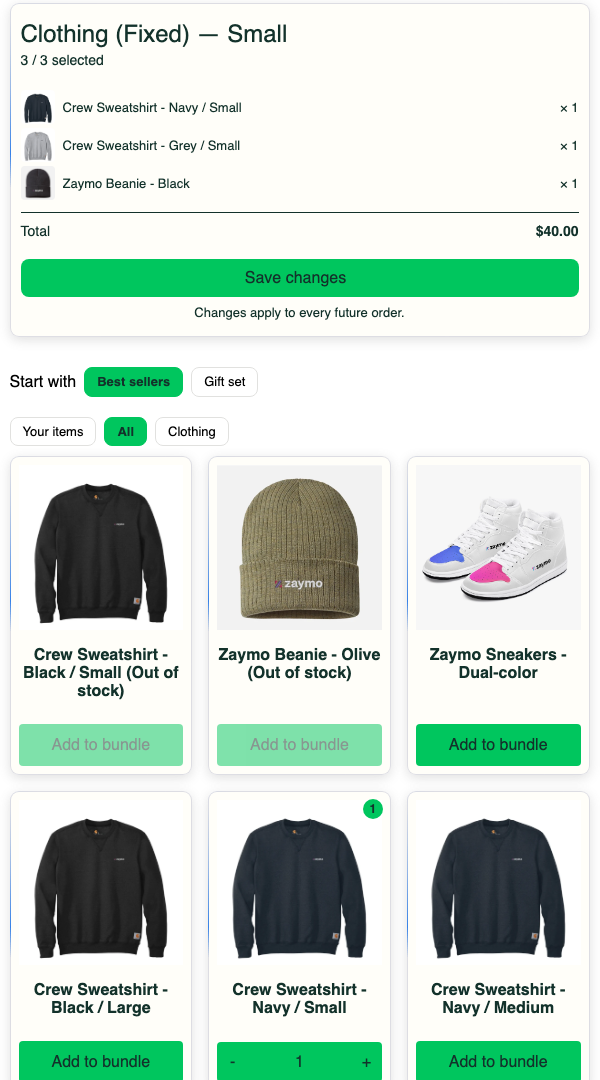
Turn on Group items to add tabs above the items. Tabs show when there are at least two groups. The customer sees one tab at a time.
Your items shows what's in their bundle.
All shows every item in the email.
The other tabs come from the bundle's collections.
Skio has no collections, so add your own under Groups. You can add your own groups on Recharge too. You can add up to 6 groups. Items in no group go under Other. An item in two groups shows in the first.
Sort
Option | Order |
|---|---|
Catalogue order | On Recharge, the order of your collections. On Skio, this may not match the order set in your box. |
Alphabetical | A to Z |
Date added | Newest products first |
Popularity | Best sellers first |
The customer's items and your highlights come before the sorted items. Sold-out items come last, unless they're in the customer's bundle.
Highlights
Pick items to show first. They appear after the customer's own items. With tabs on, they lead their group.
Presets
Presets are ready-made bundles, like "Best Sellers". They show as buttons above the items. A tap replaces the items shown in the email. The customer can still change it before saving.
Open Presets and select Add presets.
Name the preset.
Pick items and set their quantities.
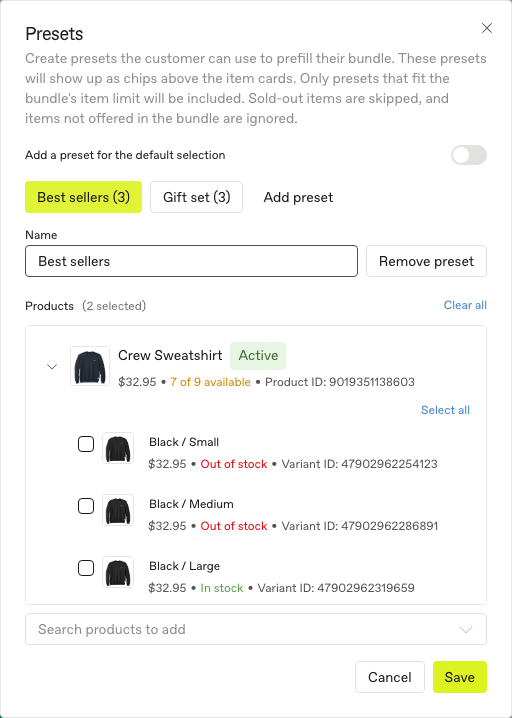
You can have up to 6 presets.
A preset must fit the bundle's rules, or it won't show.
Each item must be showing in the email. If not, raise Number of products.
Sold-out items are skipped.
The editor preview tells you if a preset won't show and why.
On Recharge, a block set to a specific bundle can also offer your default selection as a preset. It counts toward the 6.
In Apple Mail, a tap opens the full bundle page with the preset filled in. In Gmail, it fills the bundle in the email.