Cart builder
Last updated: November 5, 2026
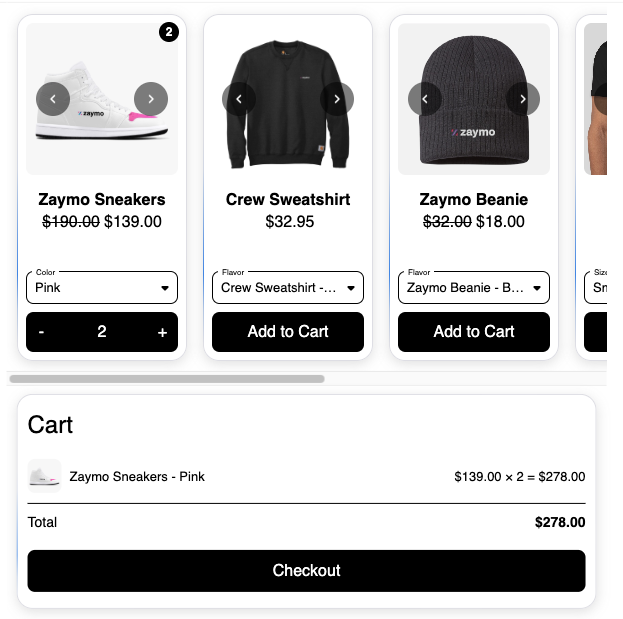
Cart builder turns a Products block into a working cart inside the email. Each product card gets a quantity stepper, a running total sits at the bottom, and one button sends the whole cart to checkout.
It is useful anywhere you want the customer to buy several things in one go rather than one item at a time: abandoned cart recovery, replenishment, and reactivating a cancelled subscription after letting the customer adjust it first.
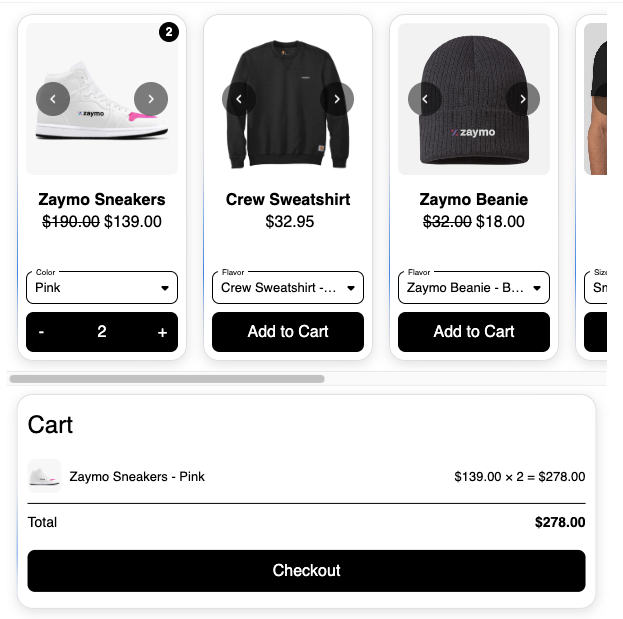
Why its settings look like the Products block
Cart builder is its own block, and you drag it in from the block list like any other. Under the hood it is built on the same engine as the Products block, running in cart mode.
That is worth knowing for one practical reason: its settings panel shares most of its options with the Products block, including how you choose which products appear. The settings that do not apply to a cart, such as per-card purchase options, are hidden automatically.
Before you start
Shopify needs to be connected.
For the subscribe and reactivate flows, you need Recharge, Skio, Loop, or Stay AI. Other subscription providers are not supported for this yet.
Choose what goes in the cart
Cart builder fills itself from a product feed, the same way a normal Products block does. The sources most often used with a cart are:
Source | What it pulls |
|---|---|
Abandoned Cart | the items the customer left in their cart |
Checkout Started Event | the items from a started checkout |
Viewed Product Event | items the customer looked at, which can also prefill the cart |
Latest Cancelled Subscription | the items from the customer's most recent cancellation |
Next Subscription | the items in the customer's next subscription order, for "edit your next order" emails (see Update subscription below) |
Custom product(s) | products you pick by hand |
Products from a Collection | a Shopify collection |
Shopify Best Sellers, Shopify Recommendations, Zaymo Recommended Products | recommendation feeds |
You can also chain several sources together and cap how many items each one contributes, so a single cart might show cancelled items first, then abandoned items, then best sellers.
Edit before reactivate
Pairing Cart builder with the Latest Cancelled Subscription feed gives you a reactivation email where the customer can change their order before restarting it. They can drop an item they no longer want, add more of something else, adjust quantities, and then reactivate with one tap.
This is different from the Reactivate block, which brings a cancelled subscription back as it was. Use Cart builder when you want to let people adjust their order first.
Subscribing happens by default
If the customer is on Recharge, Skio, Loop, or Stay AI and the cart contains subscription items, Cart builder creates the subscription when they check out, unless you've changed the Purchase option setting (see below). If they are not a subscriber, they go to a normal Shopify checkout instead.
If you use a different subscription provider, such as Ordergroove, the cart still works, it just always goes to a normal Shopify checkout rather than creating a subscription. We're not able to say yet when, or whether, that will change.
Two details worth knowing:
A cart discount applies to every subscription created from that cart.
If part of the subscription creation fails, Zaymo rolls the whole thing back rather than leaving the customer with half an order.
Choosing what checkout does
By default, Cart builder creates a subscription automatically when a subscription-eligible customer checks out (see above). The Purchase option setting lets you change that:
Create a subscription — the default behavior described above.
One-time purchase — checkout places an immediate one-time order instead of a subscription, charged to the payment method already on file. Right now this only works for merchants on Recharge. On any other provider, this option isn't offered, and the cart falls back to normal checkout, the same as if no purchase option applied.
Checkout — always sends the customer to a normal Shopify checkout, with no automatic subscription or one-time order.
Update subscription - for a customer with an active subscription, the button makes their next order match the cart instead of creating a new subscription, and it reads Update subscription. Customers without an active subscription get Create a subscription instead. Works with Recharge, Skio, Loop and Stay AI. Pair it with the Next Subscription source so customers start from their own next order.
Whichever option you pick, it still needs the customer to have a payment method on file to complete in the email itself. Without one, they land on a normal checkout instead, same as always.
The checkout button
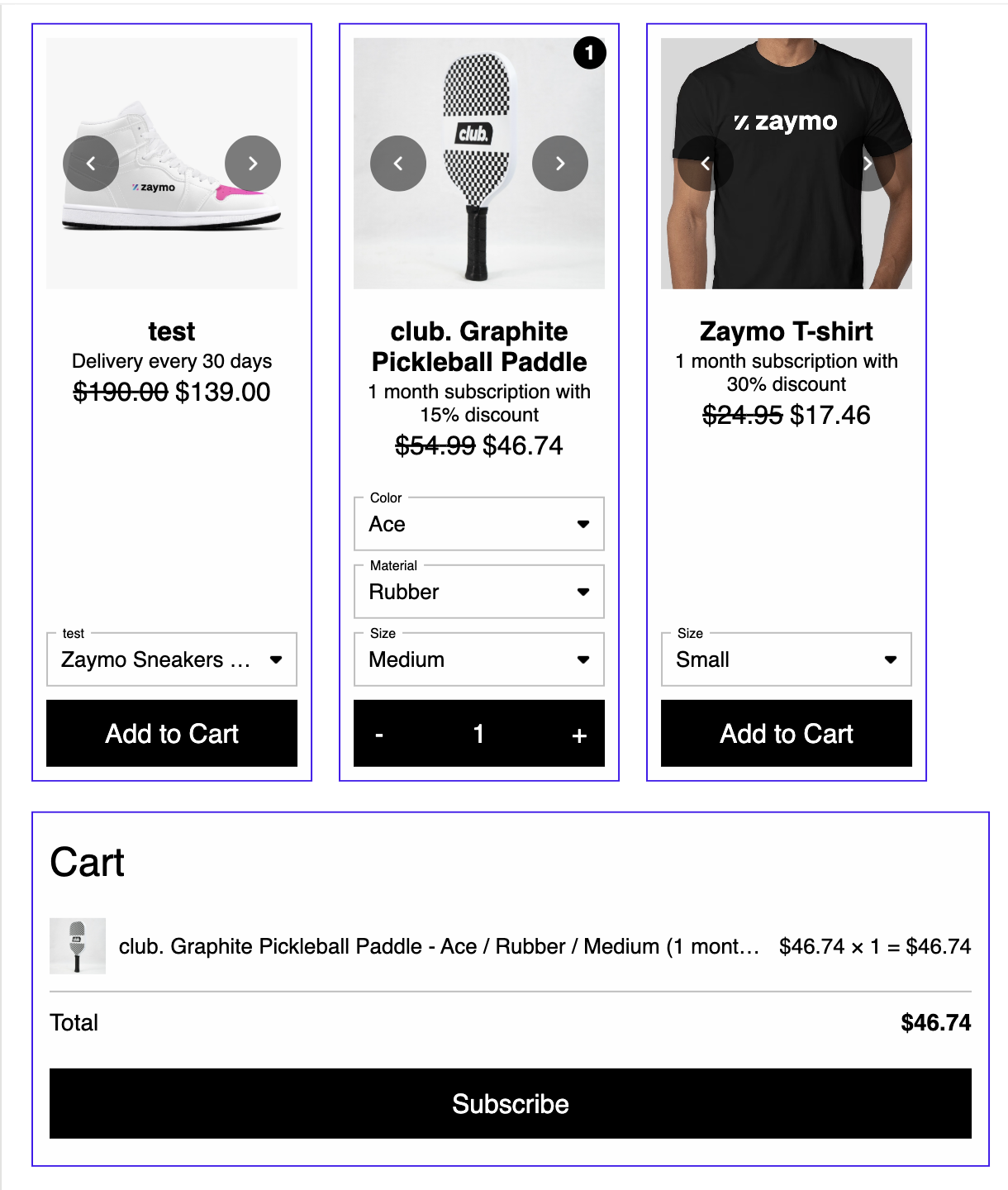
The footer button is editable and says Checkout by default.
For anyone with a valid payment method saved in your subscription provider, Zaymo swaps that wording to Subscribe, but only if you left the default text alone. This is based on having a payment method on file, not on subscription history. If you typed your own label, for example "Reactivate", your wording is kept exactly as you wrote it for everyone. So if you want the button to say something specific, type it and it will stick.
What the customer sees
Each product card has a stepper for quantity. The footer keeps a running count and total, along the lines of "3 items, $84.00". One tap on the footer button takes the whole cart to checkout with everything they selected.
Quantity limits
Max Quantity Per Item controls how many of any single item a customer can add. It defaults to 3 and you can set it anywhere from 1 to 9.
Nine is a hard ceiling rather than an arbitrary one. The stepper has to work inside Apple Mail, where it is built from CSS instead of script, and the design only supports a single digit. Keep it as low as your promotion actually needs, because a lower cap also makes the cart faster in Apple Mail.
Where the quantity control and the cart panel sit
Two layout settings, both optional:
Quantity Input Location controls where the − / + stepper appears once an item is in the cart. Default is Product Card, meaning the control lives right on the item. Switch it to Cart to move it into the cart summary line instead, and leave the product card itself as a plain button.
Cart Placement controls where the whole cart panel (the summary, totals, and checkout button) sits relative to the products. Default is Below Products. Switch it to Above Products to put the cart panel first.
A note on Apple Mail performance
In Apple Mail the stepper is built out of CSS rather than script, which means Zaymo has to generate markup for every possible quantity of every variant. Products with a lot of variants therefore make the stepper heavier, and it can start to feel slow.
If a customer reports a laggy or sluggish cart in Apple Mail, a high variant count is the first thing to look at. Reducing the number of products or variants in the cart is the fix.
If the cart comes up empty
The most common cause is that the feed found the customer's items but could not match them to products in your store. That happens when:
the product or variant has been deleted in Shopify
the event came from a different store
a product override is hiding that variant
Zaymo drops a line it cannot match rather than substituting a different variant, which is the right call, since charging someone for the wrong variant is worse than showing one fewer item. But it does mean a feed can look like it "pulled nothing" even though the underlying event had items in it. Check the products in Shopify first, then check your product overrides.
In email clients that cannot run interactive content
The customer sees a static image of the cart with a button underneath. Tapping it opens a hosted cart page where they can adjust quantities and check out for real.
For background on this across all blocks, see Parts of an interactive email: interactive vs fallback.
Conditional and tiered discounts are now supported
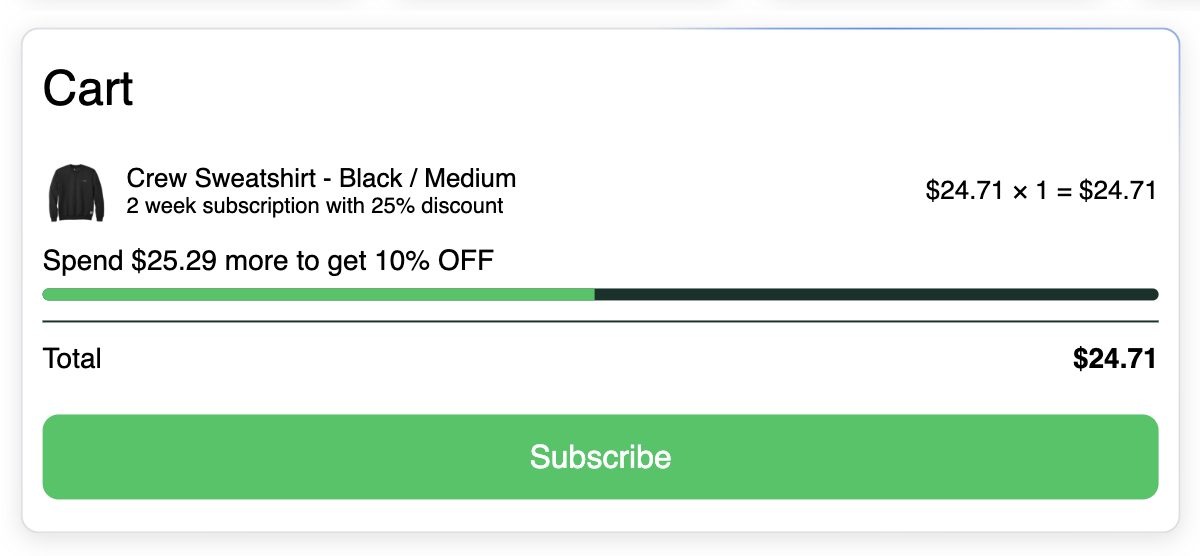
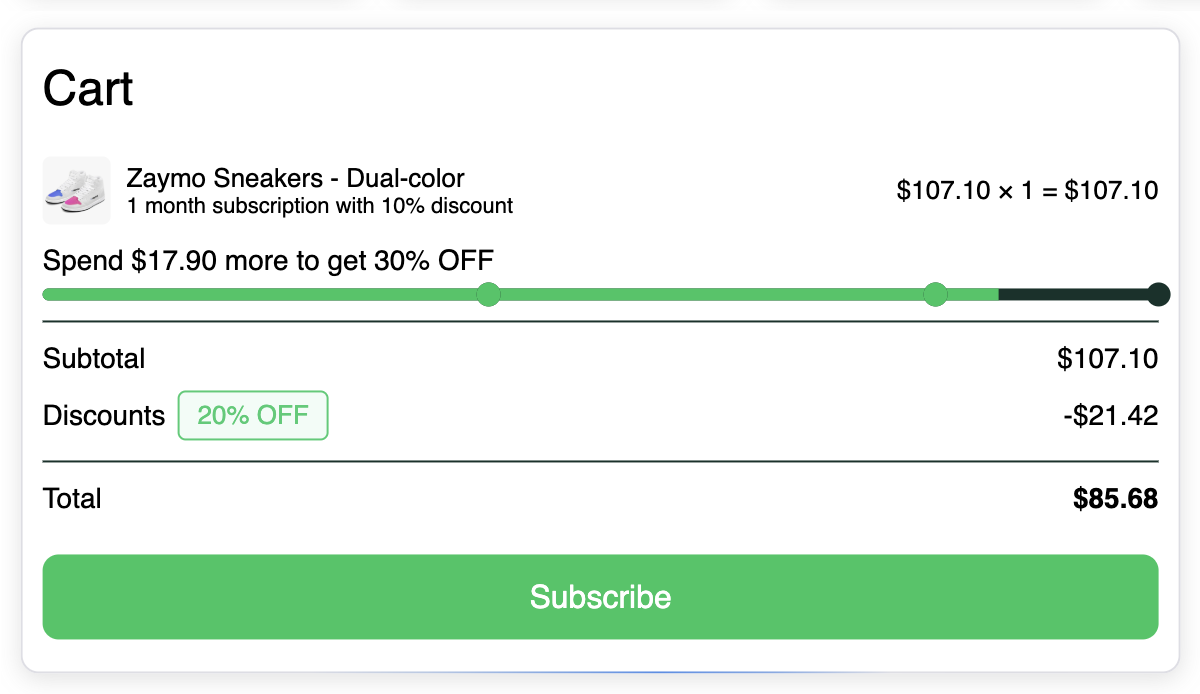
The cart builder block respects discount minimums for spend or quantity. You can even set up tiered discounts. After adding one discount to the cart builder you will see an "Add Tier" button to add another discount of the same type.
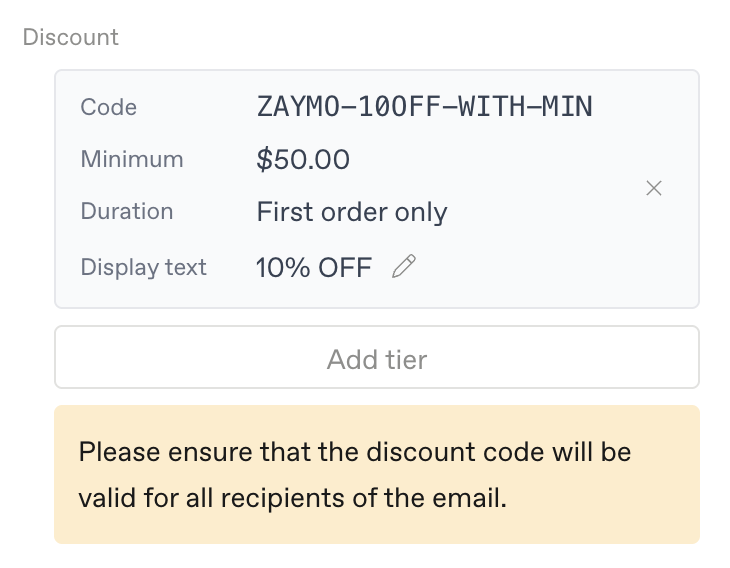
A single discount with a threshold adds a simple progress bar with a prompt like "Spend $xxx more to get %y off.
Multiple tiers looks similar with the addition of checkpoints as dots and dynamic text that updates after each checkpoint is reached.
Use the customer's own checkout code
In a Checkout Started flow, turn on Use customer's checkout code to honor the discount code the customer already typed at checkout. Their code replaces the block's discount, and the button sends them to checkout to finish. Customers who didn't enter a code get the block's discount as usual.
The email's totals don't include the customer's code. A line in the cart shows that it applies at checkout.
Only for carts using the Checkout Started Event source, and only for Klaviyo.
Not available with the Update subscription purchase option.
Not available together with free gift rules, unless the cart is one-time only.
Free gift rules
Give customers a free gift once their cart reaches a set amount or number of items. Gifts are added free, as one-time items, alongside whatever they buy.
There are two ways to give gifts:
Option | What happens |
|---|---|
Add fixed gifts to order | Every gift you pick is added automatically once the cart qualifies. There's nothing for the customer to choose. |
Let customer choose gifts | The customer picks their gift from a grid, for example "choose 1 of 3". |
Set it up
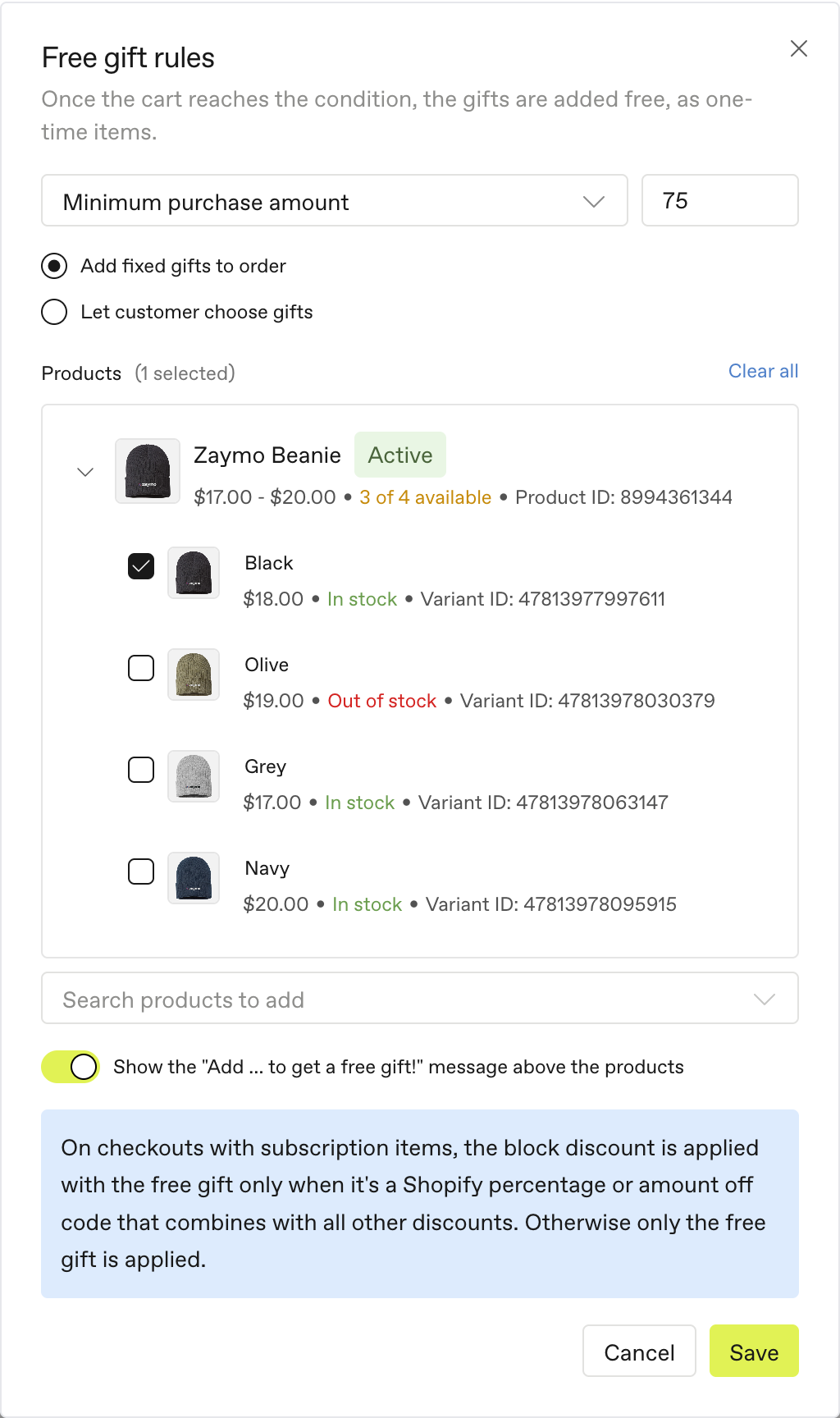
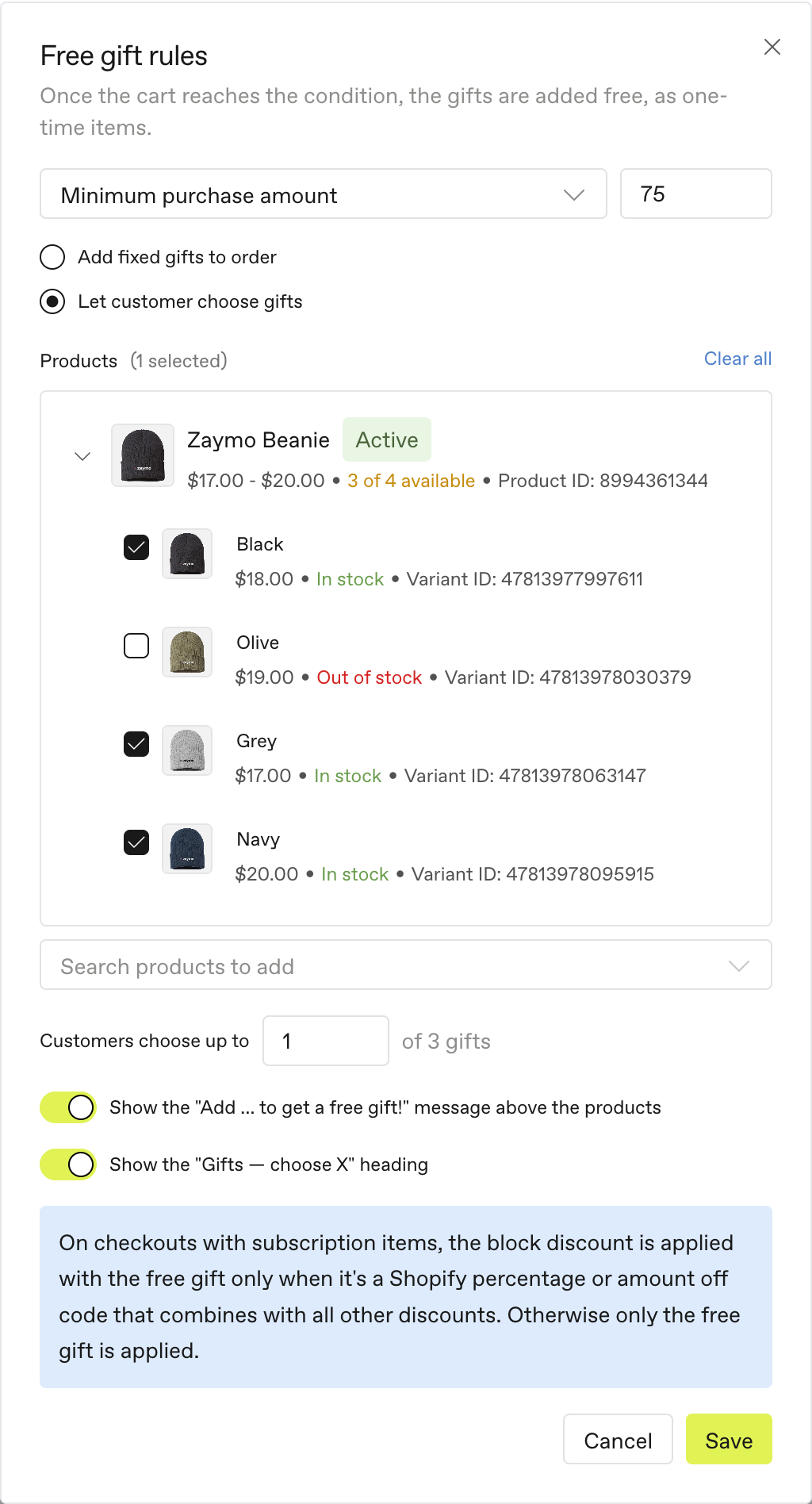
Select the Cart builder block and, under Free gift rules, click Add free gift.
Choose the condition: Minimum purchase amount or Minimum quantity of items, and enter the number.
Choose Add fixed gifts to order or Let customer choose gifts.
Search for the gift products and tick the variants to offer. Sold-out variants are marked Out of stock.
For Let customer choose gifts, set Customers choose up to X of your gifts. You need at least two gifts for this.
Optional: turn the "Add … to get a free gift!" message (and, for chosen gifts, the "Gifts — choose X" heading) on or off.
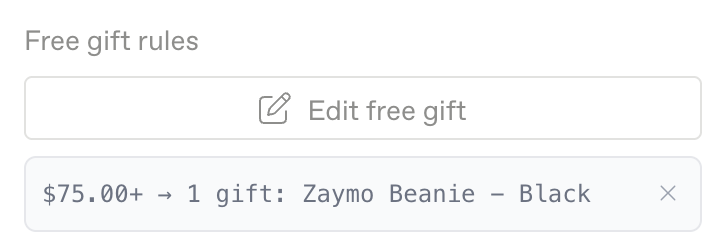
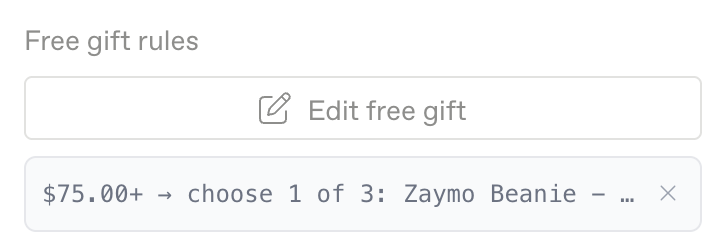
Click Save. The setting shows a short summary, like "$75.00+ → 1 gift: Zaymo Beanie – Black". Click Edit free gift to change it.
Gifts added automatically
With Add fixed gifts to order, every gift you picked drops into the cart the moment it qualifies. Use it for a single gift, or for a set of gifts that always go together.
Until the cart qualifies, a message above the products says "Add $12.00 more to get a free gift!" or "Add 2 more to get a free gift!"
Once it qualifies, the message changes to "Enjoy your free gift!" and the gift appears in the cart marked Free.
The customer can't remove the gift or swap it for another.
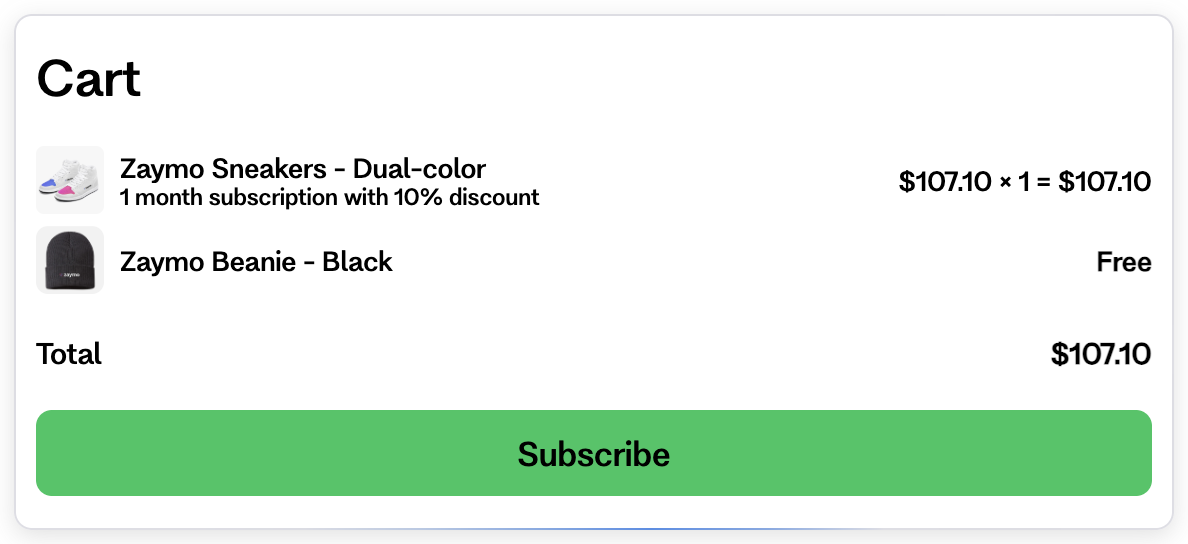
Customers choose their gift
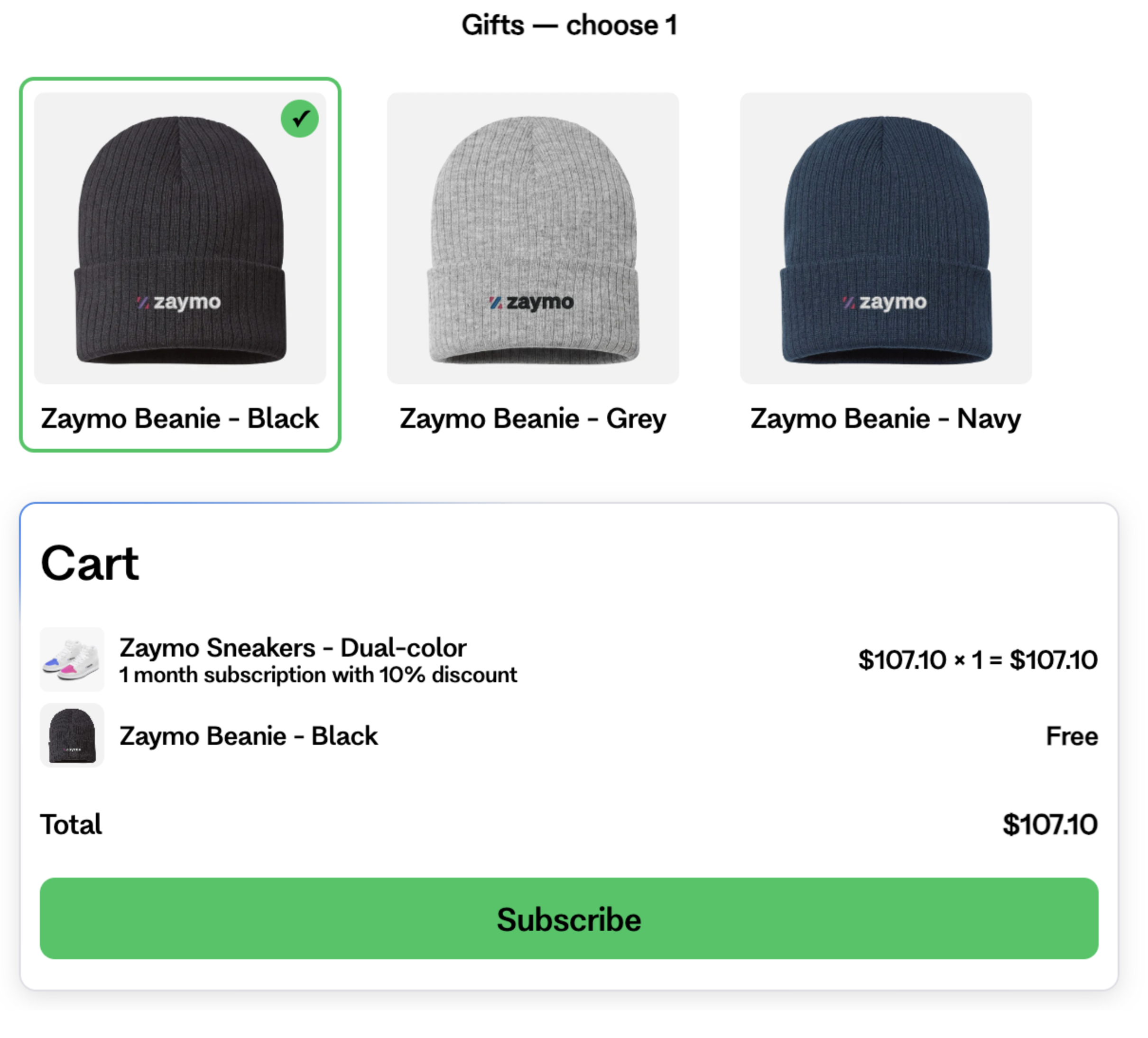
With Let customer choose gifts, a "Gifts — choose X" grid sits above the cart.
Until the cart qualifies, the grid is shown greyed out, under the "Add $75.00 more to get a free gift!" message.
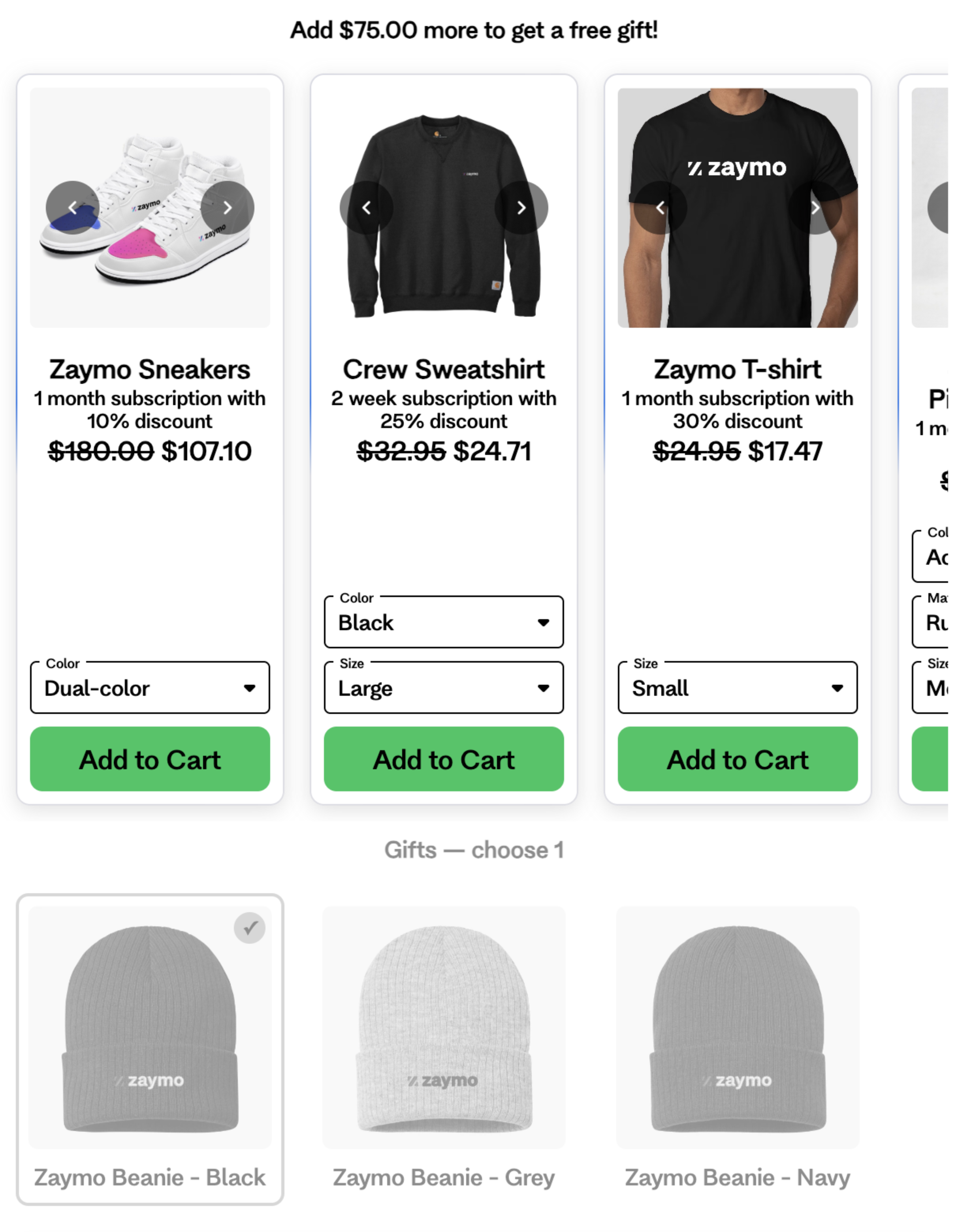
Once it qualifies, the grid becomes active and the first X gifts are already selected. Customers can change their pick, but can't choose more than X.
The chosen gift appears in the cart marked Free.
What counts toward the minimum
The minimum is checked against the subscription prices, before the block's own discount.
Gift products never show up as paid items in the cart.
It works in Gmail, in Apple Mail, and on the hosted cart page that other email apps open.
How the gift reaches the customer
Where the customer completes the order | How the gift is added |
|---|---|
In the email (subscribe, update subscription or one-time order) | Added to the order as a free one-time item. If the gift can't be added, the order still goes through without it. |
Shopify checkout | Zaymo creates a single-use discount code that makes the gift free. It only works if the cart still qualifies. |
Using a discount and a free gift together
One-time checkouts get both the block's discount and the free gift.
Checkouts with subscription items only accept one discount code, so Zaymo combines the discount and the gift into a single code. This only works when the block's discount is a Shopify percentage or amount off code that combines with all other discounts. Otherwise only the free gift is applied, and the email's total will still show the discount.
Good to know
Free gifts work with Recharge, Skio, Loop and Stay AI.
Subscription-only products can't be gifts, because the gift is a one-time item.
Shopify permission: Zaymo needs permission to create discounts in Shopify to make the gift free at checkout. If the Free gift rules window shows a warning, reconnect Shopify.
If an updated subscription no longer qualifies, the gift is removed from the next order. Any other free one-time item of the same product on that order is removed too, even one added some other way.
A gift already on the next order keeps its place while the cart still qualifies, and can't be swapped for a different gift from the email.
Recharge one-time orders: a customer who already subscribes to the gift product won't get it as a gift.
Free gift rules aren't available on the Bundle Builder.