Set up the Bundle Builder block
Last updated: November 19, 2026
Add the block
Open your email in the editor.
In the Blocks panel, open the Zaymo tab and drag Bundle Builder into the email.
Use the Bundle setting to choose what it shows.
Style it like any other block.
Items, sizes and limits update on their own. Your presets, highlights and groups don't.
If using Recharge, publish each bundle's Shopify collections to the Zaymo sales channel. Customers can't add items from other collections.
Settings
Some settings only appear when they apply. Some are Recharge only.
Setting | What it does | Default |
|---|---|---|
Bundle | Chooses the bundle. Pick the customer's next bundle, their last cancelled bundle or a specific bundle. Learn more | The recipient's next bundle |
Sizes | Chooses which sizes show as tiles, adds an optional ribbon to each, and sets the size that starts selected. Shows when Bundle is set to a bundle's (all sizes) row. Recharge only. Learn more | All sizes, up to 6. The largest starts selected. |
Default selling plan | The delivery schedule a new purchase starts on. Shows when a specific bundle has more than one. Recharge only. | First schedule |
Start with | What a new purchase starts with. Choose an empty box, your default selection or the customer's single items. Recharge only. Learn more | Empty box |
Upgrade | Offers the next size up on fixed-price bundles. Choose Off, Offer or Auto. Recharge only. Learn more | Off |
Upgrade to unlock discount | Gives the discount only to customers who upgrade. Shows when Upgrade is set to Offer and the block has a discount. Recharge only. | Off |
Allow users to switch selling plans | Lets customers who have the bundle change how often it ships. Pick-any bundles in a block set to a specific bundle can already do this. Recharge only. Learn more | Off |
Compact mode | Shows only the summary and one button that opens the full bundle page. This also hides the item settings. | Off |
Group items | Adds tabs above the items when there are at least two groups. On Skio, add your own Groups. Learn more | Off |
Sort | Orders the items. Choose catalogue order, alphabetical, date added or popularity. | Catalogue order |
Highlights | Shows the items you pick first, after the customer's own items. | None |
Groups | Sets your own tabs. Shows when Group items is on. | None |
Presets | Adds buttons that fill the bundle for the customer. | None |
Discount | Adds one discount code when the customer saves or buys. On Recharge, a save replaces any other code at that address. Learn more | None |
Free gift rules | Gives free gifts when a customer buys a new bundle or brings back a cancelled one, not when they only edit it. Set how many items unlock each gift, and whether the gifts are added for them or they choose. Gifts show in the email and on the full bundle page. Learn more | None |
Cart Placement | Puts the summary above or below the items. | Above Products |
Bundle items in summary | Shows or hides the list of items in the summary. | Show |
Bundle summary header | Shows the bundle's name or your own wording. | Bundle title |
Number of products | How many items show in the email, up to 60. | 12 |
Products per row | In the grid layout, set desktop and mobile separately. The most is 4 on desktop and 3 on mobile. | 4 and 3 |
Compact mode
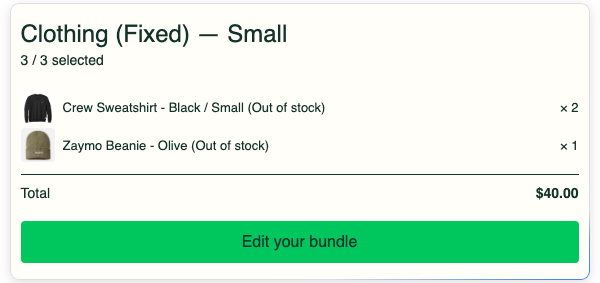
With Compact mode on, the email shows the summary and one button. For current subscribers, it says Edit your bundle.
The View full catalog box
This box appears when a bundle has more items than the email shows. It opens the full bundle page. You can change its wording and style in the editor.
Preview the block
The editor shows up to 12 items to stay fast. Your email still shows the full number.
With a real profile, you see what that customer would see.
With the demo profile, you usually see one of your real bundles. On a block set to a specific bundle, set Has active subscription to Yes to see editing or No to see buying. Set Payment method to Inactive to test a customer with no saved card.
The preview can tell you about a preset that won't show or a collection that isn't published to Zaymo.
Good to know: If you rename a bundle, a block set to that bundle can keep the old name. Open the email in the editor and make an edit. It syncs to Klaviyo about 10 seconds later.